Subscriptions
Forecast Bar is two separate apps — one for iPhone & iPad, one for Mac — each with its own subscription tiers. See the Compare Plans page for the full feature breakdown by platform.
A note about Version 11 and lifetime subscriptions
Forecast Bar today relies on ongoing expenses that didn’t exist in the same way back when the app launched — including high-quality weather data, server infrastructure, and newer features like AI-powered summaries, enhanced radar, and more robust push notifications. These are recurring costs that continue to grow as we improve the app.
With Version 11, lifetime subscriptions transitioned to a yearly Pro subscription. This wasn’t a decision we made lightly — lifetime plans were discontinued nearly 15 years ago, and over time the cost of maintaining the app has changed significantly.
That said, we want to make this transition as fair as possible: your first year of Pro is completely free. After that, the subscription simply renews annually at the standard Pro rate.
If you have questions or run into trouble during the transition, please reach out to support@higherbarapps.com — we’re happy to help.
Why does Forecast Bar require a subscription?
Your subscription supports two main things:
- Ongoing weather and infrastructure costs. Premium weather data, animated radar, AI-powered summaries, and push notifications are all paid services. Each forecast we deliver costs us money — and we deliver a lot of them.
- Continuous improvement. We’re a small team that ships updates often, supports the latest Apple platforms, and reads every support email. Subscriptions keep the lights on so we can keep building.
My subscription isn’t being recognized. What should I do?
If Forecast Bar isn’t recognizing your active subscription, try these steps in order:
- Restart Forecast Bar. Fully quit the app and reopen it. This is also required after an auto-renewing subscription renews.
- Restart the device. A reboot of the iPhone, iPad, or Mac often resolves StoreKit issues.
- Check for updates. Open the App Store and make sure you’re on the latest version of Forecast Bar.
- Confirm your Apple ID. The Apple ID signed in to the App Store must be the same one used when you purchased the subscription. Per Apple policy, in-app subscriptions are not shared via Family Sharing.
- Restore purchases. Open Settings inside Forecast Bar and tap “Restore Purchases.”
If none of that works, email support@higherbarapps.com with a copy of your Apple receipt and we’ll sort it out.
How do I cancel my subscription?
You can turn off auto-renew at any time in your Apple ID subscription settings (Settings → your name → Subscriptions on iPhone/iPad, or System Settings → your name → Media & Purchases → Manage on Mac). Subscriptions renew automatically unless cancelled at least 24 hours before the end of the current period.
Pricing
Forecast Bar offers two subscription tiers on each platform. iPhone & iPad use Gold (premium) and Silver (standard); Mac uses Pro (premium) and Plus (standard). Current pricing is always shown in the App Store at purchase.
What changed with the new tiers?
iPhone & iPad now use a two-tier system — Gold and Silver — replacing the older Bronze/Silver/Gold lineup. Mac uses Pro and Plus, replacing the previous Standard/Premium tiers. See the Compare Plans page for the full feature breakdown by platform.
Where can I see the actual prices?
Apple shows current pricing inside Forecast Bar on the Subscriptions screen and again at checkout. Prices vary by region and may change over time, so the App Store is always the source of truth.
Does my subscription work on Family Sharing?
Per Apple policy, in-app purchases are not shared through Family Sharing. Each family member who wants a paid tier will need their own subscription.
I had a lifetime subscription. What happens to me?
Your first year on the new premium tier is completely free. After that, the subscription simply renews annually at the standard rate. If anything looks off in the app, please email support@higherbarapps.com and we’ll take care of you.
Widgets
Home Screen, Lock Screen, StandBy, and Apple Watch — Forecast Bar widgets put the weather you care about right where you need it.
Why doesn’t the data in my widget exactly match the main app?
Widgets behave like “mini-apps” and update independently from the main app. Because our weather provider updates current conditions and forecasts very frequently, the widget and the app may briefly show slightly different values — one has just updated more recently than the other. Within a few minutes they’ll converge.
The high and low temperatures don’t always match between the widget and the app.
Widgets are designed to load fast and use as little battery as possible. To do that, they fetch high/low temperatures using a more efficient (but slightly less detailed) request than the main app. This can lead to small discrepancies, which is normal.
My widget’s “current location” is outdated. How do I fix it?
Make sure Forecast Bar has Location permission set to Always — otherwise your widget can’t update its location until you open the app. Beyond that, iOS limits how often any widget can refresh per day, so the location won’t track you in real time as you drive around. The widget will catch up as background refreshes fire throughout the day.
Complications
Get weather right on your watch face — with the most customizable Apple Watch complications of any weather app.
What’s a complication?
Complications are the small bits of info you can add to your Apple Watch face — like the date, your battery, or weather. Forecast Bar offers a wide variety of complications so the data you care about is always one glance away.
How do I customize my complications?
In Forecast Bar on iPhone, open Settings → Watch. Pick the watch face you actually use, then tap each complication slot to choose what it shows — current temperature, “feels like,” precipitation chance, wind, UV index, next-hour summary, location, and many more. When you back out, your changes sync to your wrist.
Can I make my complications update faster?
A few things help Apple Watch update Forecast Bar more often:
- Add a Forecast Bar complication to your active watch face.
- Keep Forecast Bar in your watch’s Dock.
- Set Location Services to Always.
- Leave Background App Refresh enabled.
Why does Forecast Bar need Location set to “Always”?
To show weather for your current location on your watch and in widgets, Forecast Bar needs to update your location while running in the background. We use iOS’s “significant location change” service — which relies on Wi-Fi and cell-tower triangulation rather than the GPS — so battery impact is minimal.
My complication customizations aren’t showing up on my watch.
Customizations are pushed to the watch when you exit the customizer, and appear at the next scheduled update (usually a few minutes). If they still don’t appear, restart both your iPhone and Apple Watch.
Notifications
Forecast Bar’s notification system has grown a lot — severe weather, imminent precipitation, daily summaries, earthquakes, and fully custom alerts.
What kinds of notifications does Forecast Bar send?
- Severe weather alerts from the National Weather Service (U.S.) and Environment and Climate Change Canada (Canada)
- Precipitation alerts and Live Activities when rain or snow is imminent at your location
- Daily and evening reports — a personalized summary of the day or the day ahead
- Earthquake notifications based on the magnitude and distance you choose
- Custom notifications you build yourself from any combination of weather data points
How do precipitation Live Activities work?
When rain or snow is on the way, Forecast Bar starts a Live Activity on your Lock Screen and Dynamic Island that updates as conditions change. You’ll see how soon precipitation is expected, intensity, and when it’s likely to clear — without ever opening the app.
Where are severe weather and precipitation alerts available?
Severe weather alerts cover the United States and Canada, issued by the National Weather Service and Environment and Climate Change Canada. Precipitation alerts are available in the U.S., U.K., Ireland, and parts of Canada.
I’m not getting notifications — how do I troubleshoot?
Open Settings → Forecast Bar on your iPhone and confirm:
- Notifications are enabled (and not silenced by a Focus mode)
- Location is set to Always
- Background App Refresh is on
Then open Forecast Bar → Settings → Alerts and double-check the alert types you want enabled. If something still isn’t arriving, send us a note at support@higherbarapps.com.
Temperature Badge
Why does my badge show a number over 1000?
Apple only allows numbers in app icon badges — no minus signs. To represent negative temperatures, we prepend 10. For example, a badge of 1010 means −10°.
Radar
Can I use a custom radar URL?
Yes. If you have a local radar site you prefer, you can enter its URL in Forecast Bar’s settings and we’ll load that page in the radar view. For example: http://raintoday.co.uk/mobile.
What’s included in the enhanced radar?
Forecast Bar Pro includes animated, interactive radar and satellite layers, plus additional imagery layers like temperature, wind, UV, and more. You can pan, zoom, and scrub through past and forecast frames to see exactly where precipitation is headed.
Tips & Tricks
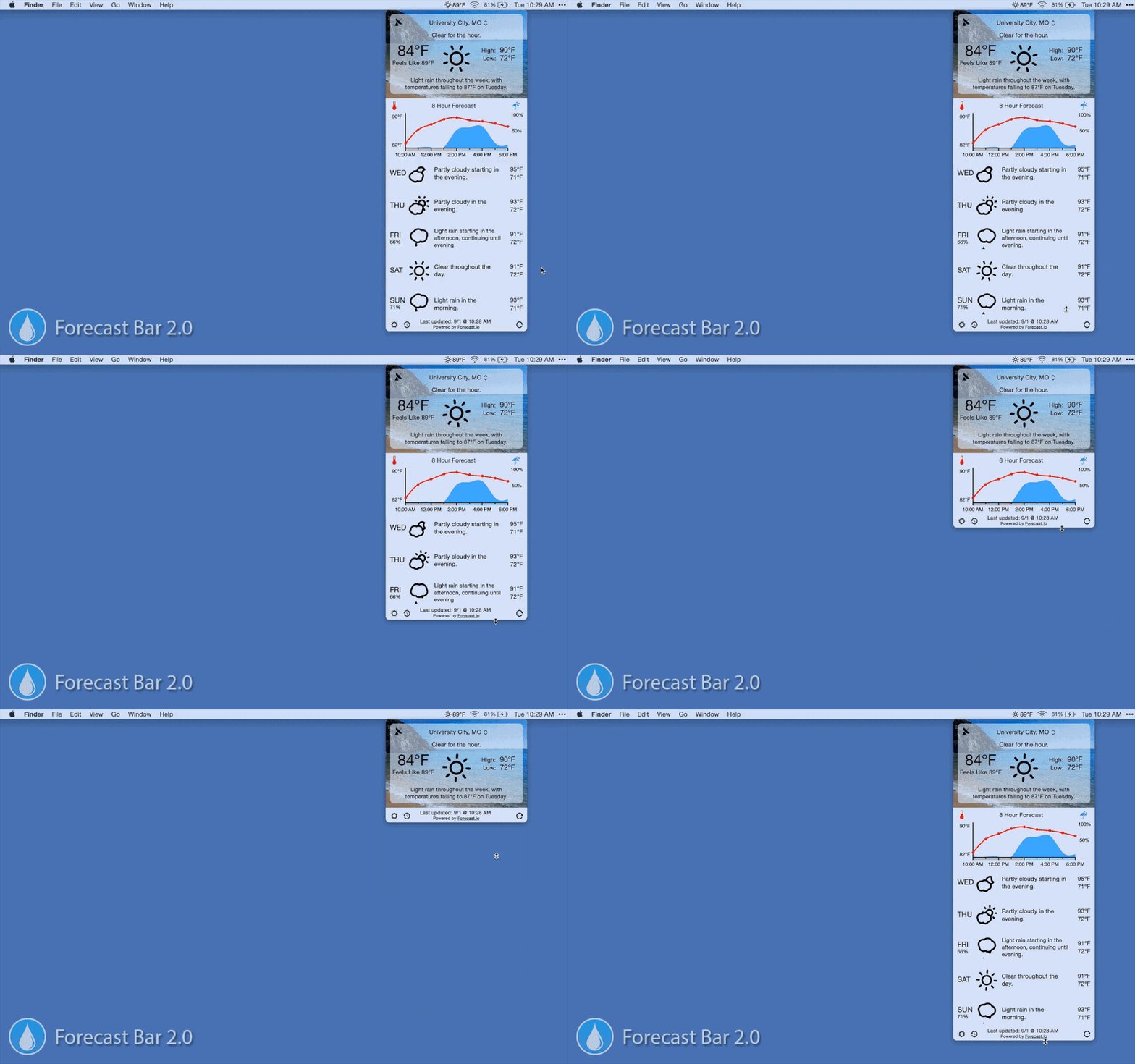
How do I show more or fewer days in the Mac forecast panel?
Hover the bottom edge of the panel until your cursor turns into a resize arrow, then drag up or down to add or remove days.
How do I switch between locations quickly?
Open the side menu (or use the location list) to swipe between any of your saved locations. You can also reorder them and pin your favorites to the top.
Contact Us
We’re a small team and we read every email. If something isn’t working, or you have a feature idea, we want to hear about it.
Cross‑Platform
Forecast Bar for iPhone & iPad and Forecast Bar for Mac are two separate apps with their own subscriptions, but settings and locations sync between them through iCloud.
Do I need separate subscriptions for iPhone and Mac?
Yes. iPhone & iPad use the Gold and Silver tiers; Mac uses Pro and Plus. An iOS subscription does not unlock the Mac app and vice versa. See the Compare Plans page for full details.
What syncs between my iPhone and Mac?
With every device signed in to the same Apple ID, your saved locations and most settings sync via iCloud. Subscriptions are tied to each app individually and do not sync between iOS and Mac.
I’m still seeing something that looks wrong — who do I contact?
Email us anytime at support@higherbarapps.com. Tell us which devices are involved and what you’re seeing — we’ll dig in.