Storm Intelligence
Forecast Bar now watches individual storm cells — tells you when one is coming for you, walks you through it live on the Lock Screen, and hands you a receipt of what hit.
Storm InterceptiOS
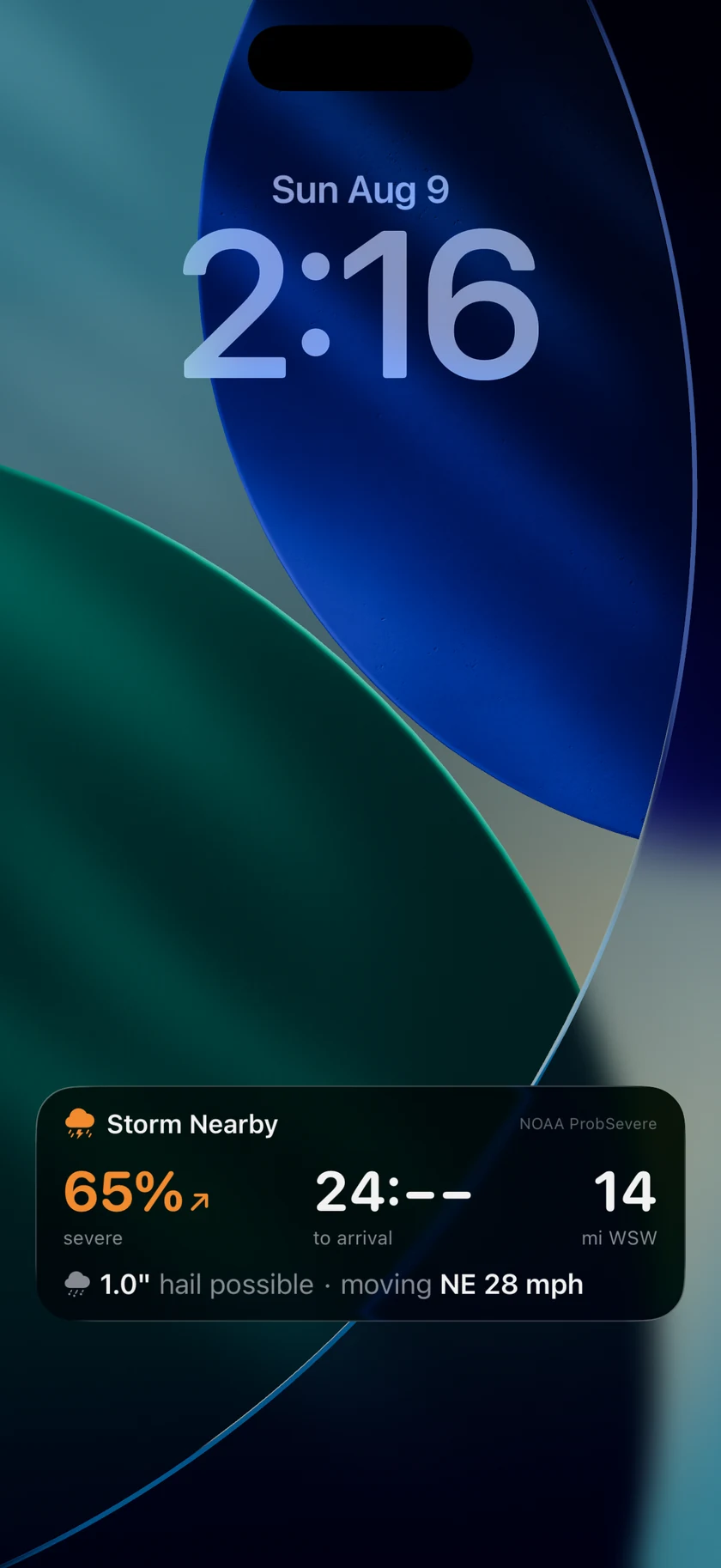
A severe storm heading your way now runs on your Lock Screen. How likely it is to turn severe, how far out it is, and a countdown to when it reaches you — updating without you opening anything.
The countdown ticks between updates rather than sitting frozen between pushes, and the card follows the storm as it changes: strengthening, weakening, or sliding past. In the Dynamic Island it collapses to the probability alone, in the severity's colour, and expands on a long press.
The state we're most pleased with is the one that tells you to relax. When a storm is going to miss, it says so — the closest it will come, and then it gets out of your way. A weather app that only ever escalates teaches you to ignore it.
It mirrors to the Apple Watch Smart Stack, the same way precipitation alerts already do.
Storms on the radariOSMacTV
Radar shows you where the rain is. It does not tell you which storm in a line is the one to worry about.
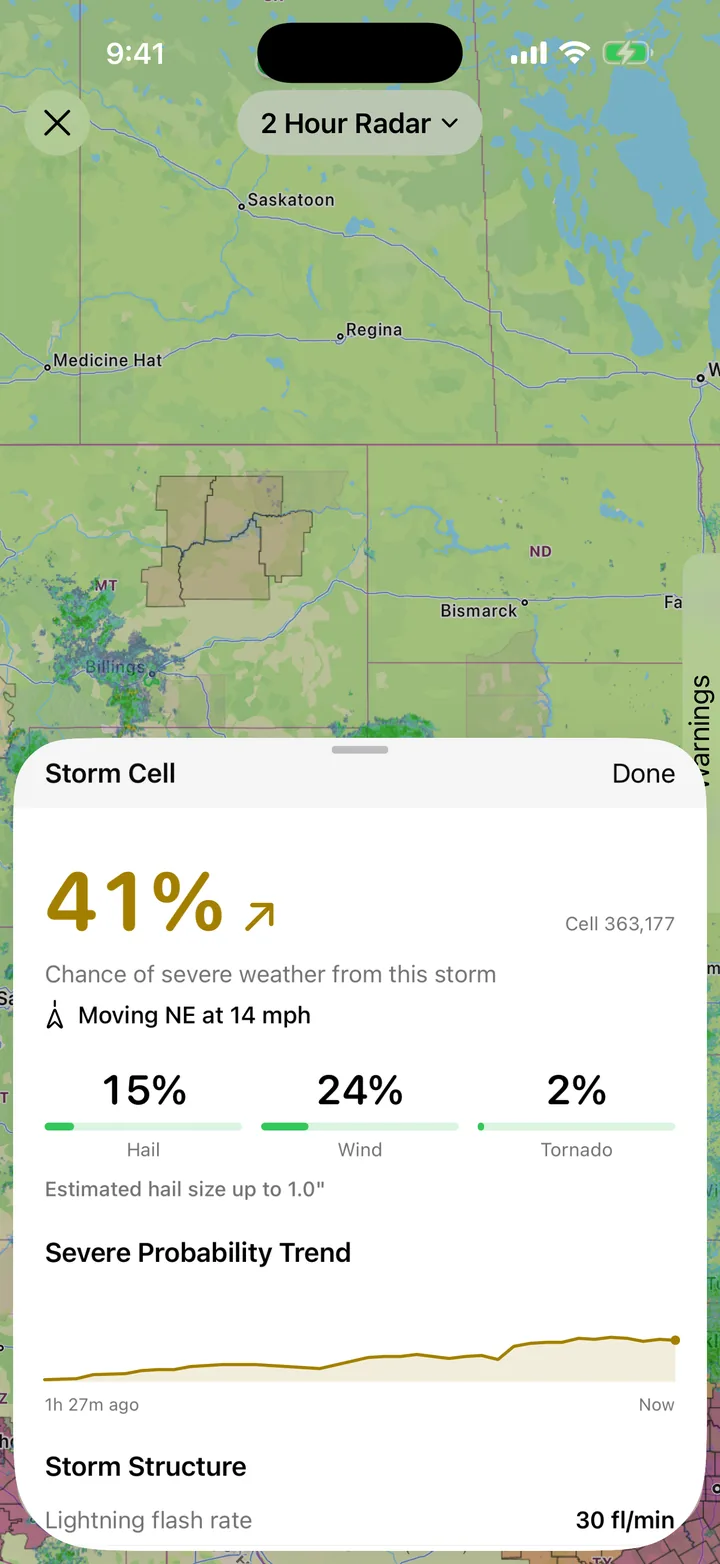
Storm Cells draws every tracked cell with its probability of turning severe, read straight off NOAA's ProbSevere guidance. A squall line stops being an undifferentiated smear and becomes a row of numbers, one of which is bigger than the others.
Open a cell and you get the whole read: the severity trend, the split between hail, wind and tornado, estimated hail size, a probability sparkline from the last hour, lightning flash rate and echo top.
The same guidance is available as an alert. Severe Storm Probability and Hail Size join custom alerts — pick a distance, a probability or a hail size, and get told when a storm within that radius crosses it.
Severe RiskiOSMacTV
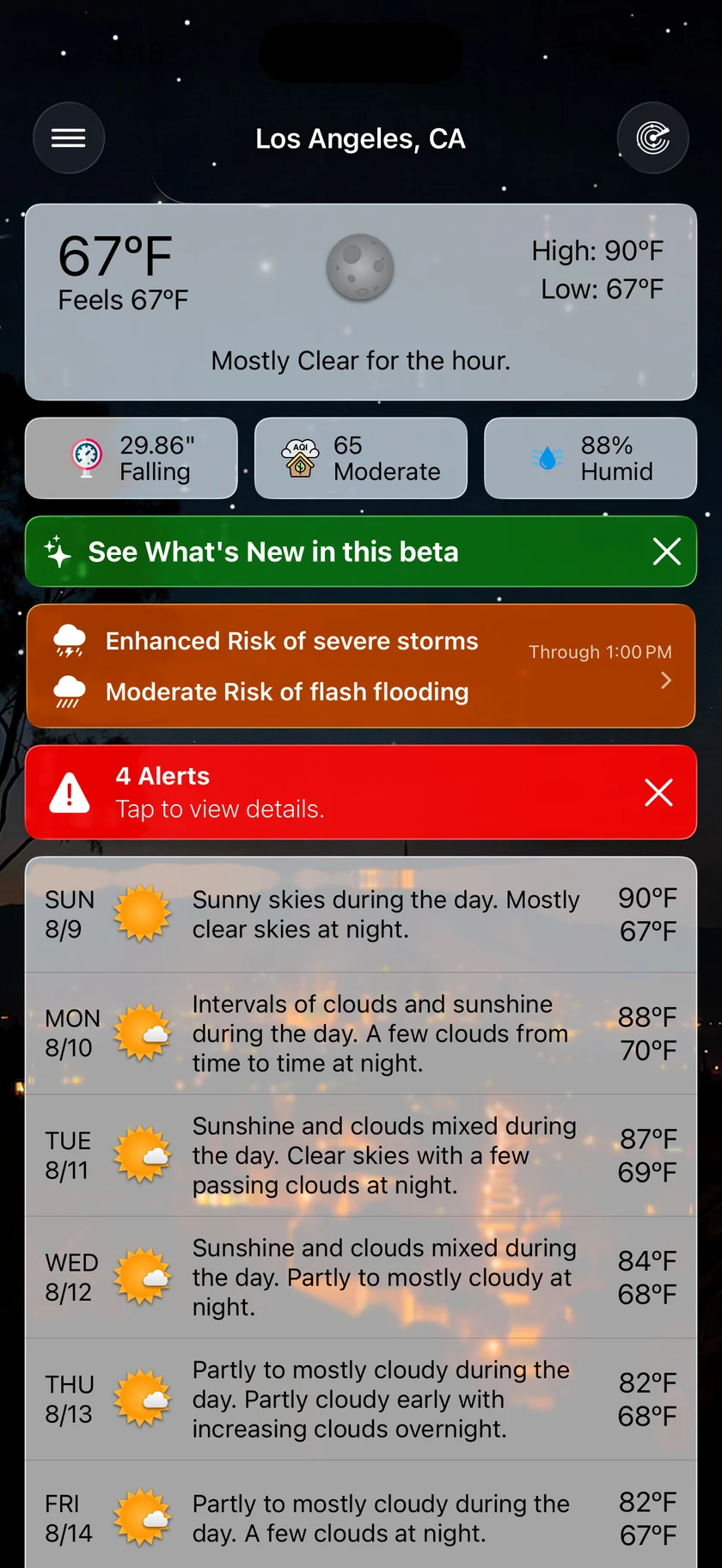
On a handful of days a year, the national outlook knows hours before the first watch is issued that your area is in trouble. Those are the only days this card appears.
It is deliberately rare. Marginal and Slight risks cover much of the country through the season, and by the time that level of risk matters the watch and warning alerts already own the moment with better information. So the card holds itself back for SPC Enhanced and above, and WPC Moderate and above — the days where the outlook genuinely leads everything else.
One line per risk, the hours it covers, and a tap that opens the radar with that outlook drawn over the map. The map overlay is not so precious: it draws every tier, because severe risk has to be read against the storms sitting inside it.
Severe Outlook AlertsiOSMac
By the time a watch is issued, the day is already happening. NOAA's outlook goes out hours earlier — it is the forecaster's read on how the day could turn — and until now Forecast Bar could draw it for you but never tell you it had changed.
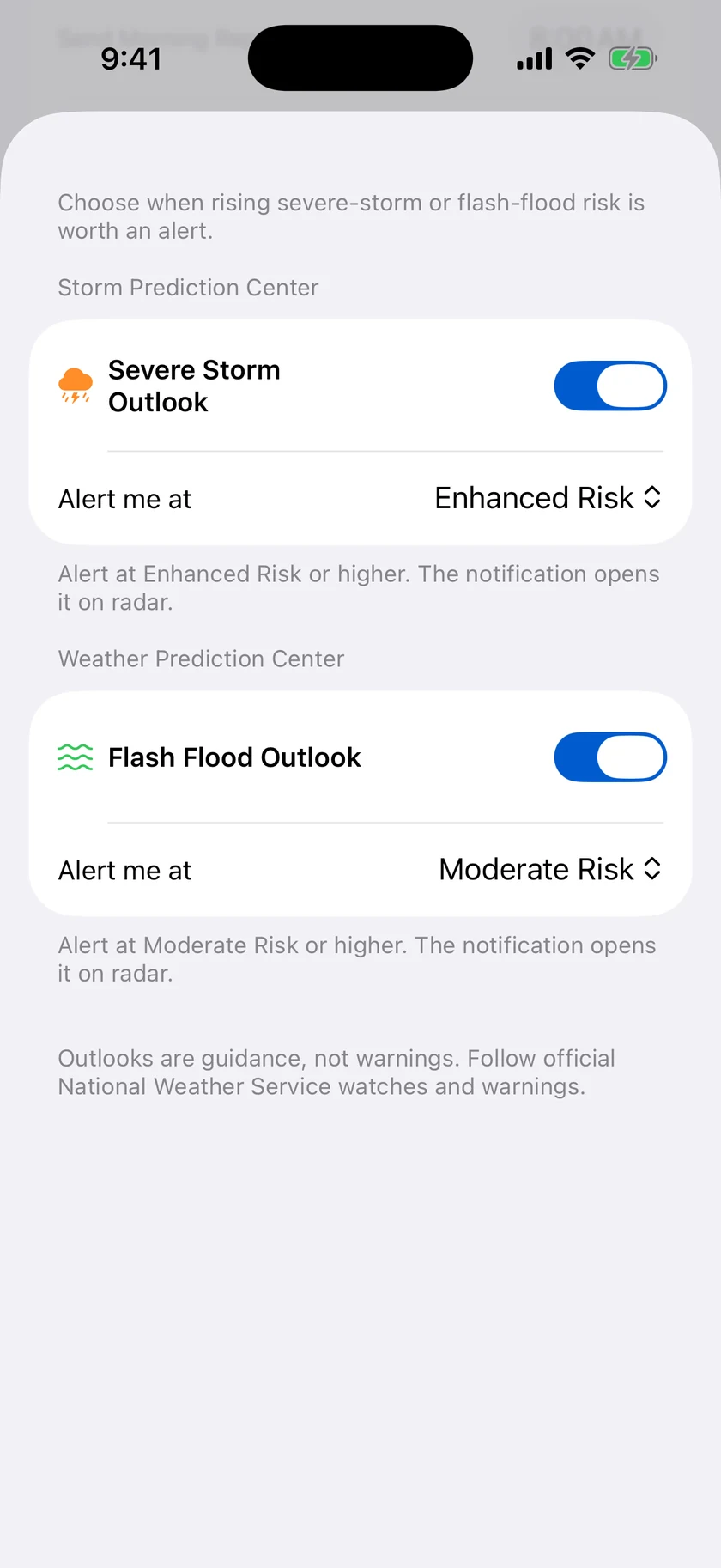
Now it can. Turn on Outlook Upgrades under Weather Alerts and you get told when the outlook where you are is raised.
Severe storms and flash flooding are separate switches, because they are separate products on unrelated scales: a Moderate risk of flooding and a Moderate risk of storms are not the same sentence. Both start at the level the Severe Risk card already uses, so an alert means a genuinely unusual day rather than a routine one. Move them down if you want more warning than that.
Storm Tracker and the storm reportiOSMacTV
Hail damage has a habit of surfacing months later, when a roofer points at something and asks when it happened.
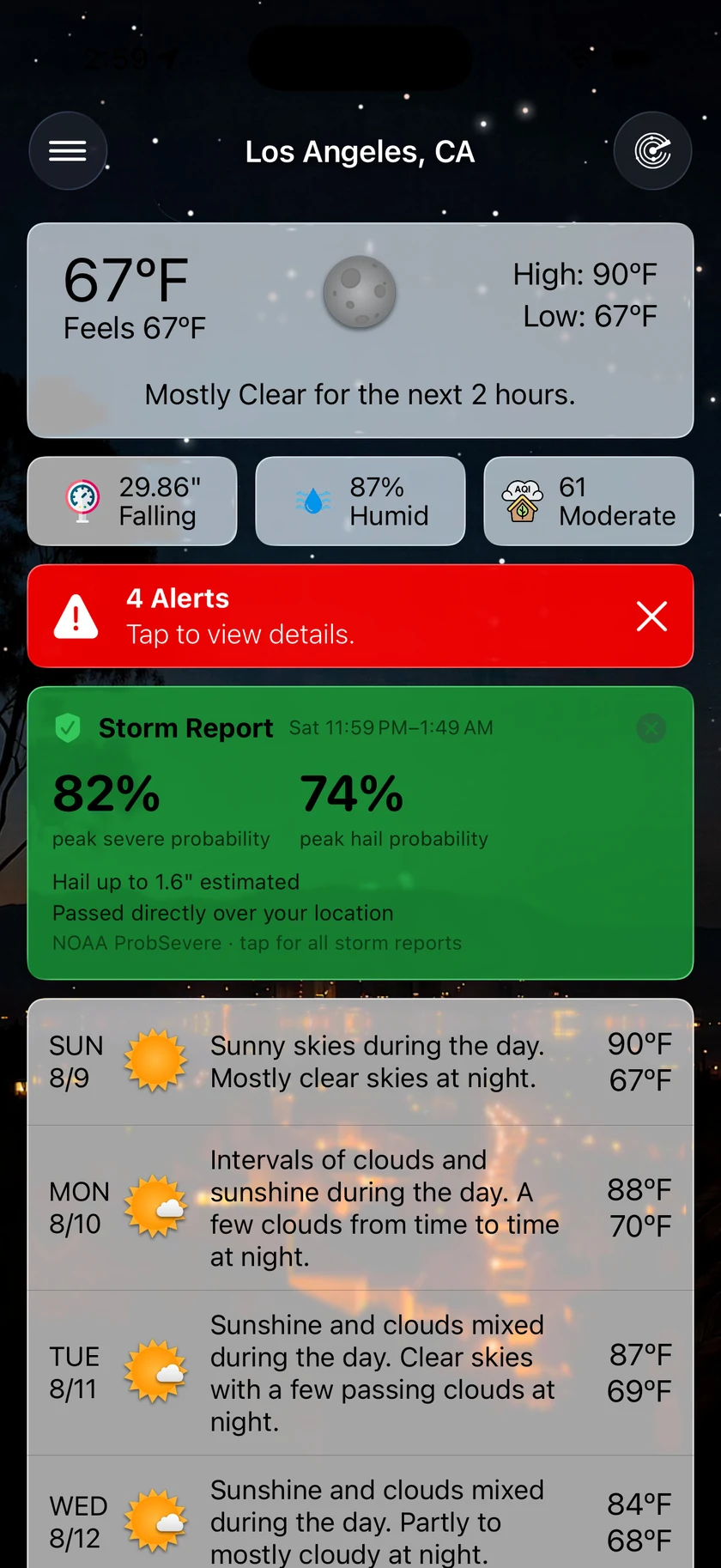
After a storm passes over you, Forecast Bar writes down what hit. Peak severe probability, peak hail probability, the estimated hail size, whether it went directly overhead or passed nearby, and the window it happened in.
Storm Reports keeps them for two years, which is roughly the timescale on which that roofer turns up. It is reachable from the card itself and from the Weather Alerts screen.
While a storm is still on its way, the Storm Tracker card carries the live version of the same information: probability with a trend arrow, hail size, distance and motion, and either an arrival time or the reassurance that it will pass wide.
Smart Data PointsiOSMacTV
A UV index at midnight is not information. Neither is a rain accumulation of zero on a dry week, or a wind gust reading on a still day.
Forecast Bar can now choose its own tiles from what the weather is actually doing. UV while the sun is up, accumulation once it is raining, gusts when it is gusty; fog, heat, chill, mugginess and an approaching sunset all ramp in and out on their own curves. Pick how much you want — Only Important, which can legitimately show nothing on a calm day, Key Basics at about three, or Extended at about six.
It also stops repeating itself. No precipitation chance tile above a rain chart that is already showing you the rain. No Feels Like beside a headline that already says it. Gusts fold into the wind tile, which was showing the range anyway.
The full grid sorts by what matters right now rather than a fixed order. And if you would rather do it yourself, drag a tile — it takes your arrangement and hands control straight back, no setting to find.
Compare cities without leaving the forecastiOSMac
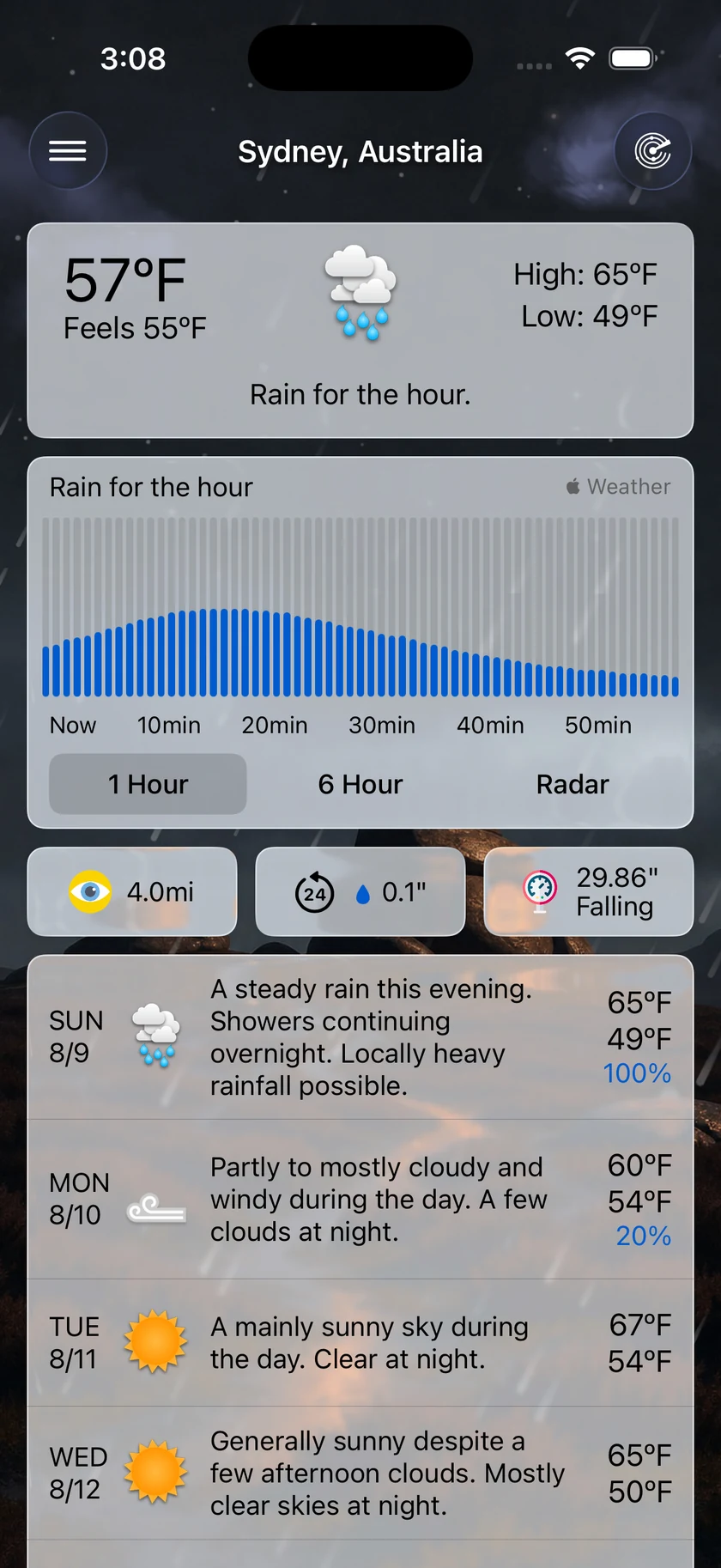
Up to five of your saved cities can sit right on the forecast, above or below it, each with its own local time, conditions and temperature. One tap compares, and the arrow beside it switches to that city outright.
Set a Home location and it leads the card whenever you are away from it — so the city you are travelling in is on screen, and the one you left is right underneath it. At home it quietly folds away, because then it is just where you already are.
Compare also stops losing your place: leave it on Current, Hourly or Daily and that is where it opens next time.
Week Ahead OutlookiOSMac
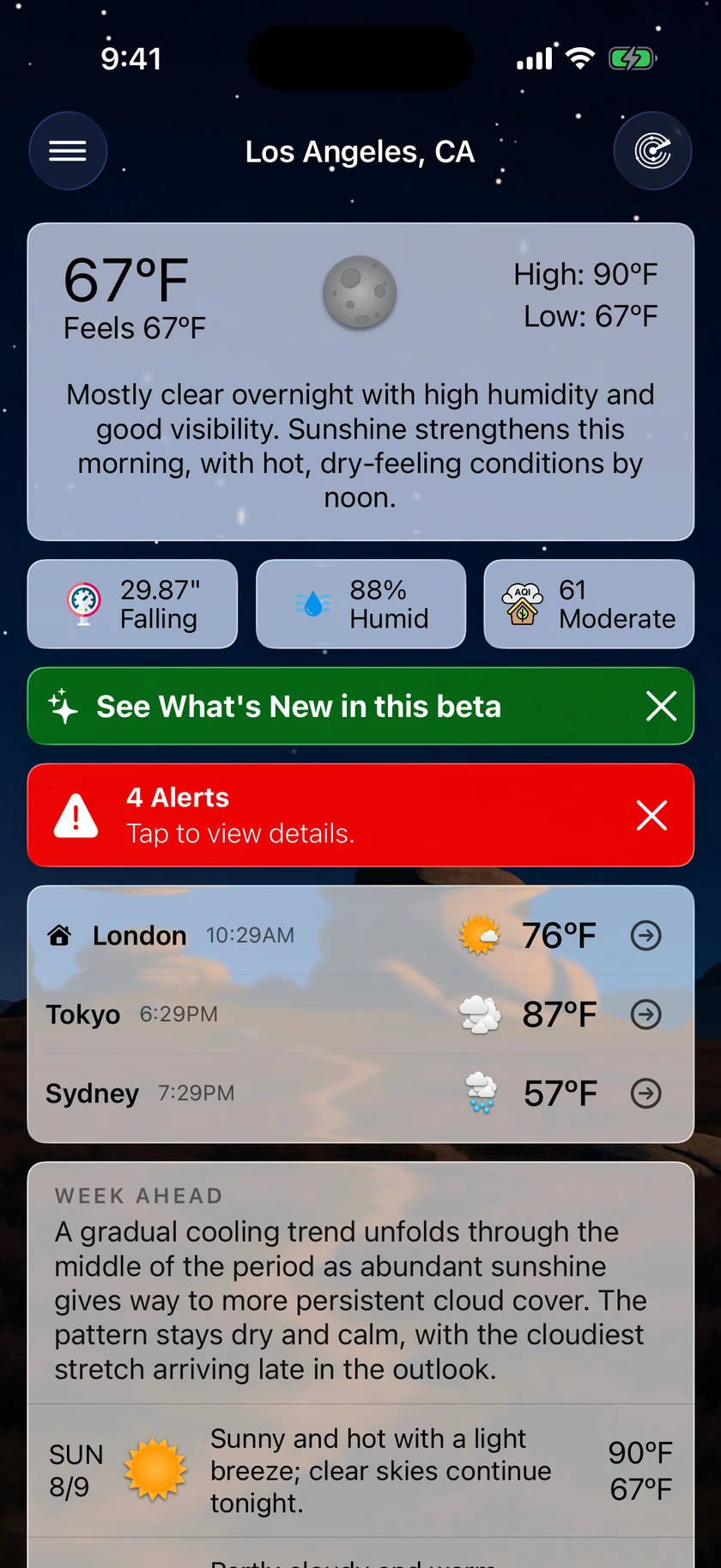
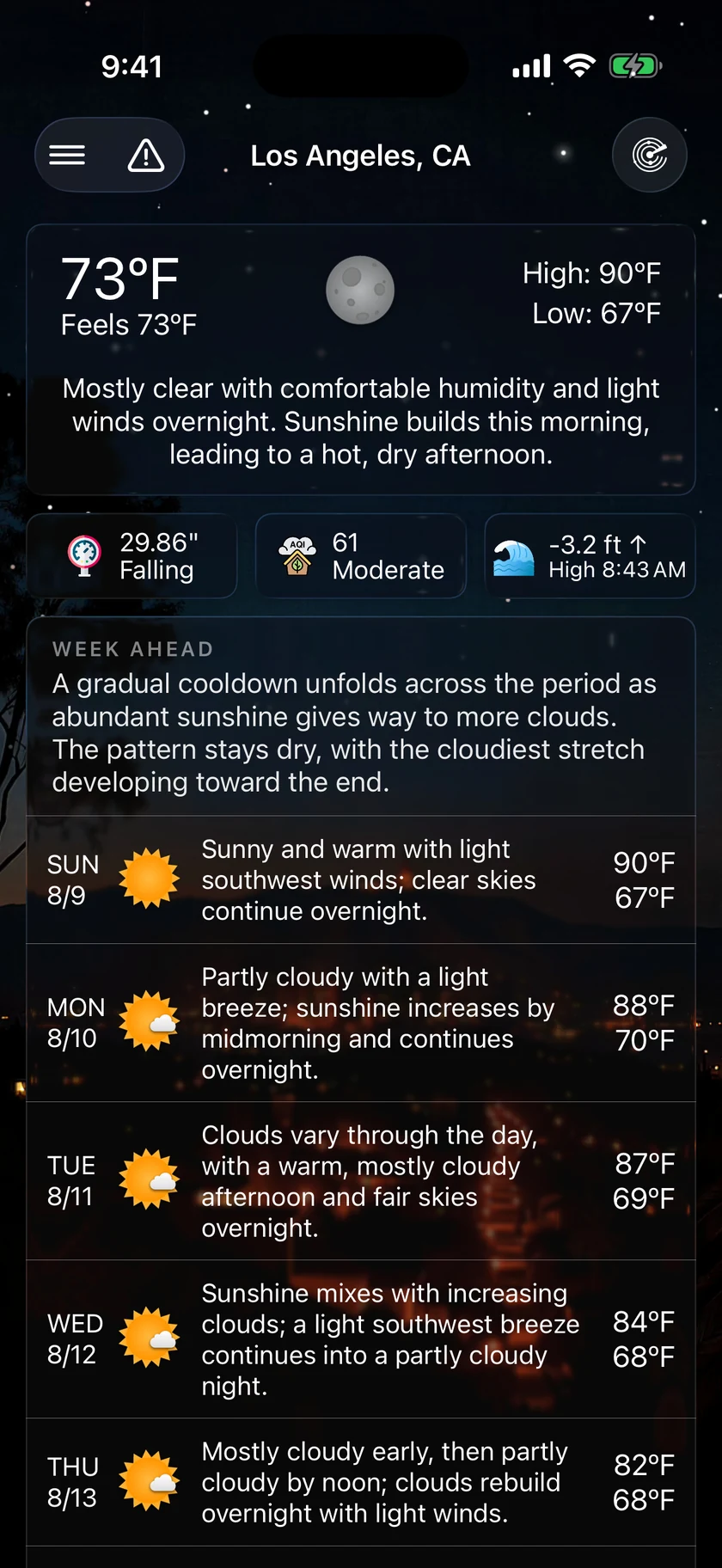
The daily forecast table already tells you the highs, the lows and the chance of rain. Repeating those in a paragraph above it would be words for the sake of words.
So the Week Ahead Outlook is written to say only what the table cannot show: the shape of the week. The warming or cooling arc, the front and when it clears, the wet stretch against the dry break, the one day that stands apart from the rest.
One to three sentences, above your daily forecast. It ships switched off — turn it on in Settings › Forecast Bar AI, alongside the rest of Smart Weather Stories.
Backgrounds you can read overiOSMac
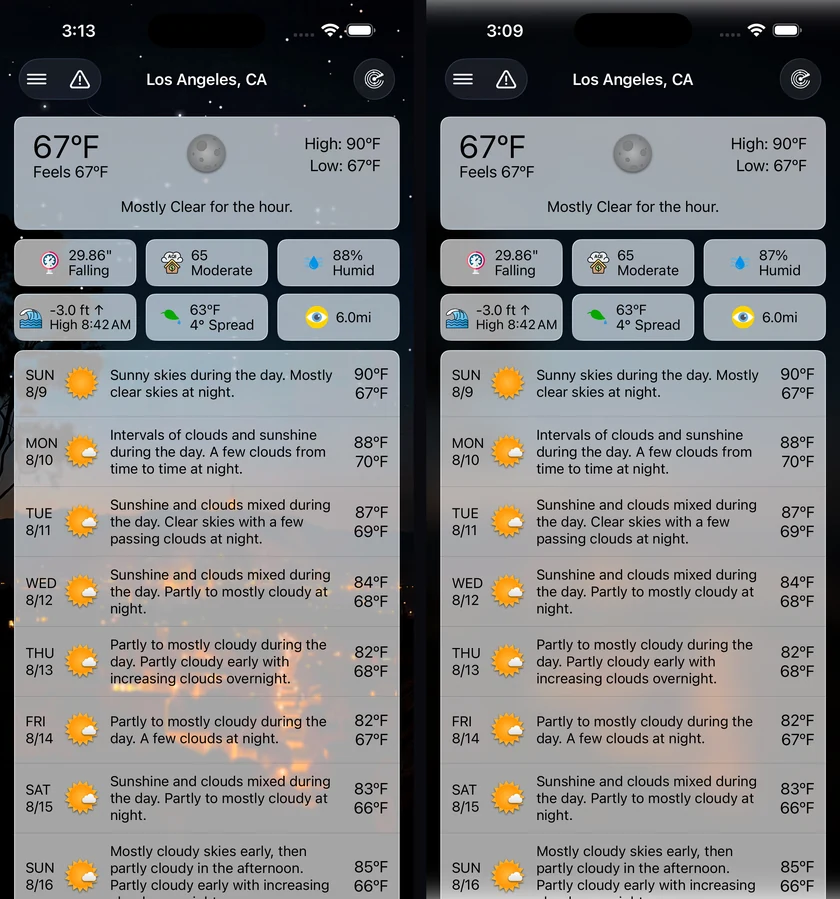
City packs, photographic scenes and the satellite map are the best-looking backgrounds in the app, and the hardest to read a forecast over.
Two new sliders fix that without throwing the picture away. Blur smooths the detail out while keeping every colour, so a night skyline stays a night skyline. Dimming darkens it for extra contrast. They work independently, they apply to every screen that draws the background, and both start at off — in Settings › Theme & Visual Style.
Astronomy AlertsiOSMac
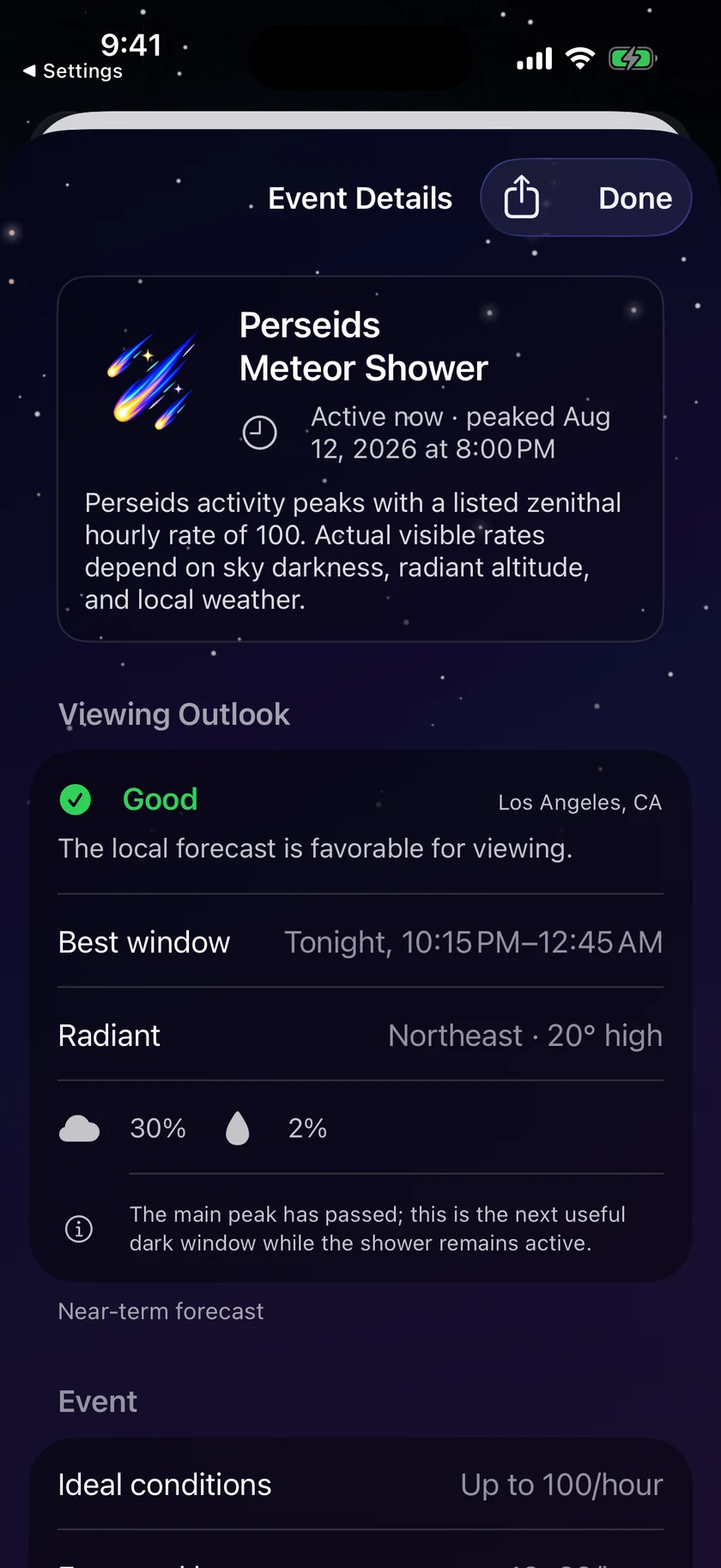
Knowing that a meteor shower exists is only half the answer. Forecast Bar now tells you whether it is worth going outside where you are.
Meteor showers join eclipses and supermoons, with major showers and predicted outbursts recommended from the start. Tonight's most relevant event can appear directly in the forecast with its best local viewing time.
Open an event for the useful part: the ideal rate beside what you can realistically expect nearby, the best dark window, direction and height in the sky, cloud and rain chances, and practical guidance. Astronomy alerts can also skip events when your local viewing conditions look poor.
Time MachineiOSMacTV
A date should not need a different tool depending on which side of today it falls.
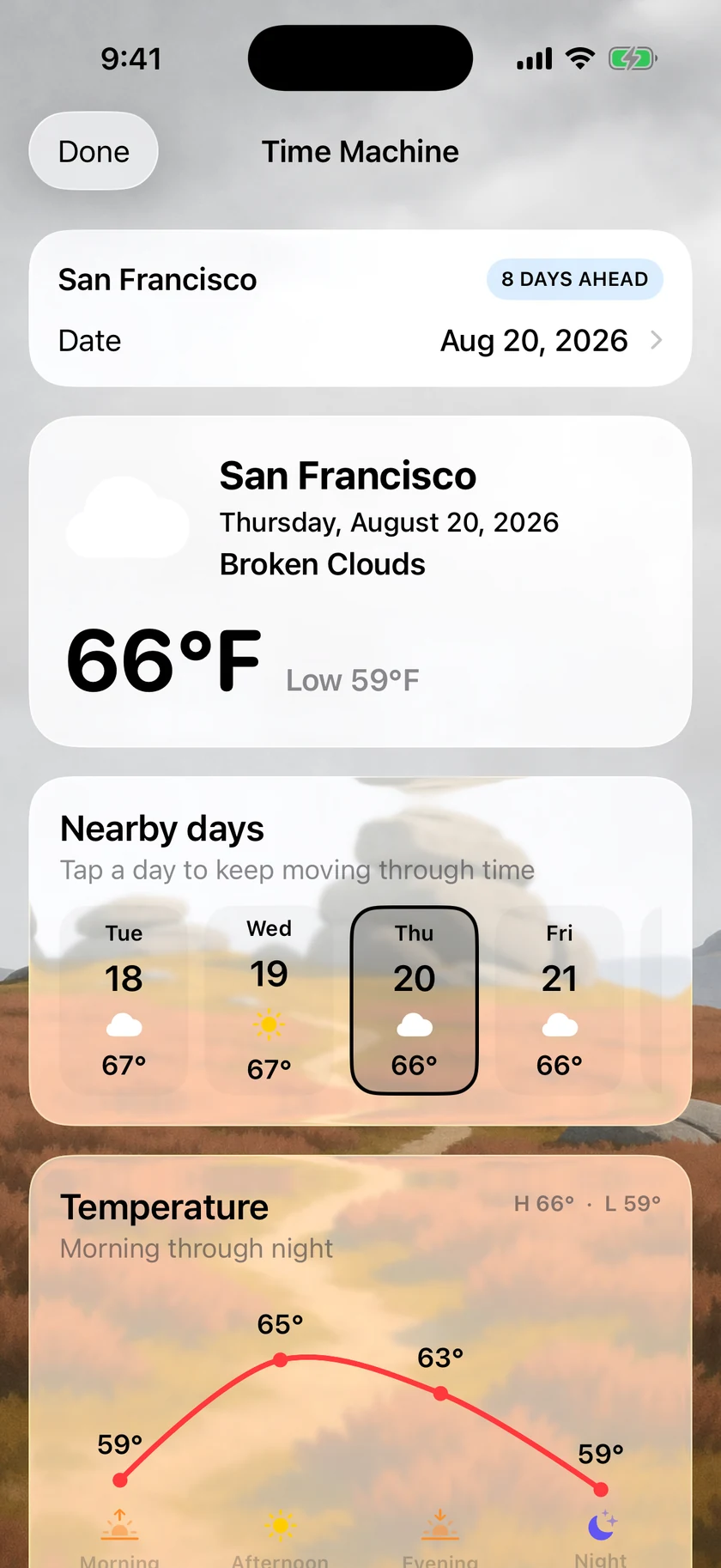
Time Machine is one quiet control at the bottom of the forecast. Pick any supported date for the selected place: past dates load historical weather, future dates use the best available outlook, and nearby days sit alongside both in the same presentation. Nothing to configure, save or organise first.
The same date-and-place lookup also powers Weather Photos on iPhone.
Weather PhotosiOS
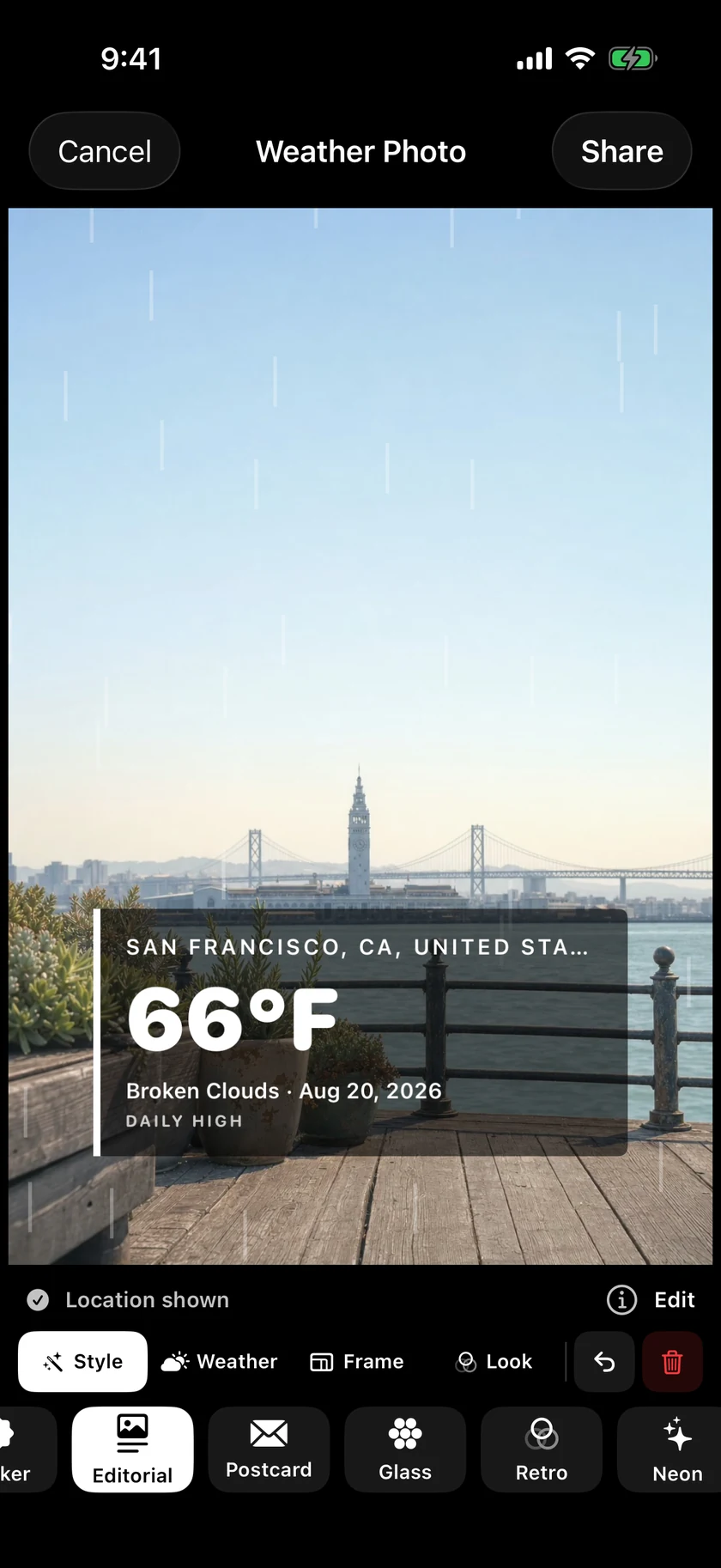
Choose an image in Forecast Bar or send one from Photos, and its original date and location recreate the weather around it. Then place, scale and rotate the result directly on the image — restrained type, playful stickers, rain, snow or stars — and share the finished photo.
The photo stays in the editor while Forecast Bar looks up its weather.
Plus 103 smaller changes — fixes, tidy-ups and one-line wins that didn't need a paragraph. See every line →
Everything in this release
Storm InterceptiOS
- A severe storm heading your way runs on the Lock Screen and in the Dynamic Island: how likely it is to turn severe, how far out, and a countdown to arrival.iOS
- The countdown ticks between updates, and the card follows the storm as it strengthens, weakens, or slides past you.iOS
- When a storm is going to miss, it says so — the closest it will come, then it gets out of your way.iOS
- It mirrors to the Apple Watch Smart Stack, the same way precipitation alerts do.iOS
- Choose how readily it starts — Rarely, Normal, or Often — from the storm alert settings.iOS
Storms on the radariOSMacTV
- Storm Cells draws every tracked cell on the map with its probability of turning severe — NOAA/CIMSS ProbSevere guidance, updated every two minutes — so you can tell which storm in a line is the one to watch.iOSMac
- Tap a cell for the full read: severity trend, hail, wind and tornado breakdown, estimated hail size, lightning rate and echo top.iOS
- Severe Storm Alert and Large Hail Alert ship ready-made under Weather Alerts, starting at a 50% severe chance, hail an inch or larger, projected to come within 15 miles.iOSMac
- Tune any of it, or build your own rule on severe probability or hail size.iOSMac
- Click a cell for the full read: severity trend, hail, wind and tornado breakdown, estimated hail size, lightning rate and echo top.Mac
- Storm Cells draws every tracked storm on the radar with its probability of turning severe — NOAA/CIMSS ProbSevere guidance, updated every two minutes — so you can tell which storm in a line is the one to watch.TV
Severe RiskiOSMacTV
- On the rare day the national outlook reaches Enhanced or higher, a Severe Risk card leads the main screen with the risk and the hours it covers.iOS
- Tap it to open the radar with that outlook over the map. Severe storm and flash-flood outlooks are separate toggles, over whichever layer you're using.iOS
- The legend shows each outlook's whole scale, with your location's level marked.iOSMac
- On the rare day the national outlook reaches Enhanced or higher, a Severe Risk card leads the forecast with the risk and the hours it covers.Mac
- Click it to open the radar with that outlook over the map. Severe storm and flash-flood outlooks are separate toggles, over whichever layer you're using.Mac
- On the rare day the national outlook reaches Enhanced or higher, a Severe Risk card leads the forecast with the risk and the hours it covers. Select it to open the radar.TV
Severe Outlook AlertsiOSMac
- NOAA publishes a severe outlook each day, hours before any watch is issued — you can now be told when the outlook where you are gets upgraded.iOSMac
- Severe storms and flash flooding are separate switches with their own levels, starting at Enhanced and Moderate so an alert means a genuinely unusual day.iOSMac
- Tapping the notification opens the radar with that outlook drawn over the map.iOS
- Outlook Upgrades uses the same clear on/off switch as the other alert groups.iOSMac
Storm Tracker and the storm reportiOSMacTV
- A storm closing on your location gets a card that leads with the verdict: on track for you, or expected to miss. Severity reads in the title — Possible, Likely Severe, or Dangerous — with how far off it is riding along.
- A storm on track counts down to arrival live; one that will pass by says how wide, with no ticking clock. Tapping the card — or a storm notification — opens the radar with that storm's cell selected.iOS
- Hail, tornado and damaging-wind callouts are capped to the two that matter most, and the chance of turning severe appears once, in the sentence that defines it.
- After a storm passes over you, a card records what actually happened — "Passed directly over you," or how far to which side — with the time window, estimated hail size and peak severe probability up front. It reads as a record of a storm that has already passed, and shows for one session before stepping aside.iOS
- Storm Reports keeps two years of them — the timescale hail damage tends to surface on. Storm tracking covers the contiguous US.iOSMac
- Storm reports appear only when a storm actually reached your location or came violently close.iOSTV
- Storm alerts are better timed: notifications and Live Activities start when a storm is genuinely close and arriving soon — Rarely ≈ 20 minutes out, Normal ≈ 30, Often ≈ 60 — and new alert rules default to a 10-mile radius.iOS
- A storm on track counts down to arrival live; one that will pass by says how wide, with no ticking clock. Clicking the card opens the radar with that storm's cell selected.Mac
- After a storm goes over you, a card records what actually happened — "Passed directly over you," or how far to which side — with the time window, estimated hail size and peak severe probability up front. It reads as a record of a storm that has already passed, and shows for one session before stepping aside.MacTV
- A storm on track counts down to arrival live; one that will pass by says how wide, with no ticking clock.TV
- Storm cards focus on storms that matter — only nearby, imminent storms appear.TV
- Meteor shower cards step back after the shower's peak instead of lingering at full prominence.TV
Smart Data PointsiOSMacTV
- The main screen can pick its own tiles from current conditions — UV while the sun is up, accumulation once it's raining, gusts when it's gusty — at Off, Important, Basics or Extended.iOS
- The full grid sorts by what matters right now instead of a fixed order. Drag a tile and it hands control back to you.iOSMac
- Tiles that repeat what's already on screen drop out: no precipitation chance above a rain chart, no Feels Like next to the hero, gusts folded into the wind tile.iOSMac
- The forecast can pick its own tiles from current conditions — UV while the sun is up, accumulation once it's raining, gusts when it's gusty — at Off, Important, Basics or Extended.Mac
- The forecast can pick its own conditions to show — UV while the sun is up, accumulation once it's raining, gusts when it's gusty — instead of holding a fixed set all day.TV
- What's shown is ordered by what matters right now, and anything that repeats what's already on screen drops out.TV
Compare cities without leaving the forecastiOSMac
- Up to five saved cities sit above or below your forecast with their local time, conditions and temperature. Tap to compare, or jump straight to that city.iOS
- Set a Home location and it joins your forecast automatically whenever you're away — no compare card setup needed — pinned in the city list and badged "While away".iOSMac
- A new Away Distance setting decides how far from Home counts as away.iOSMac
- Compare reopens on the tab you left it on.iOSMac
- Up to five saved cities sit above or below your forecast with their local time, conditions and temperature. Click to compare, or jump straight to that city.Mac
Week Ahead OutlookiOSMac
- Week Ahead Outlook adds a short read on the week's pattern above the daily forecast — the turning points and the standout day, not a recap of the table.iOSMac
- Turning on Smart Weather Stories includes the Week Ahead outlook from the start.iOSMac
Backgrounds you can read overiOSMac
- Background Effects softens a busy scene, city pack or map with Blur and Dimming while keeping its color, previewing live as you set it.iOSMac
- Glass Mode is now a slider — dial the card look from clear to frosted, with a live preview.iOSMac
Stargazing ConditionsiOSMac
- Stargazing Conditions shows tonight’s best window, darkness, Moon, and weather.iOSMac
- Far north or far south in summer, where the sky never gets fully dark, it says so plainly instead of coming up empty.iOSMac
- The focused view is a compact panel — rating, best window, and an hourly quality chart — with the day selector and data points still in reach.iOSMac
- Stargazing is suggested in the evening rather than during the day.iOSMac
- Drag across the hourly chart to read any hour, with the header holding still and tile times shown in the location's own time zone.iOSMac
Astronomy AlertsiOSMac
- Meteor showers join eclipses and supermoons, with major showers and predicted outbursts recommended from the start.iOSMac
- Shower cards step back after the peak instead of lingering at full prominence for weeks.iOS
- Conjunctions, planetary highlights, moon phases and other quieter events remain individually optional.iOSMac
- Major Showers Only uses the same familiar switch as other alert options.iOSMac
- Upcoming Sky Events ranks active highlights with clearer artwork and labeled local viewing quality.iOSMac
- Event details show your best time based on activity, moonlight, weather and height in the sky.iOSMac
- Hourly meteor charts compare ideal activity with your local viewing forecast.iOSMac
- Eclipses show local contact times, coverage, and the strongest visible phase.iOSMac
- Planetary events explain when binoculars or a telescope will help.iOSMac
- Tonight’s most relevant sky event appears directly in the forecast with its best local viewing time.iOSMac
- Astronomy alerts follow the recommended local time, skip poor conditions, and open the event.iOSMac
- Sky events share with the local outlook, best viewing window and Forecast Bar attribution.iOSMac
Live Sunset AlertsiOSMac
- Live Sunset Alerts let you know when tonight's sunset is worth stepping outside for — a rare heads-up minutes ahead, sent only when live satellite imagery confirms the forecast.iOSMac
- Choose how often you hear about it: only the confirmed standouts, a lower bar for more of them, or a nightly rating every evening.iOSMac
Time MachineiOSMacTV
- Time Machine opens directly to the calendar without preselecting today.iOS
- Time Machine loads today and future dates reliably across time zones.iOSMac
- Time Machine now shows a clearer morning-to-night temperature graph, with sunrise, sunset, rain chance and familiar forecast details at a glance.iOSMac
- Time Machine’s background now follows the selected place, date and weather, including the correct city scene and local day or night.iOSMac
- Selected dates show how many days, weeks, months or years they are ahead or ago, while past and future weather keep the same calm presentation.iOSMac
- Time Machine shows its supported date range and clearer forecast guidance.iOS
- Time Machine stays readable while nearby days remain easy to browse.iOS
- Future forecasts leave UV blank when the source has no reliable reading instead of showing a misleading zero.iOSMac
- A quiet Time Machine row at the bottom of the forecast opens any supported date for the selected place — past or future — in one resizable window with nearby days alongside it.Mac
- Time Machine opens at a compact size and stays smooth while scrolling.Mac
- Time Machine cards follow your appearance and stay readable over busy backgrounds.Mac
- Time Machine opens any supported date for the selected place — past or future — with nearby days alongside it.TV
- Its date chooser is built for a remote rather than a touchscreen: one row per unit, so up and down pick the unit and left and right move the date.TV
Weather PhotosiOS
- Choose a photo, or share one to Forecast Bar, and its original date and location can be used to recreate the weather around it.iOS
- A photo-first editor keeps date and location in one simple panel, then lets you place, scale and rotate weather artwork from restrained typography to atmospheric rain, snow and stars.iOS
- Weather Photo controls stay compact and steady while you add styles and effects.iOS
- A visible location shortcut puts the photo’s place directly into the design.iOS
- Postcard starts with the photo’s place and date in a cleaner, classic treatment.iOS
- Copy Photo leads the finish flow, with clear next steps and Save to Photos as a fallback.iOS
- Sharing from Photos stays open and responsive until you explicitly finish.iOS
- Weather Photos open from Time Machine without repeating date and place setup.iOS
- Weather Photo treatments now have a clear, undoable remove button.iOS
AccessibilityiOSMac
- Forecast Bar works with VoiceOver. Weather icons, forecast rows, toggles and icon-only buttons all speak what they show, and controls that were tap-only — expanding a day, opening an alert, switching row style, editing locations — are now reachable and announced.iOS
- The next-hour precipitation chart describes the curve in words rather than being skipped.iOSMac
- Opening the app takes you straight to the current conditions, and the side menu keeps focus inside it.iOS
- Reduce Motion holds the animated sky still.iOSMac
- A dozen controls have larger touch targets, with no change to how anything looks.iOS
- Forecast Bar works with VoiceOver. Weather icons, forecast rows, toggles, icon-only buttons and the menu bar item itself all speak what they show, and controls that were click-only are now reachable and announced.Mac
Appearance per deviceiOSMac
- A "Sync Appearance Across Devices" toggle in Theme & Visual Style lets an iPhone, iPad and Mac each keep their own look while locations, units and alerts keep syncing as before.iOS
- A "Sync Appearance Across Devices" toggle in Theme & Visual Style lets the Mac keep its own look while locations, units and alerts keep syncing as before.Mac
- A Mac left sitting in the menu bar picks up locations and settings changed on your other devices, instead of waiting until you open the popover.Mac
Also in this releaseiOSMacTV
- Background Packs has a search field, so finding a city in a catalogue of nearly a hundred takes a keystroke instead of a scroll. A search that finds nothing offers to request that city.iOS
- Times on the Stargazing, Tides and Tonight's Sky cards no longer get cut off at larger text sizes.iOSMac
- A fast flick on a pack row scrolls the Background Packs list, instead of doing nothing.iOS
- On iPad in landscape, a storm on its way ranks above tonight's sky event.iOS
- Wildfire smoke joins the radar as a companion overlay, with an hour-by-hour PM2.5 forecast on the Air Quality data point.iOSMac
- Compare & Home, Forecasts and Radar each get their own settings screen.iOSMac
- Settings section labels now sit inside their cards for a cleaner, more readable look.iOS
- Flipping between a widget's pages is instant, reusing the widget's cached weather instead of refetching it.iOS
- Time Machine and the wallpaper peek sit in a clearer order at the forecast’s end.iOS
- Flick past the bottom of the forecast to peek at the wallpaper behind it.iOS
- What's New opens the full illustrated release history inside the app.iOS
- The Scottish Highlands scene is redrawn across every hour and weather condition.
- The rain chart clears when you switch to a city it doesn't cover, instead of holding the last city's rain.
- Small caption text throughout the app renders at caption size again.
- Alert setting titles use the same calm type hierarchy throughout.iOSMac
- The "Now showing" city pack card appears only over a scene you chose, and turning nearby scenes off says plainly that it stops them everywhere.iOSMac
- Smart Weather Stories no longer end with a stray brace, code fence, or garbled text.iOSMac
- Severe storm alerts and severe outlook alerts sit together in one place in settings.iOS
- Precipitation amounts follow your region's number formatting.
- Widgets keep a usable recent forecast through brief service outages instead of going blank.iOS
- Wallpaper peek reveals the original scene without blur or dimming.iOS
- Weather and alert data arrive faster during busy conditions.
- Sunrise and sunset quality forecasts return faster.
- Upcoming Sky Events and the astronomy browser scroll and filter more smoothly.iOSMac
- The mini radar preview shows precipitation outside the United States, and labels how old the frame is when it isn't close to live.
- A sunset quality score for a sunset that has already happened says which day it was for.
- The animated sky no longer re-scatters its clouds and stars when the screen refreshes.
- Even spacing between the cards in location search.iOSMac
- Backgrounds crossfade when the scene changes frame, so coming back to the app hours later, or the conditions turning, blends instead of hard-cutting.
- Dismissed cards no longer flash back on screen while they animate away.iOSMac
- Choosing an app icon draws the selection ring around the artwork rather than on top of it, with a checkmark badge on your choice, so the selection is legible against all 32 icons.iOS
- Background scene and style pickers get the same treatment: the ring sits outside the photo, where it can't disappear into a blue sky.iOS
- Swipe right anywhere on the main screen to open the side menu — no need to reach for the hamburger or start from the screen edge.iOS
- Location search finds parks, ski areas, and landmarks, not just street addresses.
- Smart Weather Stories split into three independent switches — current conditions, daily, and week ahead — so you can run any combination.iOS
- The city pack store is organized into Cities, Installed, and Requests, with an always-visible search box.iOSMac
- Swiping the What's New banner away no longer opens it instead.iOS
- Location search results line up evenly — long park and landmark addresses trim to one line instead of wrapping.iOSMac
- Closing the side menu while searching now puts the keyboard away instead of leaving it up.iOS
- Forecast charts are redrawn with a smoother, gradient-filled curve in place of the boxed-in plot and the dot on every hour.
- A marker shows the current hour, and a second one follows your finger as you scrub across the chart.iOS
- Switching data points now animates, and Tides, Air Quality and Stargazing share the same lighter styling.
- New installs start in the right formats for your region — Celsius, km/h, and the 24-hour clock come straight from your device's settings.iOS
- A 24-Hour Clock switch in Settings → Data & Layout sets how times read in widgets, watch complications, and notification times.iOS
- Notification setup starts with every type selected, so one tap turns them all on.iOS
- Radar in Australia and Europe opens on its regional layer, with the NOW marker in the right place.
- The radar widget uses Australia's modern mosaic and no longer holds stale frames.iOS
- Widget backgrounds reuse their cached image across refreshes.iOS
- A cleaner Smart Weather Stories settings screen.iOSMac
- Global radar now plays into the future — the worldwide precipitation layer continues past NOW with forecast frames, so you can scrub ahead anywhere on Earth.
- Next-Generation Radar has left beta — its setting no longer carries the Beta tag.iOSMac
- Background Packs has a search field, so finding a city in a catalogue of nearly a hundred takes a keystroke instead of a scroll.Mac
- What's New opens the full illustrated release history in its own window.Mac
- Dock Mode stays docked until you deliberately drag it out.Mac
- Nearby city pack buttons stay legible in light mode.Mac
- Radar memory stays bounded across repeated window opens, pans, and zooms.Mac
- Storm reports appear only when a storm actually reached your location or came violently close.Mac
- Storm cards focus on storms that matter — only nearby, imminent storms appear. New storm alert rules default to a 10-mile radius.Mac
- Meteor shower cards step back after the shower's peak instead of lingering at full prominence.Mac
- Background scene and style pickers draw their selection ring around the artwork rather than on top of it, so the choice stays legible against every photo.Mac
- Smart Weather Stories split into three independent switches — current conditions, daily, and week ahead — so you can run any combination, including Week Ahead on its own.Mac
- A marker shows the current hour, and a second one follows the pointer as you scrub across the chart.Mac
- New installs start in the right formats for your region — Celsius, km/h, and the 24-hour clock come straight from your Mac's settings.Mac
- A 24-Hour Clock switch in Settings → Data & Layout sets how times read in the menu bar, widgets, and notification times.Mac
- Settings synced from your other devices now apply while the app is running, and the location list explains when GPS isn't available.Mac
- Notification setup starts with every type selected, so one click turns them all on.Mac
- The radar widget uses Australia's modern mosaic, no longer holds stale frames, and widget backgrounds reuse their cached image across refreshes.Mac
- Appearance settings set on the Apple TV are no longer overwritten by your other devices, and the TV gets the same "Sync Appearance Across Devices" opt-out.TV
- Screens that a remote could not reach, scroll or read are fixed throughout: the Sign In button in Account & Sync, event details, the data-point screen's Back button, and the Nearby Days row in Time Machine.TV
- A storm on its way now ranks above tonight's sky event rather than below it.TV
- The radar's layer buttons sit in the same order as on the other platforms, and VoiceOver reads each one with its on/off state.TV
- A PM2.5 air-quality forecast joins the Air Quality data point, charted hour by hour for the day you have selected, each bar tinted by its own air-quality category.TV
- What's New opens the full illustrated release history.TV
- The tutorial card no longer flashes back on screen while it animates away.TV
- Location search rows line up evenly — long park and landmark addresses trim to one line instead of wrapping.TV
- A marker shows the current hour, and a second one follows the selection as you move across the chart.TV
- New installs start in your region's formats — units and the 24-hour clock come from the TV's language and region settings.TV
Smart UpdatesMac
- The menu bar keeps moving at the cadence you chose while going to the network far less often — readings advance from a 15-minute forecast timeline anchored to the latest observation.Mac
- Fetches line up with the weather service's own publish cycle and follow the weather: they back off when it's calm and tighten up when it's active.Mac
- On by default, with a toggle in General settings.Mac
WidgetsMac
- Widgets keep a usable recent forecast through brief service outages instead of going blank.Mac
- Flipping between a widget's pages is instant, reusing the widget's cached weather instead of refetching it.Mac
Compare citiesTV
- Up to five saved cities sit alongside your forecast with their local time, conditions and temperature.TV
Stargazing and the night skyTV
- Stargazing Conditions shows tonight's best window, darkness, Moon and weather, with an hourly quality chart.TV
- The astronomy event browser comes to the TV: upcoming showers, eclipses and planetary highlights, each with your local viewing outlook and best window.TV
- Tonight's most relevant sky event appears in the forecast with its best local viewing time.TV
BackgroundsTV
- Request a background pack for your city straight from the TV. It uses where you are, so there is no typing at all, and request status appears in the same place.TV
