What's New in Forecast Bar

Forecast Bar updates often. Here is everything that has shipped, newest first — told properly, with the App Store bullets one tap away for anyone who just wants the list.

12 releases · 11.1 → 11.5.2 · updated August 24, 2026

  1. 11.5.2Latest
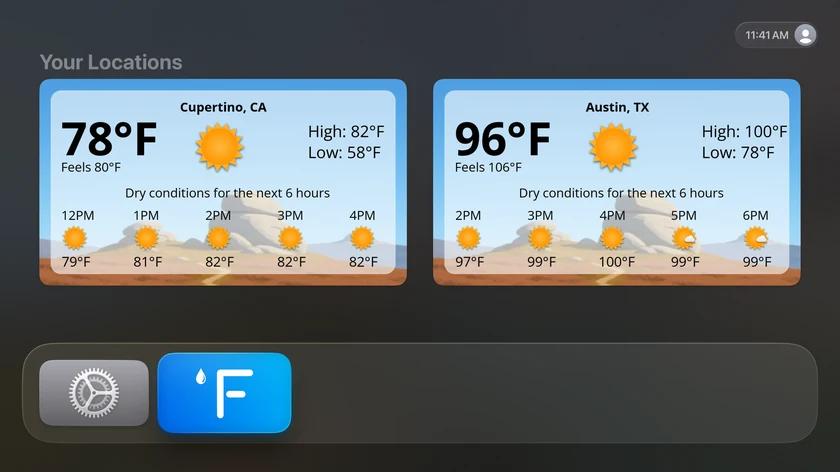
    TV

    Storm Intelligence on Apple TV

    The Apple TV app catches up with the 11.5 work: storm cells and Storm Tracker on the radar, Compare cities, Stargazing, Time Machine with a chooser built for a remote, and background pack requests from the couch.

    Everything in this release

    Storms on the radarTV

    • Storm Cells draws every tracked storm on the radar with its probability of turning severe — NOAA/CIMSS ProbSevere guidance, updated every two minutes — so you can tell which storm in a line is the one to watch.

    Severe RiskTV

    • On the rare day the national outlook reaches Enhanced or higher, a Severe Risk card leads the forecast with the risk and the hours it covers. Select it to open the radar.

    Storm Tracker and the storm reportTV

    • A storm closing on your location gets a card that leads with the verdict: on track for you, or expected to miss. Severity reads in the title — Possible, Likely Severe, or Dangerous — with how far off it is riding along.
    • A storm on track counts down to arrival live; one that will pass by says how wide, with no ticking clock.
    • Hail, tornado and damaging-wind callouts are capped to the two that matter most, and the chance of turning severe appears once, in the sentence that defines it.
    • After a storm goes over you, a card records what actually happened — "Passed directly over you," or how far to which side — with the time window, estimated hail size and peak severe probability up front. It reads as a record of a storm that has already passed, and shows for one session before stepping aside.
    • Storm reports appear only when a storm actually reached your location or came violently close.
    • Storm cards focus on storms that matter — only nearby, imminent storms appear.
    • Meteor shower cards step back after the shower's peak instead of lingering at full prominence.

    Smart Data PointsTV

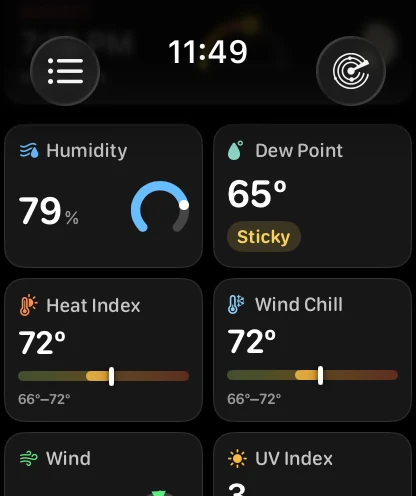
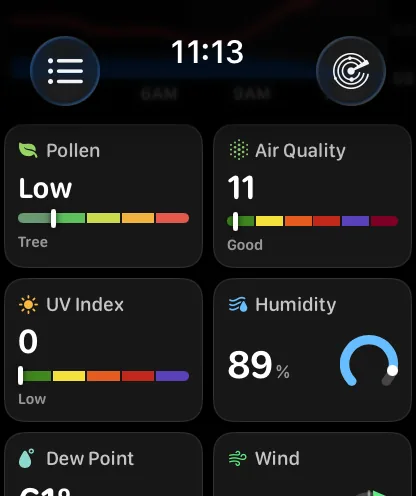
    • The forecast can pick its own conditions to show — UV while the sun is up, accumulation once it's raining, gusts when it's gusty — instead of holding a fixed set all day.
    • What's shown is ordered by what matters right now, and anything that repeats what's already on screen drops out.

    Compare citiesTV

    • Up to five saved cities sit alongside your forecast with their local time, conditions and temperature.

    Stargazing and the night skyTV

    • Stargazing Conditions shows tonight's best window, darkness, Moon and weather, with an hourly quality chart.
    • The astronomy event browser comes to the TV: upcoming showers, eclipses and planetary highlights, each with your local viewing outlook and best window.
    • Tonight's most relevant sky event appears in the forecast with its best local viewing time.

    Time MachineTV

    • Time Machine opens any supported date for the selected place — past or future — with nearby days alongside it.
    • Its date chooser is built for a remote rather than a touchscreen: one row per unit, so up and down pick the unit and left and right move the date.

    BackgroundsTV

    • Request a background pack for your city straight from the TV. It uses where you are, so there is no typing at all, and request status appears in the same place.

    Also in this releaseTV

    • Appearance settings set on the Apple TV are no longer overwritten by your other devices, and the TV gets the same "Sync Appearance Across Devices" opt-out.
    • Screens that a remote could not reach, scroll or read are fixed throughout: the Sign In button in Account & Sync, event details, the data-point screen's Back button, and the Nearby Days row in Time Machine.
    • A storm on its way now ranks above tonight's sky event rather than below it.
    • The radar's layer buttons sit in the same order as on the other platforms, and VoiceOver reads each one with its on/off state.
    • A PM2.5 air-quality forecast joins the Air Quality data point, charted hour by hour for the day you have selected, each bar tinted by its own air-quality category.
    • The Scottish Highlands scene is redrawn across every hour and weather condition.
    • What's New opens the full illustrated release history.
    • The rain chart clears when you switch to a city it doesn't cover, instead of holding the last city's rain.
    • Small caption text throughout the app renders at caption size again.
    • Precipitation amounts follow your region's number formatting.
    • Weather and alert data arrive faster during busy conditions.
    • Sunrise and sunset quality forecasts return faster.
    • The mini radar preview shows precipitation outside the United States, and labels how old the frame is when it isn't close to live.
    • A sunset quality score for a sunset that has already happened says which day it was for.
    • The animated sky no longer re-scatters its clouds and stars when the screen refreshes.
    • Backgrounds crossfade when the scene changes frame, so coming back to the app hours later, or the conditions turning, blends instead of hard-cutting.
    • The tutorial card no longer flashes back on screen while it animates away.
    • Location search finds parks, ski areas, and landmarks, not just street addresses.
    • Location search rows line up evenly — long park and landmark addresses trim to one line instead of wrapping.
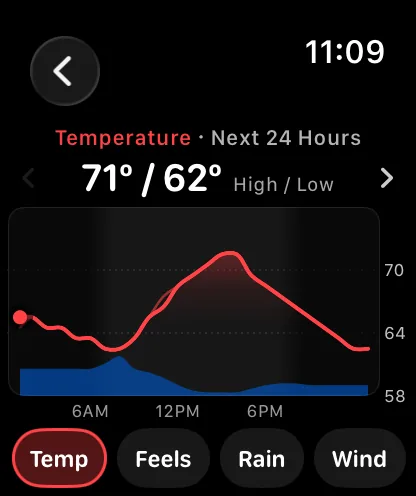
    • Forecast charts are redrawn with a smoother, gradient-filled curve in place of the boxed-in plot and the dot on every hour.
    • A marker shows the current hour, and a second one follows the selection as you move across the chart.
    • Switching data points now animates, and Tides, Air Quality and Stargazing share the same lighter styling.
    • Cloud cover, humidity and visibility draw as lines, so the trend through the day reads at a glance.
    • New installs start in your region's formats — units and the 24-hour clock come from the TV's language and region settings.
    • Radar in Australia and Europe opens on its regional layer, with the NOW marker in the right place.
    • Global radar now plays into the future — the worldwide precipitation layer continues past NOW with forecast frames, so you can scrub ahead anywhere on Earth.

    Weather alertsTV

    • Overlapping alerts of the same type now appear separately instead of merging
    • Alerts are ordered by severity, with the most serious shown first
    • The shading under the hourly chart fades from the line down to the base of the chart.
    • The hourly chart's rain band stays inside the plot, lined up with the temperature curve drawn over it.
    • Clock times read correctly when you pick your own app font in Settings › Theme — the gap that opened up in front of AM and PM is gone.
  2. iOSMacTV

    Warnings on Your Widgets

    A severe weather warning now shows as a badge right on your home screen and menu bar widgets, with a tap through to every active alert, alongside a redesigned subscription screen and a run of iPad, Time Machine and Mac refinements.

    11.5.1 carries everything in Storm Intelligence and adds the piece it was missing: you no longer have to open the app to know a warning is out. It also brings a rebuilt subscription screen, a run of iPad and Time Machine refinements, and a fix for a Mac crash on the newest macOS.

    SubscribingiOS

    The subscription screen is rebuilt around a side-by-side look at what each tier gives you. Gold and Silver plan cards, a Family Sharing switch, and the subscribe button always in reach. Prices and free-trial terms come straight from the App Store, a trial is offered only when you are actually eligible, and Subscribe and Restore no longer stall on a spinner when tapped before prices arrive — with a retry when you are offline and full VoiceOver support.

    Weather alertsiOSMacTV

    A warning for where you are now shows as a badge on your widgets, so you can see there is severe weather without opening anything. Tap it on a medium or large widget for every active warning, then tap one for the full details. Alert notifications open straight to those details in the app, overlapping alerts of the same type stay separate instead of merging, and the most serious one is listed first.

    Plus 216 smaller changes — fixes, tidy-ups and one-line wins that didn't need a paragraph. See every line →

    Everything in this release

    Storm InterceptiOS

    • A severe storm heading your way runs on the Lock Screen and in the Dynamic Island: how likely it is to turn severe, how far out, and a countdown to arrival.iOS
    • The countdown ticks between updates, and the card follows the storm as it strengthens, weakens, or slides past you.iOS
    • When a storm is going to miss, it says so — the closest it will come, then it gets out of your way.iOS
    • It mirrors to the Apple Watch Smart Stack, the same way precipitation alerts do.iOS
    • Choose how readily it starts — Rarely, Normal, or Often — from the storm alert settings.iOS

    Storms on the radariOSMacTV

    • Storm Cells draws every tracked cell on the map with its probability of turning severe — NOAA/CIMSS ProbSevere guidance, updated every two minutes — so you can tell which storm in a line is the one to watch.iOSMac
    • Tap a cell for the full read: severity trend, hail, wind and tornado breakdown, estimated hail size, lightning rate and echo top.iOS
    • Severe Storm Alert and Large Hail Alert ship ready-made under Weather Alerts, starting at a 50% severe chance, hail an inch or larger, projected to come within 15 miles.iOSMac
    • Tune any of it, or build your own rule on severe probability or hail size.iOSMac
    • Click a cell for the full read: severity trend, hail, wind and tornado breakdown, estimated hail size, lightning rate and echo top.Mac
    • Storm Cells draws every tracked storm on the radar with its probability of turning severe — NOAA/CIMSS ProbSevere guidance, updated every two minutes — so you can tell which storm in a line is the one to watch.TV

    Severe RiskiOSMacTV

    • On the rare day the national outlook reaches Enhanced or higher, a Severe Risk card leads the main screen with the risk and the hours it covers.iOS
    • Tap it to open the radar with that outlook over the map. Severe storm and flash-flood outlooks are separate toggles, over whichever layer you're using.iOS
    • The legend shows each outlook's whole scale, with your location's level marked.iOSMac
    • On the rare day the national outlook reaches Enhanced or higher, a Severe Risk card leads the forecast with the risk and the hours it covers.Mac
    • Click it to open the radar with that outlook over the map. Severe storm and flash-flood outlooks are separate toggles, over whichever layer you're using.Mac
    • On the rare day the national outlook reaches Enhanced or higher, a Severe Risk card leads the forecast with the risk and the hours it covers. Select it to open the radar.TV

    Severe Outlook AlertsiOSMac

    • NOAA publishes a severe outlook each day, hours before any watch is issued — you can now be told when the outlook where you are gets upgraded.iOSMac
    • Severe storms and flash flooding are separate switches with their own levels, starting at Enhanced and Moderate so an alert means a genuinely unusual day.iOSMac
    • Tapping the notification opens the radar with that outlook drawn over the map.iOS
    • Outlook Upgrades uses the same clear on/off switch as the other alert groups.iOSMac

    Storm Tracker and the storm reportiOSMacTV

    • A storm closing on your location gets a card that leads with the verdict: on track for you, or expected to miss. Severity reads in the title — Possible, Likely Severe, or Dangerous — with how far off it is riding along.
    • A storm on track counts down to arrival live; one that will pass by says how wide, with no ticking clock. Tapping the card — or a storm notification — opens the radar with that storm's cell selected.iOS
    • Hail, tornado and damaging-wind callouts are capped to the two that matter most, and the chance of turning severe appears once, in the sentence that defines it.
    • After a storm passes over you, a card records what actually happened — "Passed directly over you," or how far to which side — with the time window, estimated hail size and peak severe probability up front. It reads as a record of a storm that has already passed, and shows for one session before stepping aside.iOS
    • Storm Reports keeps two years of them — the timescale hail damage tends to surface on. Storm tracking covers the contiguous US.iOSMac
    • Storm reports appear only when a storm actually reached your location or came violently close.iOSTV
    • Storm alerts are better timed: notifications and Live Activities start when a storm is genuinely close and arriving soon — Rarely ≈ 20 minutes out, Normal ≈ 30, Often ≈ 60 — and new alert rules default to a 10-mile radius.iOS
    • A storm on track counts down to arrival live; one that will pass by says how wide, with no ticking clock. Clicking the card opens the radar with that storm's cell selected.Mac
    • After a storm goes over you, a card records what actually happened — "Passed directly over you," or how far to which side — with the time window, estimated hail size and peak severe probability up front. It reads as a record of a storm that has already passed, and shows for one session before stepping aside.MacTV
    • A storm on track counts down to arrival live; one that will pass by says how wide, with no ticking clock.TV
    • Storm cards focus on storms that matter — only nearby, imminent storms appear.TV
    • Meteor shower cards step back after the shower's peak instead of lingering at full prominence.TV

    Smart Data PointsiOSMacTV

    • The main screen can pick its own tiles from current conditions — UV while the sun is up, accumulation once it's raining, gusts when it's gusty — at Off, Important, Basics or Extended.iOS
    • The full grid sorts by what matters right now instead of a fixed order. Drag a tile and it hands control back to you.iOSMac
    • Tiles that repeat what's already on screen drop out: no precipitation chance above a rain chart, no Feels Like next to the hero, gusts folded into the wind tile.iOSMac
    • The forecast can pick its own tiles from current conditions — UV while the sun is up, accumulation once it's raining, gusts when it's gusty — at Off, Important, Basics or Extended.Mac
    • The forecast can pick its own conditions to show — UV while the sun is up, accumulation once it's raining, gusts when it's gusty — instead of holding a fixed set all day.TV
    • What's shown is ordered by what matters right now, and anything that repeats what's already on screen drops out.TV

    Compare cities without leaving the forecastiOSMac

    • Up to five saved cities sit above or below your forecast with their local time, conditions and temperature. Tap to compare, or jump straight to that city.iOS
    • Set a Home location and it joins your forecast automatically whenever you're away — no compare card setup needed — pinned in the city list and badged "While away".iOSMac
    • A new Away Distance setting decides how far from Home counts as away.iOSMac
    • Compare reopens on the tab you left it on.iOSMac
    • Up to five saved cities sit above or below your forecast with their local time, conditions and temperature. Click to compare, or jump straight to that city.Mac

    Week Ahead OutlookiOSMac

    • Week Ahead Outlook adds a short read on the week's pattern above the daily forecast — the turning points and the standout day, not a recap of the table.iOSMac
    • Turning on Smart Weather Stories includes the Week Ahead outlook from the start.iOSMac
    • Week Ahead outlooks draw on the National Weather Service forecaster's own discussion for the pattern, its timing and how confident they are (US locations).iOSMac
    • Week Ahead holds its place while its outlook refreshes — the daily rows beneath it no longer jump up and back down when new weather lands.Mac

    SubscribingiOS

    • A redesigned subscription screen: Gold and Silver plan cards, a Family Sharing switch, a side-by-side comparison of what each tier includes, and the subscribe button always in reach.iOS
    • Prices and free-trial terms come straight from the App Store, and a trial is offered only when you're actually eligible for one.iOS
    • Subscribe and Restore respond even when tapped before prices arrive, the screen offers a retry when offline, and it works with VoiceOver.iOS

    Backgrounds you can read overiOSMac

    • Background Effects softens a busy scene, city pack or map with Blur and Dimming while keeping its color, previewing live as you set it.iOSMac
    • Glass Mode is now a slider — dial the card look from clear to frosted, with a live preview.iOSMac

    Stargazing ConditionsiOSMac

    • Stargazing Conditions shows tonight’s best window, darkness, Moon, and weather.iOSMac
    • Far north or far south in summer, where the sky never gets fully dark, it says so plainly instead of coming up empty.iOSMac
    • The focused view is a compact panel — rating, best window, and an hourly quality chart — with the day selector and data points still in reach.iOSMac
    • Stargazing is suggested in the evening rather than during the day.iOSMac
    • Drag across the hourly chart to read any hour, with the header holding still and tile times shown in the location's own time zone.iOSMac

    Astronomy AlertsiOSMac

    • Meteor showers join eclipses and supermoons, with major showers and predicted outbursts recommended from the start.iOSMac
    • Shower cards step back after the peak instead of lingering at full prominence for weeks.iOS
    • Conjunctions, planetary highlights, moon phases and other quieter events remain individually optional.iOSMac
    • Major Showers Only uses the same familiar switch as other alert options.iOSMac
    • Upcoming Sky Events ranks active highlights with clearer artwork and labeled local viewing quality.iOSMac
    • Event details show your best time based on activity, moonlight, weather and height in the sky.iOSMac
    • Hourly meteor charts compare ideal activity with your local viewing forecast.iOSMac
    • Eclipses show local contact times, coverage, and the strongest visible phase.iOSMac
    • Planetary events explain when binoculars or a telescope will help.iOSMac
    • Tonight’s most relevant sky event appears directly in the forecast with its best local viewing time.iOSMac
    • Astronomy alerts follow the recommended local time, skip poor conditions, and open the event.iOSMac
    • Sky events share with the local outlook, best viewing window and Forecast Bar attribution.iOSMac

    Live Sunset AlertsiOSMac

    • Live Sunset Alerts let you know when tonight's sunset is worth stepping outside for — a rare heads-up minutes ahead, sent only when live satellite imagery confirms the forecast.iOSMac
    • Choose how often you hear about it: only the confirmed standouts, a lower bar for more of them, or a nightly rating every evening.iOSMac

    Time MachineiOSMacTV

    • Time Machine opens directly to the calendar without preselecting today.iOS
    • Time Machine loads today and future dates reliably across time zones.iOSMac
    • Time Machine now shows a clearer morning-to-night temperature graph, with sunrise, sunset, rain chance and familiar forecast details at a glance.iOSMac
    • Time Machine’s background now follows the selected place, date and weather, including the correct city scene and local day or night.iOSMac
    • Selected dates show how many days, weeks, months or years they are ahead or ago, while past and future weather keep the same calm presentation.iOSMac
    • Time Machine shows its supported date range and clearer forecast guidance.iOS
    • Time Machine stays readable while nearby days remain easy to browse.iOS
    • Future forecasts leave UV blank when the source has no reliable reading instead of showing a misleading zero.iOSMac
    • Time Machine picks a date on a month grid that stays on screen: arrows or a horizontal swipe page through months, the title opens a year grid for long jumps back toward 1979, and Today snaps back in one tap.iOS
    • The Time Machine date sheet opens at half height and pulls up to full, so the grid stays reachable on a small phone and at large text sizes.iOS
    • A quiet Time Machine row at the bottom of the forecast opens any supported date for the selected place — past or future — in one resizable window with nearby days alongside it.Mac
    • Time Machine opens at a compact size and stays smooth while scrolling.Mac
    • Time Machine cards follow your appearance and stay readable over busy backgrounds.Mac
    • Time Machine picks a date on a month grid: arrows or a swipe page through months, the title opens a year grid so 1979 is a couple of clicks rather than hundreds of arrow presses, and Today snaps back in one click.Mac
    • Time Machine opens any supported date for the selected place — past or future — with nearby days alongside it.TV
    • Its date chooser is built for a remote rather than a touchscreen: one row per unit, so up and down pick the unit and left and right move the date.TV

    Weather PhotosiOS

    • Choose a photo, or share one to Forecast Bar, and its original date and location can be used to recreate the weather around it.iOS
    • A photo-first editor keeps date and location in one simple panel, then lets you place, scale and rotate weather artwork from restrained typography to atmospheric rain, snow and stars.iOS
    • Weather Photo controls stay compact and steady while you add styles and effects.iOS
    • A visible location shortcut puts the photo’s place directly into the design.iOS
    • Postcard starts with the photo’s place and date in a cleaner, classic treatment.iOS
    • Copy Photo leads the finish flow, with clear next steps and Save to Photos as a fallback.iOS
    • Sharing from Photos stays open and responsive until you explicitly finish.iOS
    • Weather Photos open from Time Machine without repeating date and place setup.iOS
    • Weather Photo treatments now have a clear, undoable remove button.iOS

    AccessibilityiOSMac

    • Forecast Bar works with VoiceOver. Weather icons, forecast rows, toggles and icon-only buttons all speak what they show, and controls that were tap-only — expanding a day, opening an alert, switching row style, editing locations — are now reachable and announced.iOS
    • The next-hour precipitation chart describes the curve in words rather than being skipped.iOSMac
    • Opening the app takes you straight to the current conditions, and the side menu keeps focus inside it.iOS
    • Reduce Motion holds the animated sky still.iOSMac
    • A dozen controls have larger touch targets, with no change to how anything looks.iOS
    • Forecast Bar works with VoiceOver. Weather icons, forecast rows, toggles, icon-only buttons and the menu bar item itself all speak what they show, and controls that were click-only are now reachable and announced.Mac

    Appearance per deviceiOSMac

    • A "Sync Appearance Across Devices" toggle in Theme & Visual Style lets an iPhone, iPad and Mac each keep their own look while locations, units and alerts keep syncing as before.iOS
    • A "Sync Appearance Across Devices" toggle in Theme & Visual Style lets the Mac keep its own look while locations, units and alerts keep syncing as before.Mac
    • A Mac left sitting in the menu bar picks up locations and settings changed on your other devices, instead of waiting until you open the popover.Mac

    Also in this releaseiOSMacTV

    • Background Packs has a search field, so finding a city in a catalogue of nearly a hundred takes a keystroke instead of a scroll. A search that finds nothing offers to request that city.iOS
    • Times on the Stargazing, Tides and Tonight's Sky cards no longer get cut off at larger text sizes.iOSMac
    • A fast flick on a pack row scrolls the Background Packs list, instead of doing nothing.iOS
    • On iPad in landscape, a storm on its way ranks above tonight's sky event.iOS
    • Wildfire smoke joins the radar as a companion overlay, with an hour-by-hour PM2.5 forecast on the Air Quality data point.iOSMac
    • Compare & Home, Forecasts and Radar each get their own settings screen.iOSMac
    • Settings section labels now sit inside their cards for a cleaner, more readable look.iOS
    • Flipping between a widget's pages is instant, reusing the widget's cached weather instead of refetching it.iOS
    • Time Machine and the wallpaper peek sit in a clearer order at the forecast’s end.iOS
    • Flick past the bottom of the forecast to peek at the wallpaper behind it.iOS
    • What's New opens the full illustrated release history inside the app.iOS
    • The Scottish Highlands scene is redrawn across every hour and weather condition.
    • The rain chart clears when you switch to a city it doesn't cover, instead of holding the last city's rain.
    • Small caption text throughout the app renders at caption size again.
    • Alert setting titles use the same calm type hierarchy throughout.iOSMac
    • The "Now showing" city pack card appears only over a scene you chose, and turning nearby scenes off says plainly that it stops them everywhere.iOSMac
    • Smart Weather Stories no longer end with a stray brace, code fence, or garbled text.iOSMac
    • Severe storm alerts and severe outlook alerts sit together in one place in settings.iOS
    • Precipitation amounts follow your region's number formatting.
    • Widgets keep a usable recent forecast through brief service outages instead of going blank.iOS
    • Wallpaper peek reveals the original scene without blur or dimming.iOS
    • Weather and alert data arrive faster during busy conditions.
    • Sunrise and sunset quality forecasts return faster.
    • Upcoming Sky Events and the astronomy browser scroll and filter more smoothly.iOSMac
    • The mini radar preview shows precipitation outside the United States, and labels how old the frame is when it isn't close to live.
    • A sunset quality score for a sunset that has already happened says which day it was for.
    • The animated sky no longer re-scatters its clouds and stars when the screen refreshes.
    • Even spacing between the cards in location search.iOSMac
    • Backgrounds crossfade when the scene changes frame, so coming back to the app hours later, or the conditions turning, blends instead of hard-cutting.
    • Dismissed cards no longer flash back on screen while they animate away.iOSMac
    • Choosing an app icon draws the selection ring around the artwork rather than on top of it, with a checkmark badge on your choice, so the selection is legible against all 32 icons.iOS
    • Background scene and style pickers get the same treatment: the ring sits outside the photo, where it can't disappear into a blue sky.iOS
    • Swipe right anywhere on the main screen to open the side menu — no need to reach for the hamburger or start from the screen edge.iOS
    • Location search finds parks, ski areas, and landmarks, not just street addresses.
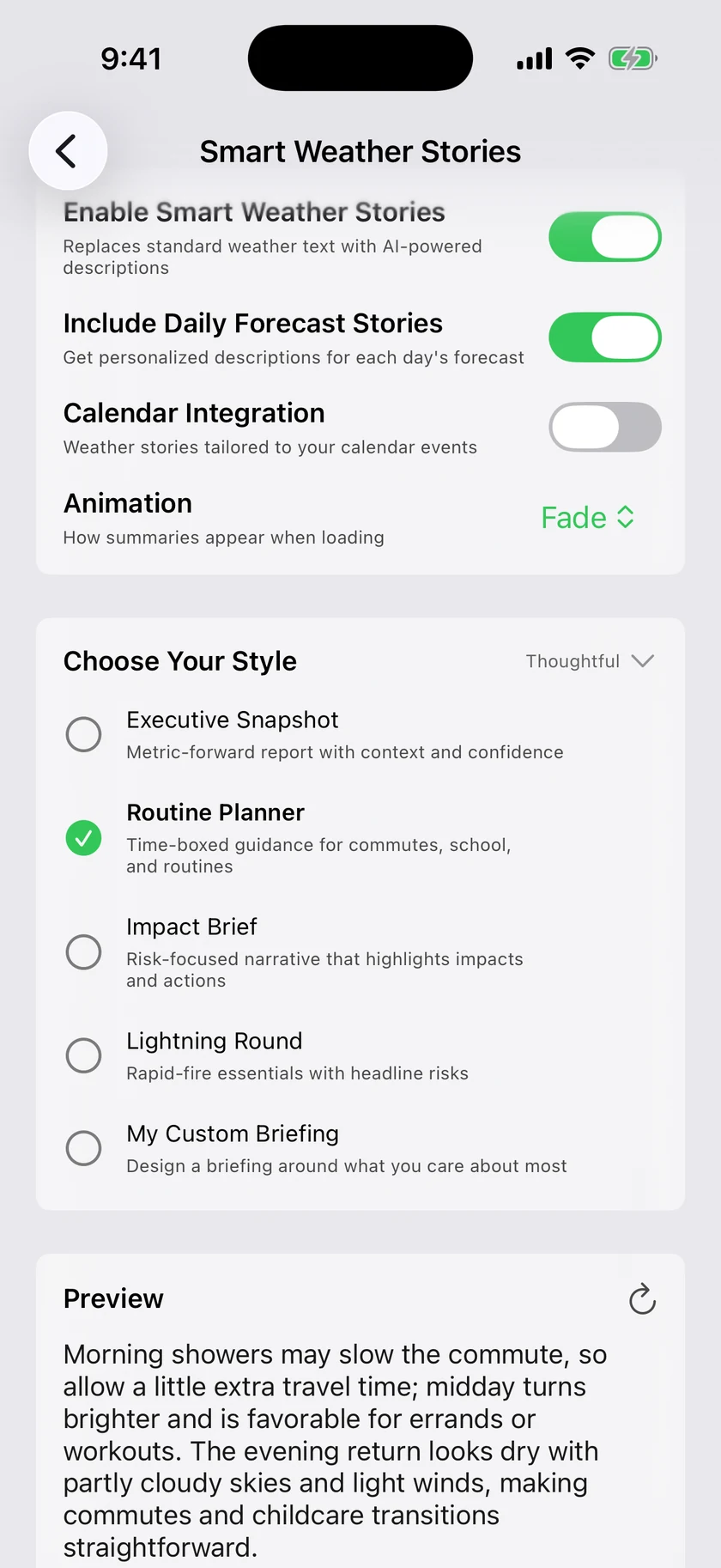
    • Smart Weather Stories split into three independent switches — current conditions, daily, and week ahead — so you can run any combination.iOS
    • The city pack store is organized into Cities, Installed, and Requests, with an always-visible search box.iOSMac
    • Swiping the What's New banner away no longer opens it instead.iOS
    • Location search results line up evenly — long park and landmark addresses trim to one line instead of wrapping.iOSMac
    • Closing the side menu while searching now puts the keyboard away instead of leaving it up.iOS
    • Forecast charts are redrawn with a smoother, gradient-filled curve in place of the boxed-in plot and the dot on every hour.
    • A marker shows the current hour, and a second one follows your finger as you scrub across the chart.iOS
    • Switching data points now animates, and Tides, Air Quality and Stargazing share the same lighter styling.
    • Cloud cover, humidity and visibility draw as lines, so the trend through the day reads at a glance.
    • The chart's data-point menu keeps its label on one line after you rotate the device.iOS
    • On iPad, an hourly conditions chart sits below the alerts in both layouts — every day, not only when rain is coming.iOS
    • The iPad Alerts card reaches the edges of its column in portrait, like the cards around it.iOS
    • iPad Settings opens with its cards at the top instead of below a blank band.iOS
    • Visualize Day's deep pull works on iPad in either column, and short columns bounce so pull-to-refresh works there too.iOS
    • Precipitation color swatches in Theme & Visual Style are round, tappable discs that sit clear of their labels on iPad.iOS
    • New installs start in the right formats for your region — Celsius, km/h, and the 24-hour clock come straight from your device's settings.iOS
    • A 24-Hour Clock switch in Settings → Data & Layout sets how times read in widgets, watch complications, and notification times.iOS
    • Notification setup starts with every type selected, so one tap turns them all on.iOS
    • Radar in Australia and Europe opens on its regional layer, with the NOW marker in the right place.
    • The radar widget uses Australia's modern mosaic and no longer holds stale frames.iOS
    • Widget backgrounds reuse their cached image across refreshes.iOS
    • A cleaner Smart Weather Stories settings screen.iOSMac
    • Global radar now plays into the future — the worldwide precipitation layer continues past NOW with forecast frames, so you can scrub ahead anywhere on Earth.
    • Next-Generation Radar has left beta — its setting no longer carries the Beta tag.iOSMac
    • The subscription screen's close button is a single button again on iOS 26.iOS
    • In Light Mode, the storm cell inspector's probability headline, trend arrow and sparkline are dark enough to read against the sheet.iOS
    • The shading under the hourly chart fades from the line down to the base of the chart.iOS
    • The hourly chart's rain band stays inside the plot, lined up with the temperature curve drawn over it.iOS
    • Clock times read correctly when you pick your own app font in Settings › Theme — the gap that opened up in front of AM and PM is gone.iOS
    • Background Packs has a search field, so finding a city in a catalogue of nearly a hundred takes a keystroke instead of a scroll.Mac
    • What's New opens the full illustrated release history in its own window.Mac
    • Dock Mode stays docked until you deliberately drag it out.Mac
    • Nearby city pack buttons stay legible in light mode.Mac
    • Radar memory stays bounded across repeated window opens, pans, and zooms.Mac
    • Storm reports appear only when a storm actually reached your location or came violently close.Mac
    • Storm cards focus on storms that matter — only nearby, imminent storms appear. New storm alert rules default to a 10-mile radius.Mac
    • Meteor shower cards step back after the shower's peak instead of lingering at full prominence.Mac
    • Background scene and style pickers draw their selection ring around the artwork rather than on top of it, so the choice stays legible against every photo.Mac
    • Smart Weather Stories split into three independent switches — current conditions, daily, and week ahead — so you can run any combination, including Week Ahead on its own.Mac
    • A marker shows the current hour, and a second one follows the pointer as you scrub across the chart.Mac
    • New installs start in the right formats for your region — Celsius, km/h, and the 24-hour clock come straight from your Mac's settings.Mac
    • A 24-Hour Clock switch in Settings → Data & Layout sets how times read in the menu bar, widgets, and notification times.Mac
    • Settings synced from your other devices now apply while the app is running, and the location list explains when GPS isn't available.Mac
    • Notification setup starts with every type selected, so one click turns them all on.Mac
    • The radar widget uses Australia's modern mosaic, no longer holds stale frames, and widget backgrounds reuse their cached image across refreshes.Mac
    • Appearance settings set on the Apple TV are no longer overwritten by your other devices, and the TV gets the same "Sync Appearance Across Devices" opt-out.TV
    • Screens that a remote could not reach, scroll or read are fixed throughout: the Sign In button in Account & Sync, event details, the data-point screen's Back button, and the Nearby Days row in Time Machine.TV
    • A storm on its way now ranks above tonight's sky event rather than below it.TV
    • The radar's layer buttons sit in the same order as on the other platforms, and VoiceOver reads each one with its on/off state.TV
    • A PM2.5 air-quality forecast joins the Air Quality data point, charted hour by hour for the day you have selected, each bar tinted by its own air-quality category.TV
    • What's New opens the full illustrated release history.TV
    • The tutorial card no longer flashes back on screen while it animates away.TV
    • Location search rows line up evenly — long park and landmark addresses trim to one line instead of wrapping.TV
    • A marker shows the current hour, and a second one follows the selection as you move across the chart.TV
    • New installs start in your region's formats — units and the 24-hour clock come from the TV's language and region settings.TV

    Weather alertsiOSMacTV

    • Overlapping alerts of the same type now appear separately instead of merging
    • Alerts are ordered by severity, with the most serious shown first
    • See severe weather at a glance: widgets can now show a warning badge when a warning is active for their locationiOS
    • Tap the badge on medium and large widgets to view all active warnings, then tap any warning for full detailsiOS
    • Weather alert notifications now open details right in the appiOS
    • Widgets now show a warning badge when a severe weather warning is activeMac
    • Click the badge on medium and large widgets to see all active warningsMac
    • The shading under the hourly chart fades from the line down to the base of the chart.TV
    • The hourly chart's rain band stays inside the plot, lined up with the temperature curve drawn over it.TV
    • Clock times read correctly when you pick your own app font in Settings › Theme — the gap that opened up in front of AM and PM is gone.TV

    Alerts you can trustiOSMac

    • Weather alerts stop repeating. When a forecast office reissues an advisory — a fresh air quality alert for tomorrow, or a storm statement re-tracked as it moves — you now see only the one that's current, not every version still technically live.iOSMac
    • An alert the office never gave an end time now says "Expires" rather than "Ends". Air quality alerts and special weather statements almost never carry one, and the hour shown is when the bulletin needs reissuing, not when the weather stops.iOSMac
    • Alert times on widgets follow your region's clock format.iOSMac

    Smart UpdatesMac

    • The menu bar keeps moving at the cadence you chose while going to the network far less often — readings advance from a 15-minute forecast timeline anchored to the latest observation.Mac
    • Fetches line up with the weather service's own publish cycle and follow the weather: they back off when it's calm and tighten up when it's active.Mac
    • On by default, with a toggle in General settings.Mac

    WidgetsMac

    • Widgets keep a usable recent forecast through brief service outages instead of going blank.Mac
    • Flipping between a widget's pages is instant, reusing the widget's cached weather instead of refetching it.Mac

    A full window, not just a panelMac

    • The footer button in the menu bar panel opens Forecast Bar as a full window — wide, resizable, and laid out in two columns like the iPad. Close it and you're back on the panel; your status items never leave the menu bar.Mac
    • Dock Mode opens at that same size and layout instead of a narrow phone column. Narrow the window and it folds back to a single column; make it taller than it is wide and you get a 40/60 split.Mac
    • The window remembers the size you settle on, however you opened it.Mac
    • The animated sky fills the whole window now, rather than laying itself out for the panel's width and leaving the weather in the left third.Mac
    • Visualize Day and Compare open in front of the menu bar panel instead of behind it, so you no longer have to drag the panel out of the way on a small display.Mac
    • In Light Mode, the storm cell inspector's probability headline, trend arrow and sparkline are dark enough to read against the sheet.Mac
    • The shading under the hourly chart is bounded to the chart, instead of painting a faint band down past the card.Mac
    • The hourly chart's rain band stays inside the plot, lined up with the temperature curve drawn over it.Mac
    • Clock times read correctly when you pick your own app font in Settings › Theme — the gap that opened up in front of AM and PM is gone.Mac
    • Clicking Edit in the locations popover no longer crashes the app on macOS 27.Mac
    • The locations popover lines up — row cards, the search bar and the Add to Favorites switch share one margin, spacing is even top and bottom, and the scrollbar no longer draws over the cards.Mac

    Compare citiesTV

    • Up to five saved cities sit alongside your forecast with their local time, conditions and temperature.TV

    Stargazing and the night skyTV

    • Stargazing Conditions shows tonight's best window, darkness, Moon and weather, with an hourly quality chart.TV
    • The astronomy event browser comes to the TV: upcoming showers, eclipses and planetary highlights, each with your local viewing outlook and best window.TV
    • Tonight's most relevant sky event appears in the forecast with its best local viewing time.TV

    BackgroundsTV

    • Request a background pack for your city straight from the TV. It uses where you are, so there is no typing at all, and request status appears in the same place.TV
  3. iOSMacTV

    Storm Intelligence

    Forecast Bar now watches individual storm cells — tells you when one is coming for you, walks you through it live on the Lock Screen, and hands you a receipt of what hit.

    Storm InterceptiOS

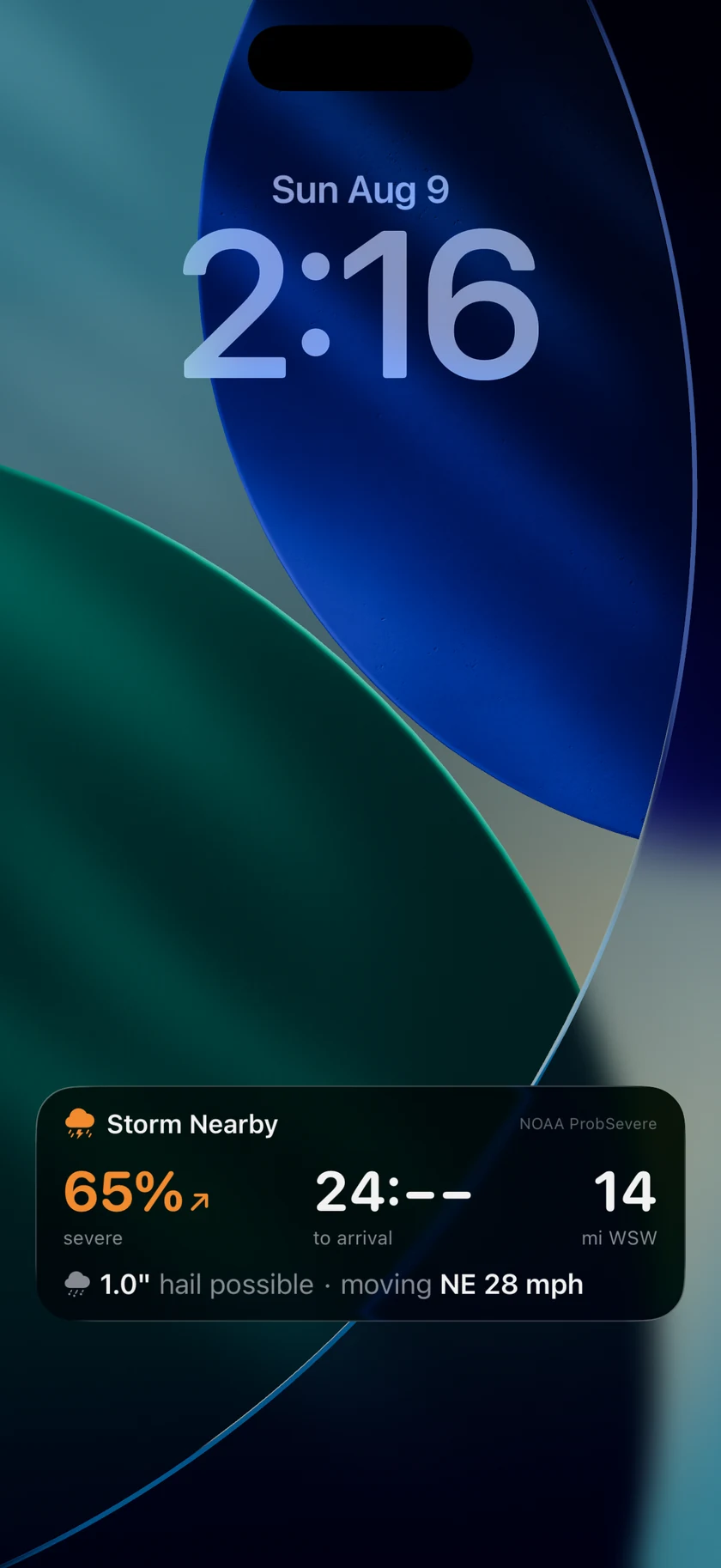
    A severe storm heading your way now runs on your Lock Screen. How likely it is to turn severe, how far out it is, and a countdown to when it reaches you — updating without you opening anything.

    The countdown ticks between updates rather than sitting frozen between pushes, and the card follows the storm as it changes: strengthening, weakening, or sliding past. In the Dynamic Island it collapses to the probability alone, in the severity's colour, and expands on a long press.

    The state we're most pleased with is the one that tells you to relax. When a storm is going to miss, it says so — the closest it will come, and then it gets out of your way. A weather app that only ever escalates teaches you to ignore it.

    It mirrors to the Apple Watch Smart Stack, the same way precipitation alerts already do.

    A Storm Intercept Live Activity on the Lock Screen reading 65% severe with an upward trend arrow, a 24 minute countdown, 14 miles west-southwest, and a detail line giving 1.0 inch hail moving northeast at 28 mph
    65% and rising, 24 minutes out. The countdown runs live.

    Storms on the radariOSMacTV

    Radar shows you where the rain is. It does not tell you which storm in a line is the one to worry about.

    Storm Cells draws every tracked cell with its probability of turning severe, read straight off NOAA's ProbSevere guidance. A squall line stops being an undifferentiated smear and becomes a row of numbers, one of which is bigger than the others.

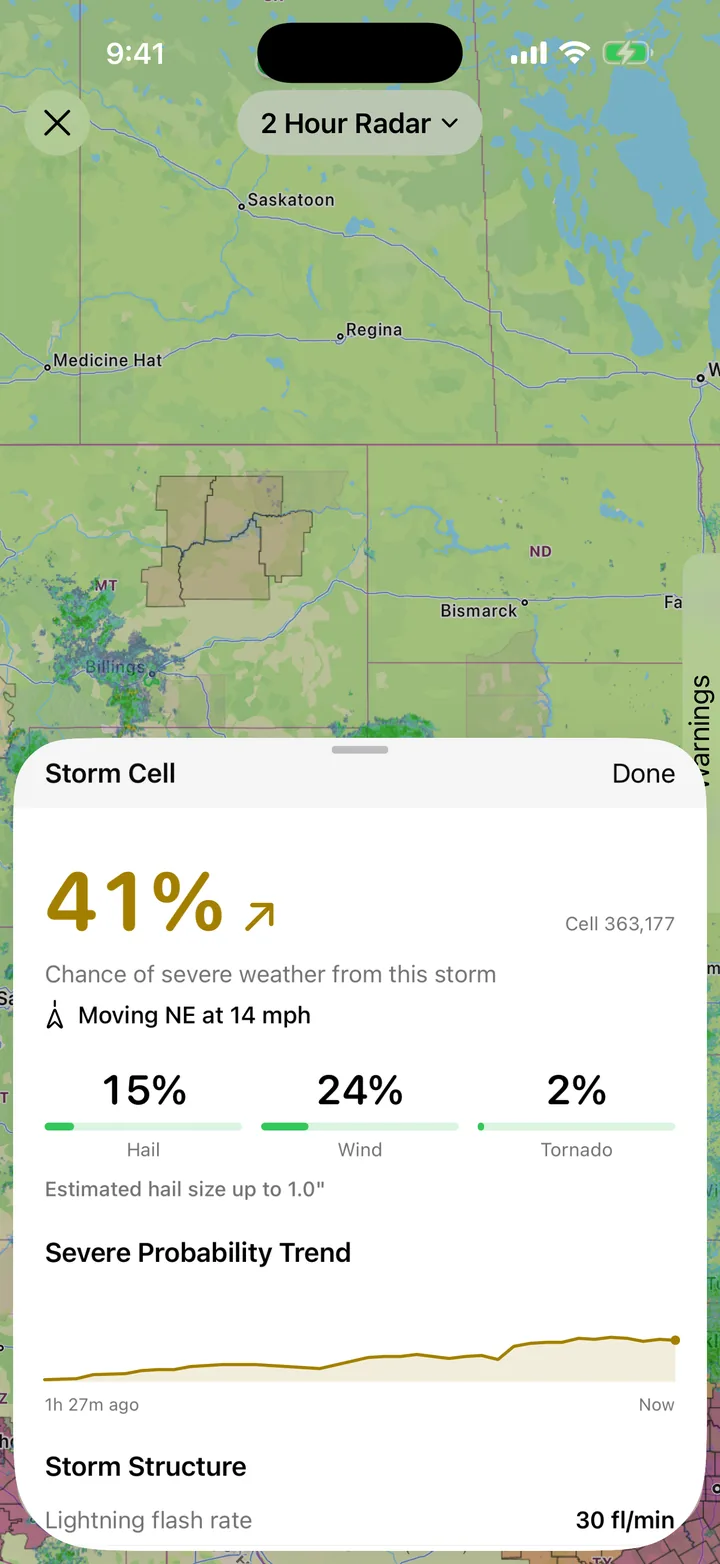
    Open a cell and you get the whole read: the severity trend, the split between hail, wind and tornado, estimated hail size, a probability sparkline from the last hour, lightning flash rate and echo top.

    The same guidance is available as an alert. Severe Storm Probability and Hail Size join custom alerts — pick a distance, a probability or a hail size, and get told when a storm within that radius crosses it.

    The Storm Cell inspector sheet over the radar, showing a 41 percent severe chance with an upward trend arrow, motion northeast at 14 miles per hour, hail, wind and tornado probabilities with bars, estimated hail size, and a rising severe probability trend line
    Tap a probability badge for the storm's motion, hazards and trend.

    Severe RiskiOSMacTV

    On a handful of days a year, the national outlook knows hours before the first watch is issued that your area is in trouble. Those are the only days this card appears.

    It is deliberately rare. Marginal and Slight risks cover much of the country through the season, and by the time that level of risk matters the watch and warning alerts already own the moment with better information. So the card holds itself back for SPC Enhanced and above, and WPC Moderate and above — the days where the outlook genuinely leads everything else.

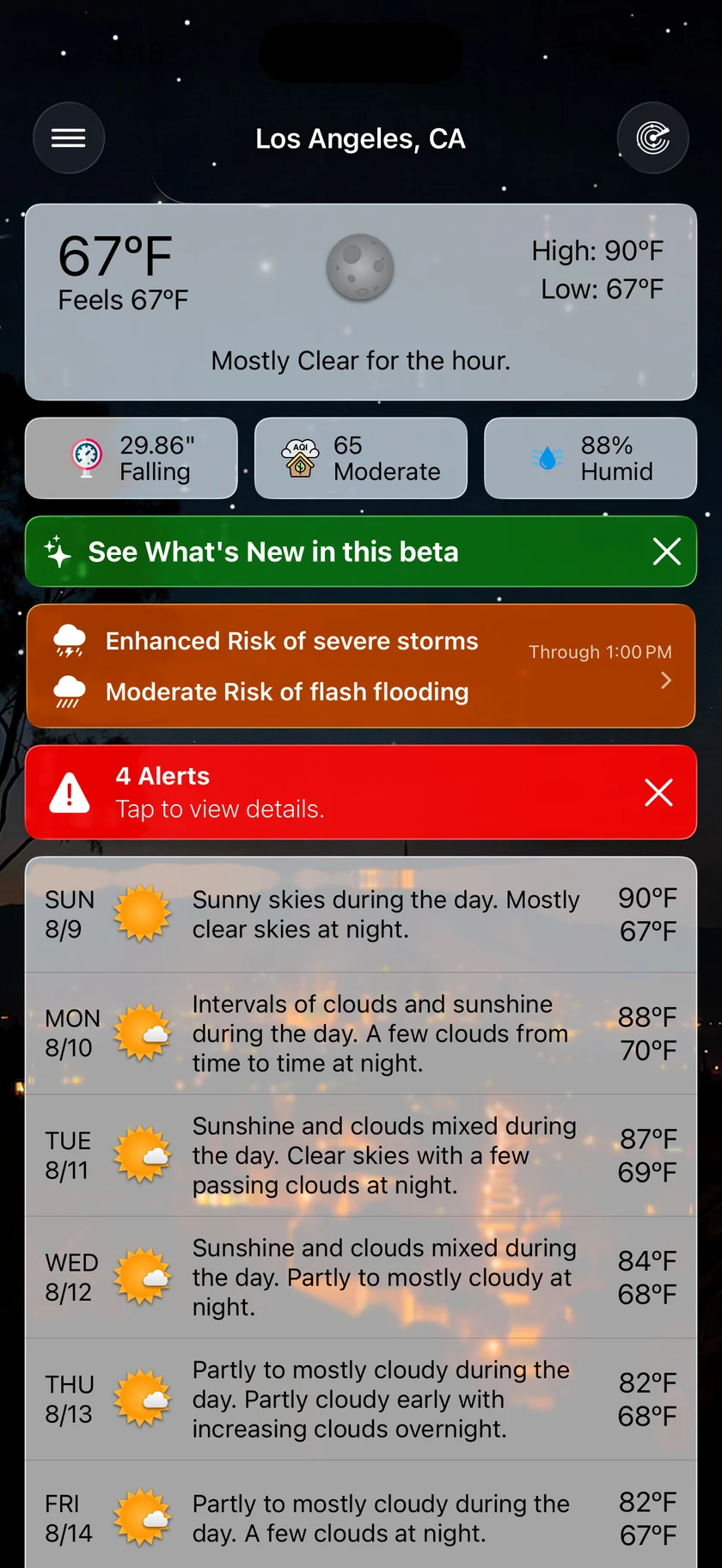
    One line per risk, the hours it covers, and a tap that opens the radar with that outlook drawn over the map. The map overlay is not so precious: it draws every tier, because severe risk has to be read against the storms sitting inside it.

    The main screen with an orange Severe Risk card above the alerts banner reading Enhanced Risk of severe storms and Moderate Risk of flash flooding, with its validity window trailing
    It only appears on the days that genuinely lead the first watch.

    Severe Outlook AlertsiOSMac

    By the time a watch is issued, the day is already happening. NOAA's outlook goes out hours earlier — it is the forecaster's read on how the day could turn — and until now Forecast Bar could draw it for you but never tell you it had changed.

    Now it can. Turn on Outlook Upgrades under Weather Alerts and you get told when the outlook where you are is raised.

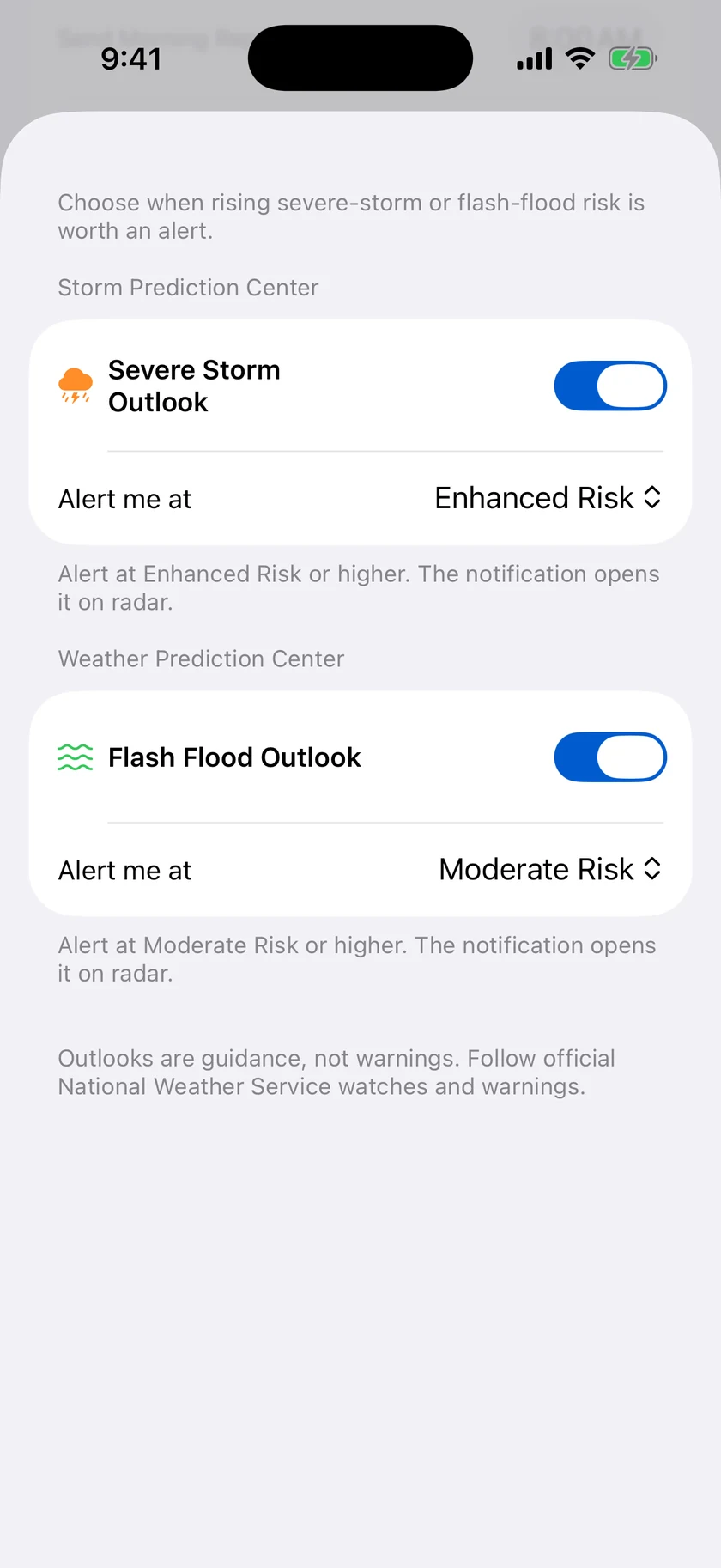
    Severe storms and flash flooding are separate switches, because they are separate products on unrelated scales: a Moderate risk of flooding and a Moderate risk of storms are not the same sentence. Both start at the level the Severe Risk card already uses, so an alert means a genuinely unusual day rather than a routine one. Move them down if you want more warning than that.

    Severe Outlook Alerts settings with Severe Storm Outlook enabled at Enhanced Risk and Flash Flood Outlook enabled at Moderate Risk
    Separate SPC and WPC thresholds, starting where the day becomes unusual.

    Storm Tracker and the storm reportiOSMacTV

    Hail damage has a habit of surfacing months later, when a roofer points at something and asks when it happened.

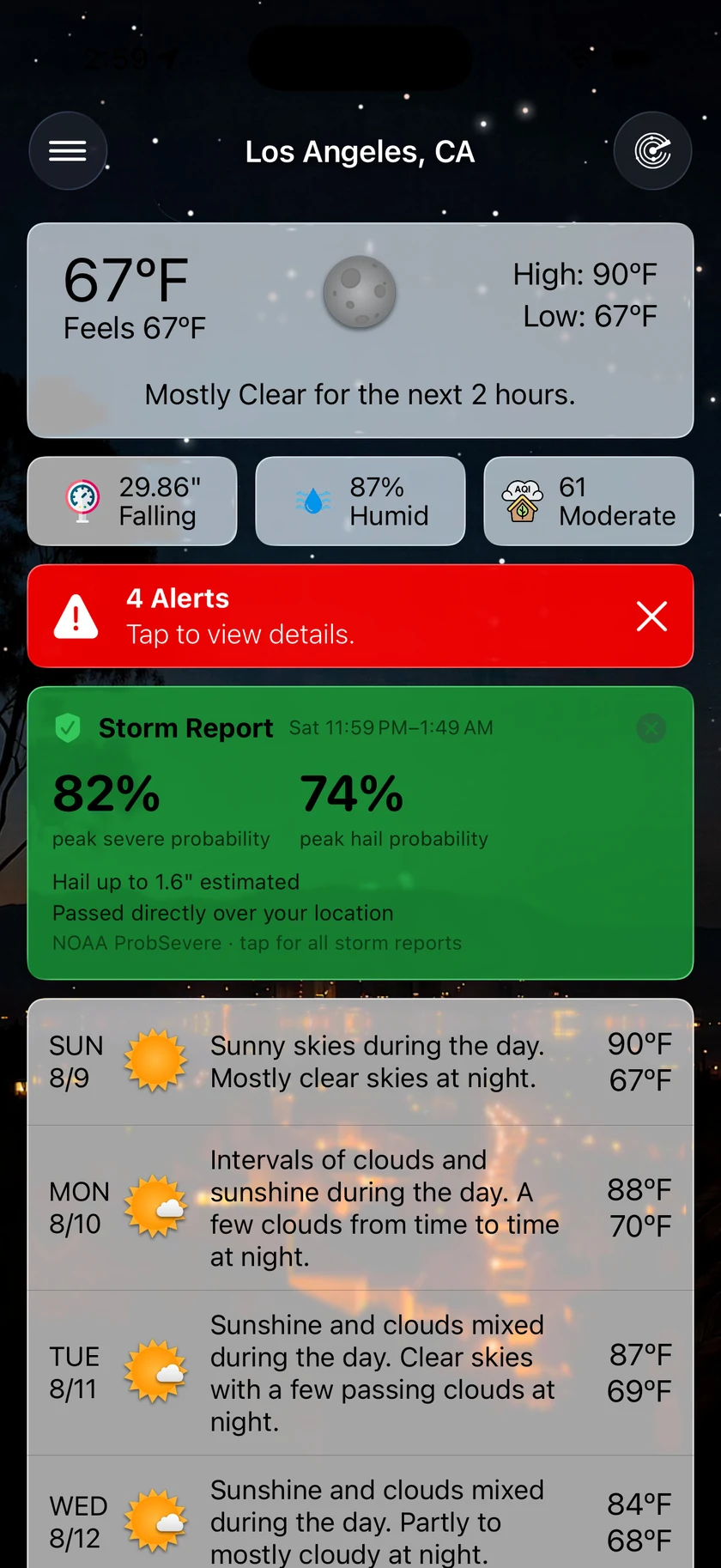
    After a storm passes over you, Forecast Bar writes down what hit. Peak severe probability, peak hail probability, the estimated hail size, whether it went directly overhead or passed nearby, and the window it happened in.

    Storm Reports keeps them for two years, which is roughly the timescale on which that roofer turns up. It is reachable from the card itself and from the Weather Alerts screen.

    While a storm is still on its way, the Storm Tracker card carries the live version of the same information: probability with a trend arrow, hail size, distance and motion, and either an arrival time or the reassurance that it will pass wide.

    A green Storm Report card between the alerts banner and the forecast, reading 82% peak severe and 74% peak hail, hail up to 1.6 inches estimated, and passed directly over your location
    What actually hit, kept for two years.

    Smart Data PointsiOSMacTV

    A UV index at midnight is not information. Neither is a rain accumulation of zero on a dry week, or a wind gust reading on a still day.

    Forecast Bar can now choose its own tiles from what the weather is actually doing. UV while the sun is up, accumulation once it is raining, gusts when it is gusty; fog, heat, chill, mugginess and an approaching sunset all ramp in and out on their own curves. Pick how much you want — Only Important, which can legitimately show nothing on a calm day, Key Basics at about three, or Extended at about six.

    It also stops repeating itself. No precipitation chance tile above a rain chart that is already showing you the rain. No Feels Like beside a headline that already says it. Gusts fold into the wind tile, which was showing the range anyway.

    The full grid sorts by what matters right now rather than a fixed order. And if you would rather do it yourself, drag a tile — it takes your arrangement and hands control straight back, no setting to find.

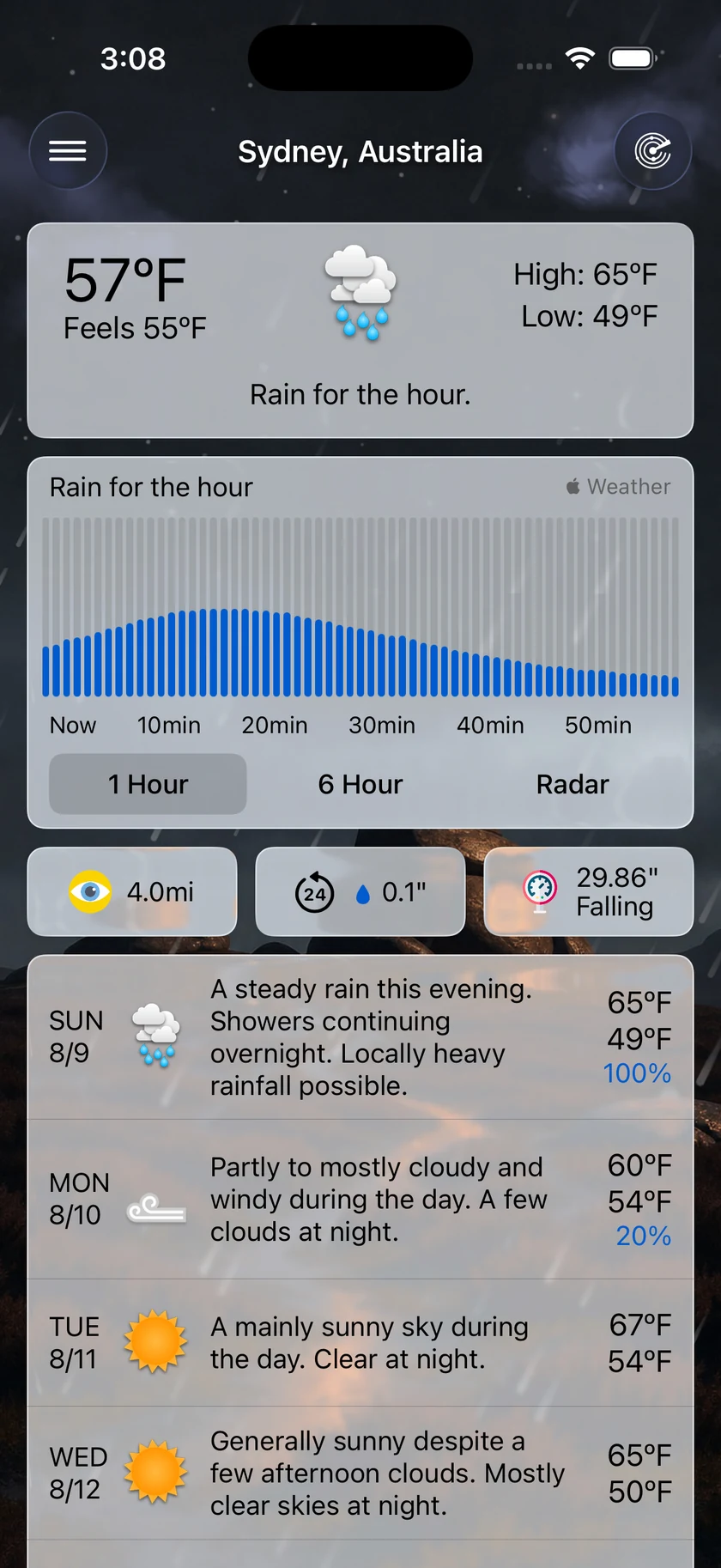
    Sydney in rain, with a Rain for the hour headline over a live minute-by-minute chart, and tiles below showing visibility, 24-hour accumulation and falling pressure — no precipitation chance tile
    Raining, so the tiles changed. And no chance tile above a rain chart.

    Compare cities without leaving the forecastiOSMac

    Up to five of your saved cities can sit right on the forecast, above or below it, each with its own local time, conditions and temperature. One tap compares, and the arrow beside it switches to that city outright.

    Set a Home location and it leads the card whenever you are away from it — so the city you are travelling in is on screen, and the one you left is right underneath it. At home it quietly folds away, because then it is just where you already are.

    Compare also stops losing your place: leave it on Current, Hourly or Daily and that is where it opens next time.

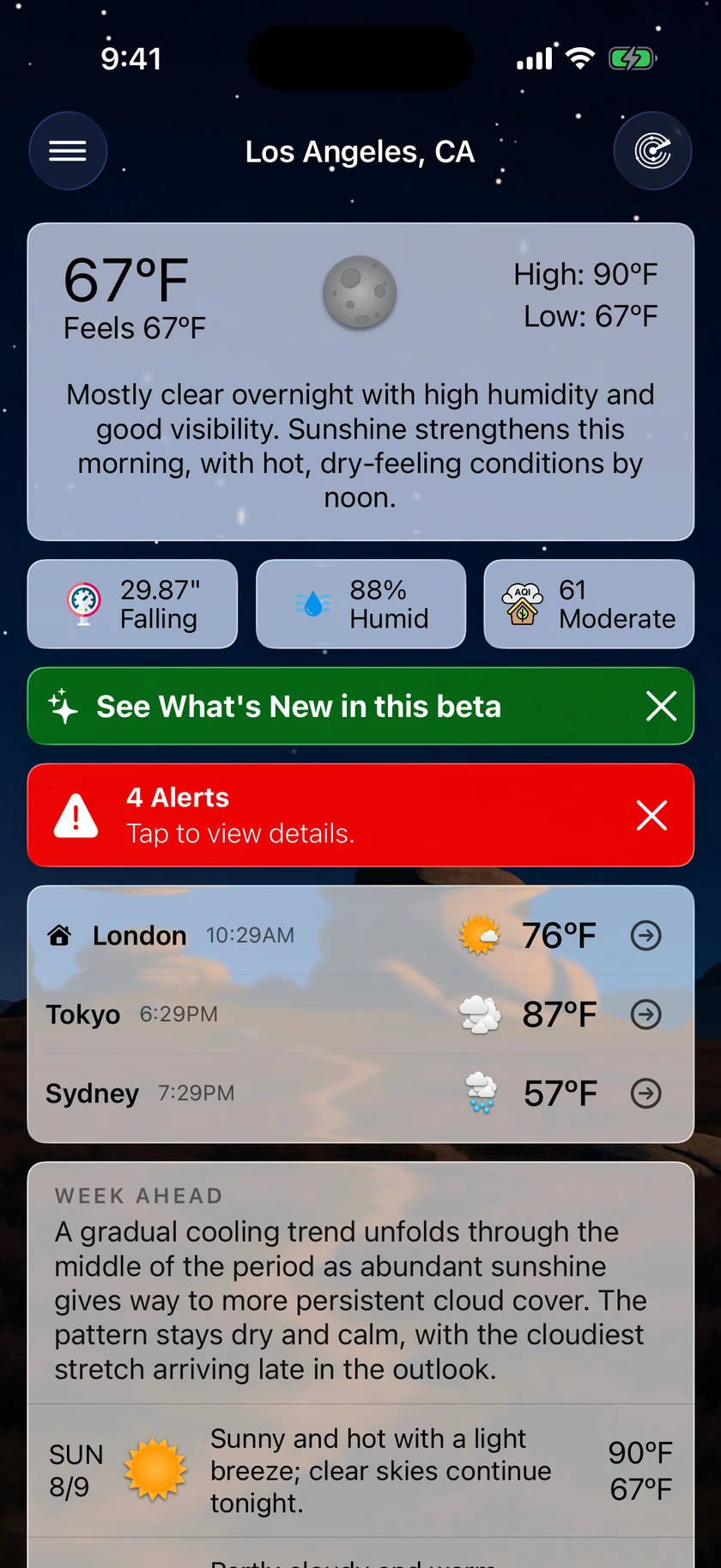
    The main screen with a compare card above the daily forecast listing London with a home badge at 10:29AM and 76 degrees, Tokyo at 6:29PM and 87, and Sydney at 7:29PM and 57
    Home first when you're away from it, each city in its own local time.

    Week Ahead OutlookiOSMac

    The daily forecast table already tells you the highs, the lows and the chance of rain. Repeating those in a paragraph above it would be words for the sake of words.

    So the Week Ahead Outlook is written to say only what the table cannot show: the shape of the week. The warming or cooling arc, the front and when it clears, the wet stretch against the dry break, the one day that stands apart from the rest.

    One to three sentences, above your daily forecast. It ships switched off — turn it on in Settings › Forecast Bar AI, alongside the rest of Smart Weather Stories.

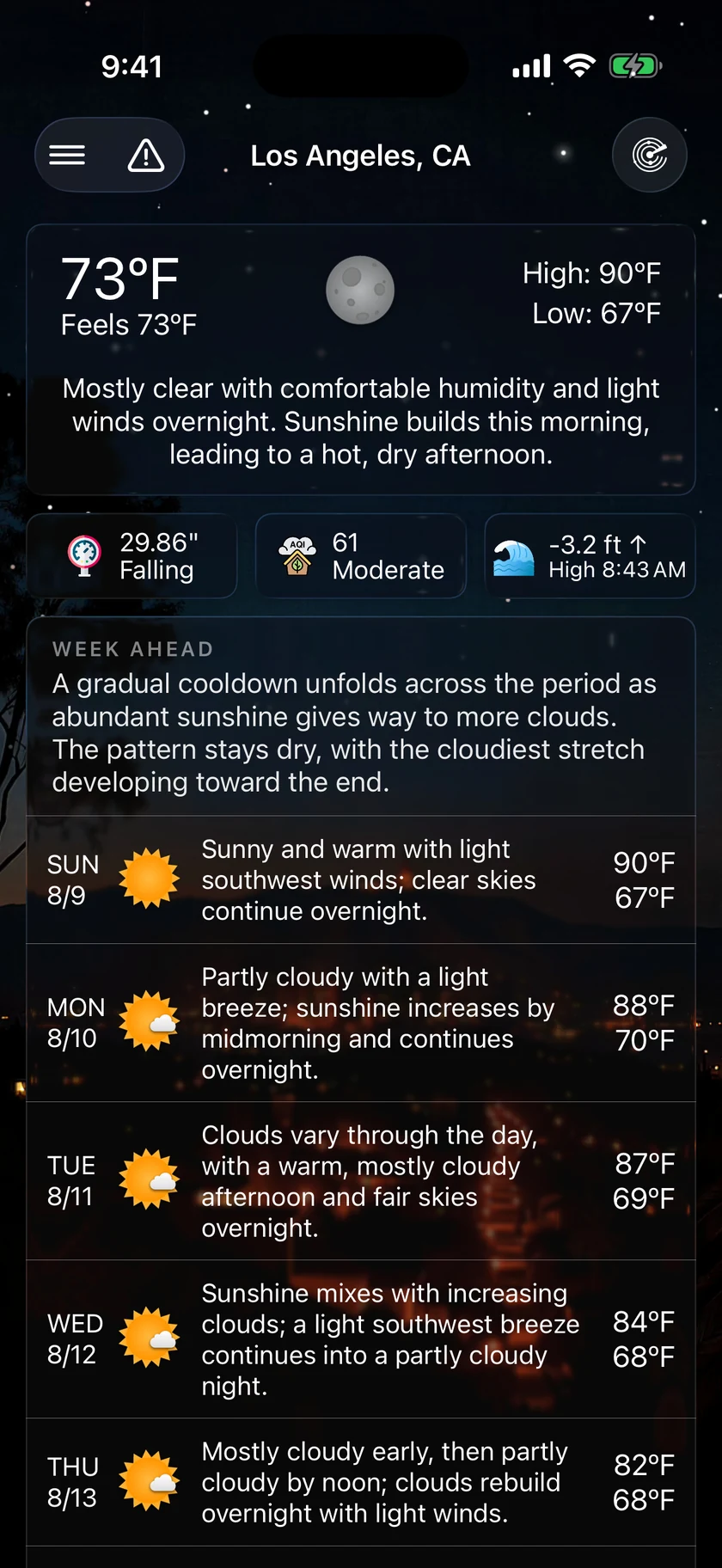
    A WEEK AHEAD header above the daily forecast reading that a gradual cooldown unfolds across the period as abundant sunshine gives way to more clouds
    The week's shape, in the space above the table that shows its numbers.

    Backgrounds you can read overiOSMac

    City packs, photographic scenes and the satellite map are the best-looking backgrounds in the app, and the hardest to read a forecast over.

    Two new sliders fix that without throwing the picture away. Blur smooths the detail out while keeping every colour, so a night skyline stays a night skyline. Dimming darkens it for extra contrast. They work independently, they apply to every screen that draws the background, and both start at off — in Settings › Theme & Visual Style.

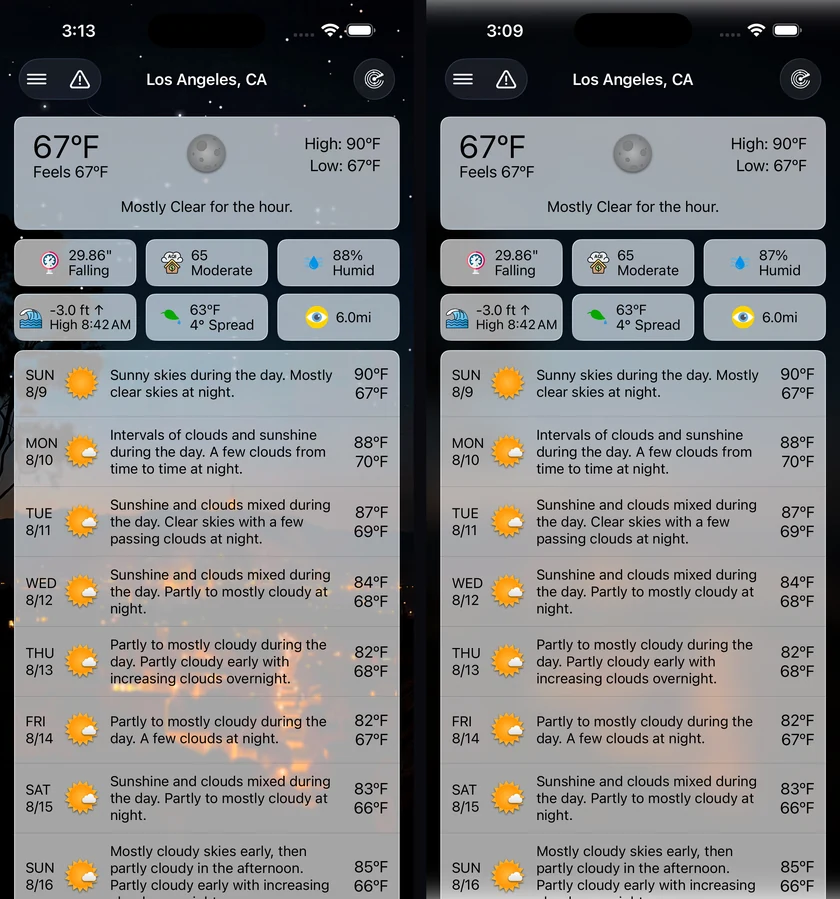
    Side by side comparison of the same Los Angeles night city-pack background, first at full detail with the forecast text competing against city lights, then with blur and dimming applied so the text reads cleanly while the scene keeps its colour
    Same scene, same colours. Blur 60%, Dim 35%.

    Astronomy AlertsiOSMac

    Knowing that a meteor shower exists is only half the answer. Forecast Bar now tells you whether it is worth going outside where you are.

    Meteor showers join eclipses and supermoons, with major showers and predicted outbursts recommended from the start. Tonight's most relevant event can appear directly in the forecast with its best local viewing time.

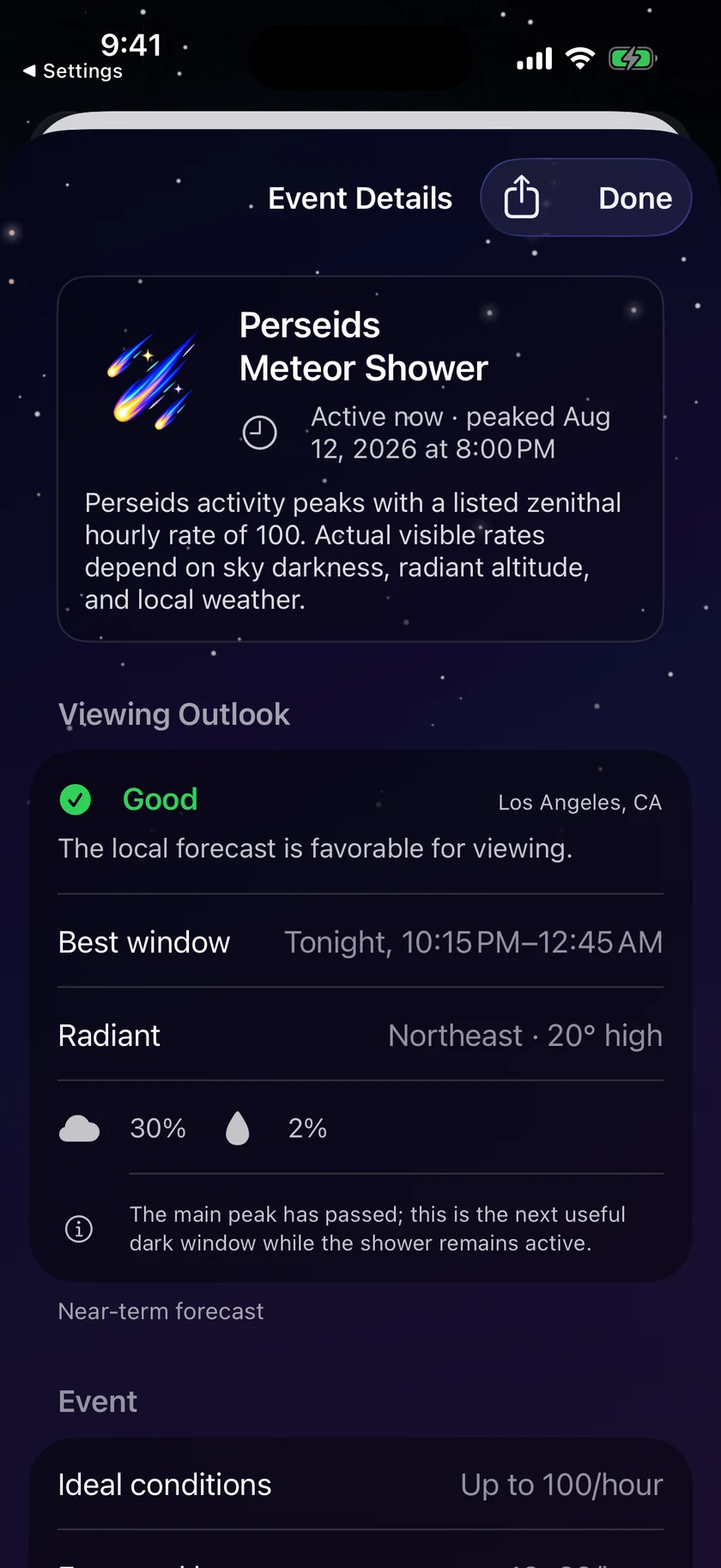
    Open an event for the useful part: the ideal rate beside what you can realistically expect nearby, the best dark window, direction and height in the sky, cloud and rain chances, and practical guidance. Astronomy alerts can also skip events when your local viewing conditions look poor.

    Perseids Meteor Shower event details over a night-sky scene, showing a Good viewing outlook for Los Angeles, a best window from 10:15 PM to 12:45 AM, the northeast radiant, cloud and rain chances, and an expected local rate of 16 to 32 meteors per hour
    The event, the best local window, and what you can realistically expect to see.

    Time MachineiOSMacTV

    A date should not need a different tool depending on which side of today it falls.

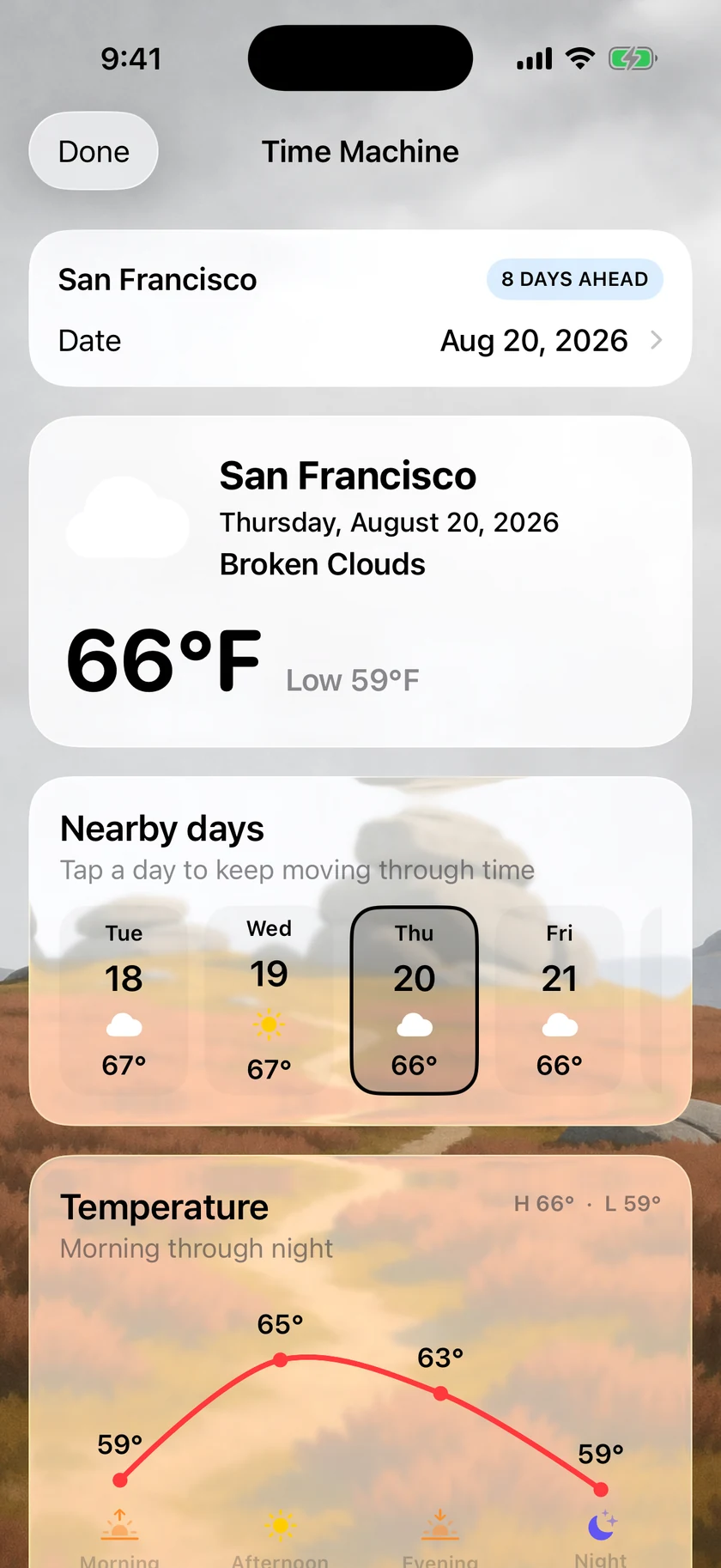
    Time Machine is one quiet control at the bottom of the forecast. Pick any supported date for the selected place: past dates load historical weather, future dates use the best available outlook, and nearby days sit alongside both in the same presentation. Nothing to configure, save or organise first.

    The same date-and-place lookup also powers Weather Photos on iPhone.

    Time Machine showing San Francisco eight days ahead with a 66 degree Broken Clouds forecast, a row of nearby days, and a morning-to-night temperature curve marked with sunrise, sunset and rain chance
    Past or future, with nearby days and the shape of the whole day in one view.

    Weather PhotosiOS

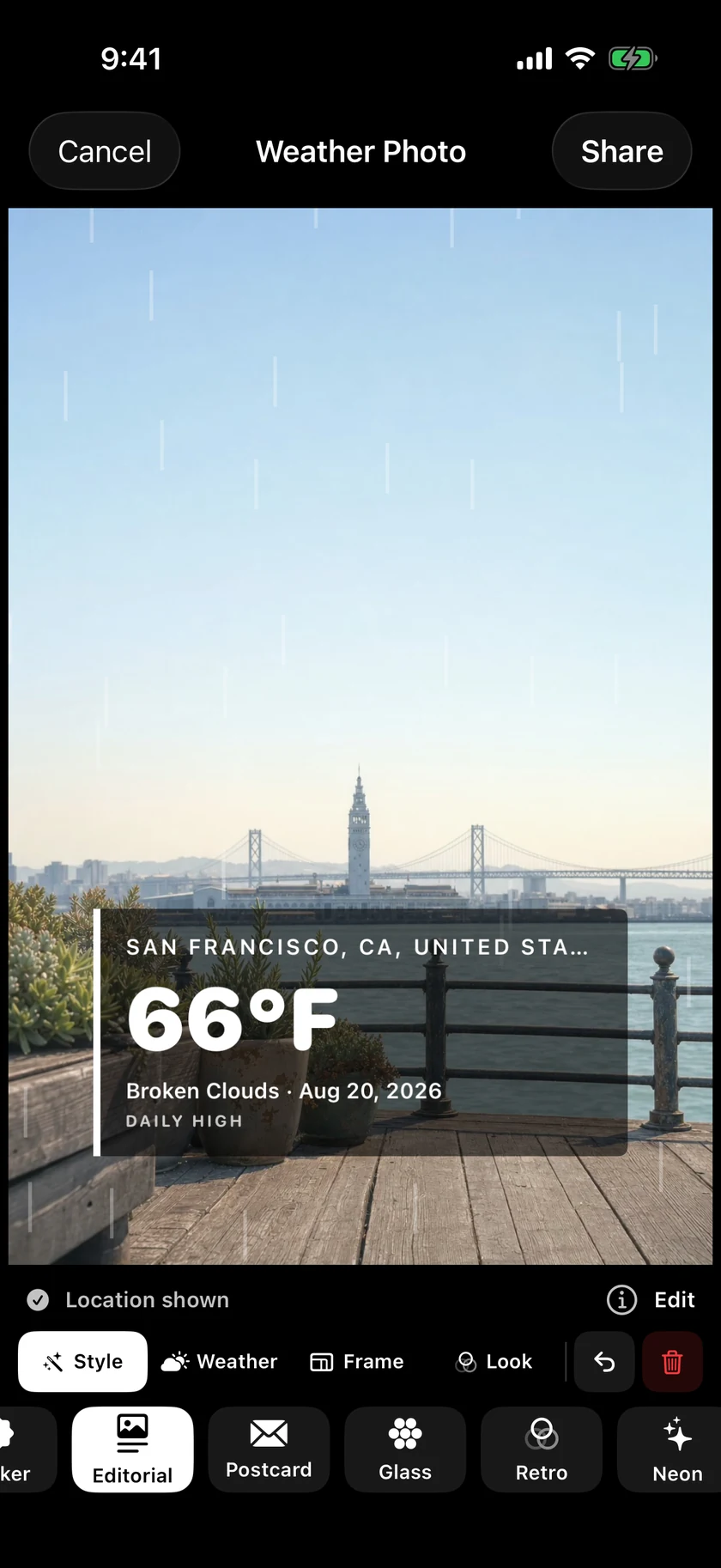
    Choose an image in Forecast Bar or send one from Photos, and its original date and location recreate the weather around it. Then place, scale and rotate the result directly on the image — restrained type, playful stickers, rain, snow or stars — and share the finished photo.

    The photo stays in the editor while Forecast Bar looks up its weather.

    Weather Photo editor placing an Editorial treatment over a bright San Francisco waterfront image, with 66 degrees, Broken Clouds, the date and place, plus controls for style, weather, frame and look
    Your photo, its weather, and a treatment you can move, style and share.

    Plus 103 smaller changes — fixes, tidy-ups and one-line wins that didn't need a paragraph. See every line →

    Everything in this release

    Storm InterceptiOS

    • A severe storm heading your way runs on the Lock Screen and in the Dynamic Island: how likely it is to turn severe, how far out, and a countdown to arrival.iOS
    • The countdown ticks between updates, and the card follows the storm as it strengthens, weakens, or slides past you.iOS
    • When a storm is going to miss, it says so — the closest it will come, then it gets out of your way.iOS
    • It mirrors to the Apple Watch Smart Stack, the same way precipitation alerts do.iOS
    • Choose how readily it starts — Rarely, Normal, or Often — from the storm alert settings.iOS
    A Storm Intercept Live Activity on the Lock Screen reading 65% severe with an upward trend arrow, a 24 minute countdown, 14 miles west-southwest, and a detail line giving 1.0 inch hail moving northeast at 28 mph
    65% and rising, 24 minutes out. The countdown runs live.

    Storms on the radariOSMacTV

    • Storm Cells draws every tracked cell on the map with its probability of turning severe — NOAA/CIMSS ProbSevere guidance, updated every two minutes — so you can tell which storm in a line is the one to watch.iOSMac
    • Tap a cell for the full read: severity trend, hail, wind and tornado breakdown, estimated hail size, lightning rate and echo top.iOS
    • Severe Storm Alert and Large Hail Alert ship ready-made under Weather Alerts, starting at a 50% severe chance, hail an inch or larger, projected to come within 15 miles.iOSMac
    • Tune any of it, or build your own rule on severe probability or hail size.iOSMac
    • Click a cell for the full read: severity trend, hail, wind and tornado breakdown, estimated hail size, lightning rate and echo top.Mac
    • Storm Cells draws every tracked storm on the radar with its probability of turning severe — NOAA/CIMSS ProbSevere guidance, updated every two minutes — so you can tell which storm in a line is the one to watch.TV
    The Storm Cell inspector sheet over the radar, showing a 41 percent severe chance with an upward trend arrow, motion northeast at 14 miles per hour, hail, wind and tornado probabilities with bars, estimated hail size, and a rising severe probability trend line
    Tap a probability badge for the storm's motion, hazards and trend.

    Severe RiskiOSMacTV

    • On the rare day the national outlook reaches Enhanced or higher, a Severe Risk card leads the main screen with the risk and the hours it covers.iOS
    • Tap it to open the radar with that outlook over the map. Severe storm and flash-flood outlooks are separate toggles, over whichever layer you're using.iOS
    • The legend shows each outlook's whole scale, with your location's level marked.iOSMac
    • On the rare day the national outlook reaches Enhanced or higher, a Severe Risk card leads the forecast with the risk and the hours it covers.Mac
    • Click it to open the radar with that outlook over the map. Severe storm and flash-flood outlooks are separate toggles, over whichever layer you're using.Mac
    • On the rare day the national outlook reaches Enhanced or higher, a Severe Risk card leads the forecast with the risk and the hours it covers. Select it to open the radar.TV
    The main screen with an orange Severe Risk card above the alerts banner reading Enhanced Risk of severe storms and Moderate Risk of flash flooding, with its validity window trailing
    It only appears on the days that genuinely lead the first watch.

    Severe Outlook AlertsiOSMac

    • NOAA publishes a severe outlook each day, hours before any watch is issued — you can now be told when the outlook where you are gets upgraded.iOSMac
    • Severe storms and flash flooding are separate switches with their own levels, starting at Enhanced and Moderate so an alert means a genuinely unusual day.iOSMac
    • Tapping the notification opens the radar with that outlook drawn over the map.iOS
    • Outlook Upgrades uses the same clear on/off switch as the other alert groups.iOSMac
    Severe Outlook Alerts settings with Severe Storm Outlook enabled at Enhanced Risk and Flash Flood Outlook enabled at Moderate Risk
    Separate SPC and WPC thresholds, starting where the day becomes unusual.

    Storm Tracker and the storm reportiOSMacTV

    • A storm closing on your location gets a card that leads with the verdict: on track for you, or expected to miss. Severity reads in the title — Possible, Likely Severe, or Dangerous — with how far off it is riding along.
    • A storm on track counts down to arrival live; one that will pass by says how wide, with no ticking clock. Tapping the card — or a storm notification — opens the radar with that storm's cell selected.iOS
    • Hail, tornado and damaging-wind callouts are capped to the two that matter most, and the chance of turning severe appears once, in the sentence that defines it.
    • After a storm passes over you, a card records what actually happened — "Passed directly over you," or how far to which side — with the time window, estimated hail size and peak severe probability up front. It reads as a record of a storm that has already passed, and shows for one session before stepping aside.iOS
    • Storm Reports keeps two years of them — the timescale hail damage tends to surface on. Storm tracking covers the contiguous US.iOSMac
    • Storm reports appear only when a storm actually reached your location or came violently close.iOSTV
    • Storm alerts are better timed: notifications and Live Activities start when a storm is genuinely close and arriving soon — Rarely ≈ 20 minutes out, Normal ≈ 30, Often ≈ 60 — and new alert rules default to a 10-mile radius.iOS
    • A storm on track counts down to arrival live; one that will pass by says how wide, with no ticking clock. Clicking the card opens the radar with that storm's cell selected.Mac
    • After a storm goes over you, a card records what actually happened — "Passed directly over you," or how far to which side — with the time window, estimated hail size and peak severe probability up front. It reads as a record of a storm that has already passed, and shows for one session before stepping aside.MacTV
    • A storm on track counts down to arrival live; one that will pass by says how wide, with no ticking clock.TV
    • Storm cards focus on storms that matter — only nearby, imminent storms appear.TV
    • Meteor shower cards step back after the shower's peak instead of lingering at full prominence.TV
    A green Storm Report card between the alerts banner and the forecast, reading 82% peak severe and 74% peak hail, hail up to 1.6 inches estimated, and passed directly over your location
    What actually hit, kept for two years.

    Smart Data PointsiOSMacTV

    • The main screen can pick its own tiles from current conditions — UV while the sun is up, accumulation once it's raining, gusts when it's gusty — at Off, Important, Basics or Extended.iOS
    • The full grid sorts by what matters right now instead of a fixed order. Drag a tile and it hands control back to you.iOSMac
    • Tiles that repeat what's already on screen drop out: no precipitation chance above a rain chart, no Feels Like next to the hero, gusts folded into the wind tile.iOSMac
    • The forecast can pick its own tiles from current conditions — UV while the sun is up, accumulation once it's raining, gusts when it's gusty — at Off, Important, Basics or Extended.Mac
    • The forecast can pick its own conditions to show — UV while the sun is up, accumulation once it's raining, gusts when it's gusty — instead of holding a fixed set all day.TV
    • What's shown is ordered by what matters right now, and anything that repeats what's already on screen drops out.TV
    Sydney in rain, with a Rain for the hour headline over a live minute-by-minute chart, and tiles below showing visibility, 24-hour accumulation and falling pressure — no precipitation chance tile
    Raining, so the tiles changed. And no chance tile above a rain chart.

    Compare cities without leaving the forecastiOSMac

    • Up to five saved cities sit above or below your forecast with their local time, conditions and temperature. Tap to compare, or jump straight to that city.iOS
    • Set a Home location and it joins your forecast automatically whenever you're away — no compare card setup needed — pinned in the city list and badged "While away".iOSMac
    • A new Away Distance setting decides how far from Home counts as away.iOSMac
    • Compare reopens on the tab you left it on.iOSMac
    • Up to five saved cities sit above or below your forecast with their local time, conditions and temperature. Click to compare, or jump straight to that city.Mac
    The main screen with a compare card above the daily forecast listing London with a home badge at 10:29AM and 76 degrees, Tokyo at 6:29PM and 87, and Sydney at 7:29PM and 57
    Home first when you're away from it, each city in its own local time.

    Week Ahead OutlookiOSMac

    • Week Ahead Outlook adds a short read on the week's pattern above the daily forecast — the turning points and the standout day, not a recap of the table.iOSMac
    • Turning on Smart Weather Stories includes the Week Ahead outlook from the start.iOSMac
    A WEEK AHEAD header above the daily forecast reading that a gradual cooldown unfolds across the period as abundant sunshine gives way to more clouds
    The week's shape, in the space above the table that shows its numbers.

    Backgrounds you can read overiOSMac

    • Background Effects softens a busy scene, city pack or map with Blur and Dimming while keeping its color, previewing live as you set it.iOSMac
    • Glass Mode is now a slider — dial the card look from clear to frosted, with a live preview.iOSMac
    Side by side comparison of the same Los Angeles night city-pack background, first at full detail with the forecast text competing against city lights, then with blur and dimming applied so the text reads cleanly while the scene keeps its colour
    Same scene, same colours. Blur 60%, Dim 35%.

    Stargazing ConditionsiOSMac

    • Stargazing Conditions shows tonight’s best window, darkness, Moon, and weather.iOSMac
    • Far north or far south in summer, where the sky never gets fully dark, it says so plainly instead of coming up empty.iOSMac
    • The focused view is a compact panel — rating, best window, and an hourly quality chart — with the day selector and data points still in reach.iOSMac
    • Stargazing is suggested in the evening rather than during the day.iOSMac
    • Drag across the hourly chart to read any hour, with the header holding still and tile times shown in the location's own time zone.iOSMac

    Astronomy AlertsiOSMac

    • Meteor showers join eclipses and supermoons, with major showers and predicted outbursts recommended from the start.iOSMac
    • Shower cards step back after the peak instead of lingering at full prominence for weeks.iOS
    • Conjunctions, planetary highlights, moon phases and other quieter events remain individually optional.iOSMac
    • Major Showers Only uses the same familiar switch as other alert options.iOSMac
    • Upcoming Sky Events ranks active highlights with clearer artwork and labeled local viewing quality.iOSMac
    • Event details show your best time based on activity, moonlight, weather and height in the sky.iOSMac
    • Hourly meteor charts compare ideal activity with your local viewing forecast.iOSMac
    • Eclipses show local contact times, coverage, and the strongest visible phase.iOSMac
    • Planetary events explain when binoculars or a telescope will help.iOSMac
    • Tonight’s most relevant sky event appears directly in the forecast with its best local viewing time.iOSMac
    • Astronomy alerts follow the recommended local time, skip poor conditions, and open the event.iOSMac
    • Sky events share with the local outlook, best viewing window and Forecast Bar attribution.iOSMac
    Perseids Meteor Shower event details over a night-sky scene, showing a Good viewing outlook for Los Angeles, a best window from 10:15 PM to 12:45 AM, the northeast radiant, cloud and rain chances, and an expected local rate of 16 to 32 meteors per hour
    The event, the best local window, and what you can realistically expect to see.

    Live Sunset AlertsiOSMac

    • Live Sunset Alerts let you know when tonight's sunset is worth stepping outside for — a rare heads-up minutes ahead, sent only when live satellite imagery confirms the forecast.iOSMac
    • Choose how often you hear about it: only the confirmed standouts, a lower bar for more of them, or a nightly rating every evening.iOSMac

    Time MachineiOSMacTV

    • Time Machine opens directly to the calendar without preselecting today.iOS
    • Time Machine loads today and future dates reliably across time zones.iOSMac
    • Time Machine now shows a clearer morning-to-night temperature graph, with sunrise, sunset, rain chance and familiar forecast details at a glance.iOSMac
    • Time Machine’s background now follows the selected place, date and weather, including the correct city scene and local day or night.iOSMac
    • Selected dates show how many days, weeks, months or years they are ahead or ago, while past and future weather keep the same calm presentation.iOSMac
    • Time Machine shows its supported date range and clearer forecast guidance.iOS
    • Time Machine stays readable while nearby days remain easy to browse.iOS
    • Future forecasts leave UV blank when the source has no reliable reading instead of showing a misleading zero.iOSMac
    • A quiet Time Machine row at the bottom of the forecast opens any supported date for the selected place — past or future — in one resizable window with nearby days alongside it.Mac
    • Time Machine opens at a compact size and stays smooth while scrolling.Mac
    • Time Machine cards follow your appearance and stay readable over busy backgrounds.Mac
    • Time Machine opens any supported date for the selected place — past or future — with nearby days alongside it.TV
    • Its date chooser is built for a remote rather than a touchscreen: one row per unit, so up and down pick the unit and left and right move the date.TV
    Time Machine showing San Francisco eight days ahead with a 66 degree Broken Clouds forecast, a row of nearby days, and a morning-to-night temperature curve marked with sunrise, sunset and rain chance
    Past or future, with nearby days and the shape of the whole day in one view.

    Weather PhotosiOS

    • Choose a photo, or share one to Forecast Bar, and its original date and location can be used to recreate the weather around it.iOS
    • A photo-first editor keeps date and location in one simple panel, then lets you place, scale and rotate weather artwork from restrained typography to atmospheric rain, snow and stars.iOS
    • Weather Photo controls stay compact and steady while you add styles and effects.iOS
    • A visible location shortcut puts the photo’s place directly into the design.iOS
    • Postcard starts with the photo’s place and date in a cleaner, classic treatment.iOS
    • Copy Photo leads the finish flow, with clear next steps and Save to Photos as a fallback.iOS
    • Sharing from Photos stays open and responsive until you explicitly finish.iOS
    • Weather Photos open from Time Machine without repeating date and place setup.iOS
    • Weather Photo treatments now have a clear, undoable remove button.iOS
    Weather Photo editor placing an Editorial treatment over a bright San Francisco waterfront image, with 66 degrees, Broken Clouds, the date and place, plus controls for style, weather, frame and look
    Your photo, its weather, and a treatment you can move, style and share.

    AccessibilityiOSMac

    • Forecast Bar works with VoiceOver. Weather icons, forecast rows, toggles and icon-only buttons all speak what they show, and controls that were tap-only — expanding a day, opening an alert, switching row style, editing locations — are now reachable and announced.iOS
    • The next-hour precipitation chart describes the curve in words rather than being skipped.iOSMac
    • Opening the app takes you straight to the current conditions, and the side menu keeps focus inside it.iOS
    • Reduce Motion holds the animated sky still.iOSMac
    • A dozen controls have larger touch targets, with no change to how anything looks.iOS
    • Forecast Bar works with VoiceOver. Weather icons, forecast rows, toggles, icon-only buttons and the menu bar item itself all speak what they show, and controls that were click-only are now reachable and announced.Mac

    Appearance per deviceiOSMac

    • A "Sync Appearance Across Devices" toggle in Theme & Visual Style lets an iPhone, iPad and Mac each keep their own look while locations, units and alerts keep syncing as before.iOS
    • A "Sync Appearance Across Devices" toggle in Theme & Visual Style lets the Mac keep its own look while locations, units and alerts keep syncing as before.Mac
    • A Mac left sitting in the menu bar picks up locations and settings changed on your other devices, instead of waiting until you open the popover.Mac

    Also in this releaseiOSMacTV

    • Background Packs has a search field, so finding a city in a catalogue of nearly a hundred takes a keystroke instead of a scroll. A search that finds nothing offers to request that city.iOS
    • Times on the Stargazing, Tides and Tonight's Sky cards no longer get cut off at larger text sizes.iOSMac
    • A fast flick on a pack row scrolls the Background Packs list, instead of doing nothing.iOS
    • On iPad in landscape, a storm on its way ranks above tonight's sky event.iOS
    • Wildfire smoke joins the radar as a companion overlay, with an hour-by-hour PM2.5 forecast on the Air Quality data point.iOSMac
    • Compare & Home, Forecasts and Radar each get their own settings screen.iOSMac
    • Settings section labels now sit inside their cards for a cleaner, more readable look.iOS
    • Flipping between a widget's pages is instant, reusing the widget's cached weather instead of refetching it.iOS
    • Time Machine and the wallpaper peek sit in a clearer order at the forecast’s end.iOS
    • Flick past the bottom of the forecast to peek at the wallpaper behind it.iOS
    • What's New opens the full illustrated release history inside the app.iOS
    • The Scottish Highlands scene is redrawn across every hour and weather condition.
    • The rain chart clears when you switch to a city it doesn't cover, instead of holding the last city's rain.
    • Small caption text throughout the app renders at caption size again.
    • Alert setting titles use the same calm type hierarchy throughout.iOSMac
    • The "Now showing" city pack card appears only over a scene you chose, and turning nearby scenes off says plainly that it stops them everywhere.iOSMac
    • Smart Weather Stories no longer end with a stray brace, code fence, or garbled text.iOSMac
    • Severe storm alerts and severe outlook alerts sit together in one place in settings.iOS
    • Precipitation amounts follow your region's number formatting.
    • Widgets keep a usable recent forecast through brief service outages instead of going blank.iOS
    • Wallpaper peek reveals the original scene without blur or dimming.iOS
    • Weather and alert data arrive faster during busy conditions.
    • Sunrise and sunset quality forecasts return faster.
    • Upcoming Sky Events and the astronomy browser scroll and filter more smoothly.iOSMac
    • The mini radar preview shows precipitation outside the United States, and labels how old the frame is when it isn't close to live.
    • A sunset quality score for a sunset that has already happened says which day it was for.
    • The animated sky no longer re-scatters its clouds and stars when the screen refreshes.
    • Even spacing between the cards in location search.iOSMac
    • Backgrounds crossfade when the scene changes frame, so coming back to the app hours later, or the conditions turning, blends instead of hard-cutting.
    • Dismissed cards no longer flash back on screen while they animate away.iOSMac
    • Choosing an app icon draws the selection ring around the artwork rather than on top of it, with a checkmark badge on your choice, so the selection is legible against all 32 icons.iOS
    • Background scene and style pickers get the same treatment: the ring sits outside the photo, where it can't disappear into a blue sky.iOS
    • Swipe right anywhere on the main screen to open the side menu — no need to reach for the hamburger or start from the screen edge.iOS
    • Location search finds parks, ski areas, and landmarks, not just street addresses.
    • Smart Weather Stories split into three independent switches — current conditions, daily, and week ahead — so you can run any combination.iOS
    • The city pack store is organized into Cities, Installed, and Requests, with an always-visible search box.iOSMac
    • Swiping the What's New banner away no longer opens it instead.iOS
    • Location search results line up evenly — long park and landmark addresses trim to one line instead of wrapping.iOSMac
    • Closing the side menu while searching now puts the keyboard away instead of leaving it up.iOS
    • Forecast charts are redrawn with a smoother, gradient-filled curve in place of the boxed-in plot and the dot on every hour.
    • A marker shows the current hour, and a second one follows your finger as you scrub across the chart.iOS
    • Switching data points now animates, and Tides, Air Quality and Stargazing share the same lighter styling.
    • New installs start in the right formats for your region — Celsius, km/h, and the 24-hour clock come straight from your device's settings.iOS
    • A 24-Hour Clock switch in Settings → Data & Layout sets how times read in widgets, watch complications, and notification times.iOS
    • Notification setup starts with every type selected, so one tap turns them all on.iOS
    • Radar in Australia and Europe opens on its regional layer, with the NOW marker in the right place.
    • The radar widget uses Australia's modern mosaic and no longer holds stale frames.iOS
    • Widget backgrounds reuse their cached image across refreshes.iOS
    • A cleaner Smart Weather Stories settings screen.iOSMac
    • Global radar now plays into the future — the worldwide precipitation layer continues past NOW with forecast frames, so you can scrub ahead anywhere on Earth.
    • Next-Generation Radar has left beta — its setting no longer carries the Beta tag.iOSMac
    • Background Packs has a search field, so finding a city in a catalogue of nearly a hundred takes a keystroke instead of a scroll.Mac
    • What's New opens the full illustrated release history in its own window.Mac
    • Dock Mode stays docked until you deliberately drag it out.Mac
    • Nearby city pack buttons stay legible in light mode.Mac
    • Radar memory stays bounded across repeated window opens, pans, and zooms.Mac
    • Storm reports appear only when a storm actually reached your location or came violently close.Mac
    • Storm cards focus on storms that matter — only nearby, imminent storms appear. New storm alert rules default to a 10-mile radius.Mac
    • Meteor shower cards step back after the shower's peak instead of lingering at full prominence.Mac
    • Background scene and style pickers draw their selection ring around the artwork rather than on top of it, so the choice stays legible against every photo.Mac
    • Smart Weather Stories split into three independent switches — current conditions, daily, and week ahead — so you can run any combination, including Week Ahead on its own.Mac
    • A marker shows the current hour, and a second one follows the pointer as you scrub across the chart.Mac
    • New installs start in the right formats for your region — Celsius, km/h, and the 24-hour clock come straight from your Mac's settings.Mac
    • A 24-Hour Clock switch in Settings → Data & Layout sets how times read in the menu bar, widgets, and notification times.Mac
    • Settings synced from your other devices now apply while the app is running, and the location list explains when GPS isn't available.Mac
    • Notification setup starts with every type selected, so one click turns them all on.Mac
    • The radar widget uses Australia's modern mosaic, no longer holds stale frames, and widget backgrounds reuse their cached image across refreshes.Mac
    • Appearance settings set on the Apple TV are no longer overwritten by your other devices, and the TV gets the same "Sync Appearance Across Devices" opt-out.TV
    • Screens that a remote could not reach, scroll or read are fixed throughout: the Sign In button in Account & Sync, event details, the data-point screen's Back button, and the Nearby Days row in Time Machine.TV
    • A storm on its way now ranks above tonight's sky event rather than below it.TV
    • The radar's layer buttons sit in the same order as on the other platforms, and VoiceOver reads each one with its on/off state.TV
    • A PM2.5 air-quality forecast joins the Air Quality data point, charted hour by hour for the day you have selected, each bar tinted by its own air-quality category.TV
    • What's New opens the full illustrated release history.TV
    • The tutorial card no longer flashes back on screen while it animates away.TV
    • Location search rows line up evenly — long park and landmark addresses trim to one line instead of wrapping.TV
    • A marker shows the current hour, and a second one follows the selection as you move across the chart.TV
    • New installs start in your region's formats — units and the 24-hour clock come from the TV's language and region settings.TV

    Smart UpdatesMac

    • The menu bar keeps moving at the cadence you chose while going to the network far less often — readings advance from a 15-minute forecast timeline anchored to the latest observation.Mac
    • Fetches line up with the weather service's own publish cycle and follow the weather: they back off when it's calm and tighten up when it's active.Mac
    • On by default, with a toggle in General settings.Mac

    WidgetsMac

    • Widgets keep a usable recent forecast through brief service outages instead of going blank.Mac
    • Flipping between a widget's pages is instant, reusing the widget's cached weather instead of refetching it.Mac

    Compare citiesTV

    • Up to five saved cities sit alongside your forecast with their local time, conditions and temperature.TV

    Stargazing and the night skyTV

    • Stargazing Conditions shows tonight's best window, darkness, Moon and weather, with an hourly quality chart.TV
    • The astronomy event browser comes to the TV: upcoming showers, eclipses and planetary highlights, each with your local viewing outlook and best window.TV
    • Tonight's most relevant sky event appears in the forecast with its best local viewing time.TV

    BackgroundsTV

    • Request a background pack for your city straight from the TV. It uses where you are, so there is no typing at all, and request status appears in the same place.TV
  4. iOSMacTV

    Visualize Day

    Watch your whole day play out — sky, sun, stars, clouds and rain following the forecast hour by hour — then share it as a video.

    This one is best explained by watching it.

    Visualize DayiOSMac


    Pull down past refresh and your whole day plays out full screen. The sky, the sun, the stars, the clouds and the rain all follow your actual forecast, hour by hour, and then loop.

    It starts at the current hour and runs a full day forward, which is the detail that makes it useful rather than pretty — you are watching the weather ahead of you, not replaying the morning you already had.

    When you have watched it, you can share it as a video, ready to send or post. On the Mac it gets its own window, opened from the panel footer, the menu bar icon's right-click menu, or View › Visualize Day.

    If pull-to-play isn't for you, switch the gesture off in Settings › Data & Layout › Visualize Day and pull-to-refresh goes back to doing only that.

    Visualize Day playing full screen over a Mountain View city pack, the sky running from a pink dawn through bright midday to a starlit night with the bay lights below
    Pull down past refresh and the day starts playing.

    Request a City PackiOSMac

    Requesting a city pack used to open an email. Now it files a real request — the city you are already looking at is one tap, and any other city is one field.

    Then you can watch it happen. The pack list shows your request moving from Requested, into the queue, into being created, to ready to download, and you get a notification the moment it lands. Packs you asked for keep a star. Changed your mind? Swipe to cancel — and a request you cancel can be made again later.

    Ask for somewhere an existing pack already covers and you skip the queue entirely: you get that pack straight away.

    The Request a City Pack confirmation, starred, saying the city is on the list ahead of the ones we picked ourselves
    A request you can actually follow, with a star on the packs you asked for.

    A more realistic skyiOSMacTV

    The sun now follows your location's real sunrise and sunset instead of a fixed 6am-to-6pm arc, and it sets out of frame rather than vanishing at the edge of the screen. Sky and cloud colours turn at the day's actual sunrise and sunset, and shift continuously rather than in steps.

    This is not confined to Visualize Day — it moves the sun on your main screen too.

    Settings, redesignediOS

    iOS Settings is now grouped into titled cards, in the order you already know them. Subtitles wrap instead of truncating mid-word, and every row tells you what it will do before you tap it.

    Plus 8 smaller changes — fixes, tidy-ups and one-line wins that didn't need a paragraph. See every line →

    Everything in this release

    Visualize DayiOSMac

    • Pull down past refresh and your whole day plays out full screen — the sky, sun, stars, clouds and rain follow the forecast hour by hour, then loop.iOS
    • It starts at the current hour and runs a full day forward, so you're watching the weather ahead of you rather than replaying the morning.iOSMac
    • Share the day you just watched as a video, ready to send or post.iOSMac
    • Put a condition icon beside the temperature in Settings › Data & Layout › Visualize Day, or switch the pull gesture off entirely and keep pull-to-refresh doing only that.iOS
    • Your whole day plays out in its own window — the sky, sun, stars, clouds and rain follow the forecast hour by hour, then loop. Open it from the panel footer, the menu bar icon's right-click menu, or View › Visualize Day.Mac
    • Put a condition icon beside the temperature in Settings › Data & Layout › Visualize Day.Mac
    Visualize Day playing full screen over a Mountain View city pack, the sky running from a pink dawn through bright midday to a starlit night with the bay lights below
    Pull down past refresh and the day starts playing.

    Request a City PackiOSMac

    • Request a City now files a real request instead of opening an email. The city you're already viewing is one tap; any other city is one field.iOS
    • Follow it in the pack list as it moves from Requested, to in the queue, to being created, to ready to download — and get a notification the moment it's ready.iOSMac
    • Packs you asked for are marked with a star. Swipe to cancel a request or to remove a downloaded pack, and a request you cancel can be made again.iOS
    • Ask for somewhere an existing pack already covers and you get that pack right away instead of a wait.iOSMac
    • Request a City now files a real request instead of opening an email. The city you're already viewing is one click; any other city is one field.Mac
    • Packs you asked for are marked with a star. Right-click a request to cancel it or clear it from the list — there was previously no way to withdraw a request on the Mac at all.Mac
    The Request a City Pack confirmation, starred, saying the city is on the list ahead of the ones we picked ourselves
    A request you can actually follow, with a star on the packs you asked for.

    A more realistic skyiOSMacTV

    • The sun follows your location's real sunrise and sunset instead of a fixed 6am-to-6pm arc, and sets out of frame instead of disappearing at the edge of the screen.iOSMac
    • Sky and cloud colors turn at the day's actual sunrise and sunset, and shift continuously rather than in steps.
    • The sun follows your location's real sunrise and sunset instead of a fixed 6am-to-6pm arc, and sets out of frame rather than holding at the edge of the screen until nightfall.TV
    • Stars stay above the landscape instead of appearing over the ground.TV

    Settings, redesignediOS

    • Rows are grouped into titled cards in the order you already know them, subtitles wrap instead of truncating mid-word, and each row shows what it will do before you tap it.iOS

    Also in this releaseiOSMacTV

    • Current Location widgets stay synchronized with the app's City Pack after travel.iOSMac
    • Temperature now sits directly below the condition on Compare's Now card, instead of partway down the list.iOSMac
    • Fixed city pack requests for names typed without punctuation or with an abbreviation, such as "Lake St Louis Mo", which were previously rejected as places that don't exist.iOSMac
    • Turning nearby city packs back on restores automatic downloading, which could previously be left switched off even though a fresh install has it on.iOSMac
    • Installed city packs update themselves when their photos are improved, instead of waiting for a tap in Settings.iOSMac
    • The menu bar icon no longer reopens the panel it just closed.Mac
    • The radar window remembers its size and position between openings.Mac
    • Installed city packs update themselves when their photos are improved, instead of waiting for you to choose Update.TV
  5. iOSMacTV

    City Packs

    Photographic backgrounds of real cities that follow your live weather and time of day — on the main screen, and in widgets.

    Forecast Bar has always had a background behind the forecast. This release makes it somewhere real.

    City PacksiOSMacTV

    City Packs are photographs of real cities that follow your weather. Not a static wallpaper — the scene tracks your live conditions and the time of day, so the city behind your forecast is overcast when you are, and dark when you are.

    They arrive on their own. Open the app in a city we have a pack for, or switch to one, and the scene is simply there, crossfading in. When the pack doesn't apply, it steps aside. The background picker now leads with them, and Remove All clears every download at once.

    Packs run about 7 MB per city and download over Wi-Fi by default, with a cellular option in Settings and Low Data Mode always respected. They show up in widgets too, framed so skylines, monuments and landmarks survive the crop.

    Don't see your city? Request a City tells us where to go next.

    The Forecast Bar main screen for London over a photographic City Pack background, Big Ben and the Houses of Parliament across the Thames on a clear morning
    A City Pack scene tracking the live weather and time of day.

    Smart Weather StoriesiOSMacTV

    Summaries generate noticeably faster in every style, and the Thoughtful style got what it was always supposed to be — richer, longer, more considered write-ups rather than a slower version of the short one.

    Forecast Bar's Smart Weather Stories settings on iPhone set to Thoughtful, with the Routine Planner style selected and a generated preview about morning showers slowing the commute, a brighter midday and a dry evening return
    The Thoughtful length, now longer and more considered.

    WidgetsiOSMac

    The Current Weather widget lets you choose what appears under each hour — UV Index, humidity, wind, whatever you actually look at.

    And new widgets load in cleanly now. The "Weather unavailable" flash on first add is gone, replaced by a loading placeholder, and a failed first fetch retries itself instead of sitting there.

    Plus 15 smaller changes — fixes, tidy-ups and one-line wins that didn't need a paragraph. See every line →

    Everything in this release

    City PacksiOSMacTV

    • New City Packs — photo backgrounds of real cities that follow your live weather and time of day. A scene appears automatically for the city you're viewing and steps aside when it isn't on screen.
    • Scenes appear the moment you open the app or switch cities, and crossfade smoothly between changes.
    • The background picker now leads with City Packs, and Remove All clears every download in one tap.iOS
    • Don't see your city? Request a City lets you tell us where you'd like a pack next.iOSMac
    • City scenes appear in widgets too, framed to keep skylines, monuments, and landmarks in shot.iOSMac
    • Packs are around 7 MB per city and download over Wi-Fi by default. A cellular option lives in Settings, and Low Data Mode is always respected.iOS
    • The background picker now leads with City Packs, and Remove All clears every download in one click.Mac
    • Automatic downloads run over unmetered connections only, so Ethernet and Wi-Fi both work.Mac
    • The background picker now leads with City Packs, and Remove All clears every download in one step.TV
    The Forecast Bar main screen for London over a photographic City Pack background, Big Ben and the Houses of Parliament across the Thames on a clear morning
    A City Pack scene tracking the live weather and time of day.

    Smart Weather StoriesiOSMacTV

    • Summaries generate noticeably faster in every style, and the Thoughtful style now produces richer, more detailed write-ups.
    Forecast Bar's Smart Weather Stories settings on iPhone set to Thoughtful, with the Routine Planner style selected and a generated preview about morning showers slowing the commute, a brighter midday and a dry evening return
    The Thoughtful length, now longer and more considered.

    WidgetsiOSMac

    • Current Weather: choose which data point appears under each hour — UV Index, humidity, wind, and more.iOSMac
    • New widgets load in cleanly — a loading placeholder replaces the "Weather unavailable" flash, and a failed first fetch retries on its own.iOSMac

    Also in this releaseiOSMacTV

    • Read the new Forecast Bar User Guide right from Settings.iOS
    • Sunrise and sunset alerts open directly to the quality details page.iOSMac
    • Area Forecast Discussion now follows your app theme instead of the system appearance.iOSMac
    • Sunset quality scores read cirrus-veiled skies more accurately.
    • Home stays in your locations list whenever you're away from it, even nearby.
    • iPad: Settings now has a Back button — no more picking a city just to leave.iOS
    • VoiceOver announces the locations button by name.iOS
    • Weather refreshes again sooner after an update doesn't complete.iOS
    • Menu bar fills in on its own if the first update after login doesn't finish.Mac
    • Read the new Forecast Bar User Guide right from About & More.Mac
    • Adding a critical alert or a monitored location no longer switches to dark while the app is set to light.Mac
    • Panel footer shows the time of the last successful update.Mac
    • Scan a QR code in Settings to open the new Forecast Bar User Guide on your phone.TV
    • Top Shelf forecast cards keep a consistent size with correct labels.TV
    • Top Shelf forecasts require Forecast Bar Gold.TV
  6. iOSMac

    Sunset scores, and a new radar engine

    Sunrise & Sunset Quality scores the sky before it happens, and a rebuilt radar plays back faster and sharper on iPhone, iPad and Mac.

    Two big pieces in this one, and they pull in opposite directions: one is about looking up, the other is about looking down at a map.

    Sunrise & Sunset Quality answers the question you actually have at 7pm: is tonight worth walking outside for? It scores the coming sunset on colour potential, twilight timing, sky clarity and cloud layers, and it shows you the reasoning rather than just a number. Recent results stick around afterwards, so you can tell it whether it got the call right — and upload a photo if it did.

    Under that, the scoring itself got better at reading satellite cloud thickness, aerosols and storm activity, and stopped being fooled by thin cirrus veils.

    Next-Generation Radar, in betaiOSMac

    The radar was rebuilt. Playback is faster, the imagery is higher resolution, and the animation is genuinely fluid rather than stepping frame to frame.

    The part you feel most is that it stays responsive while it runs — pan, zoom, scrub the timeline or switch layers mid-loop and it keeps up. On the Mac it loops continuously, and it releases the machine the moment you close the window instead of quietly burning cycles in the background.

    It ships as a beta because it is new, not because it is unfinished.

    The full-screen radar over California with the timeline and layer button
    The rebuilt radar: higher resolution, and responsive while it plays.

    Prefer the short version? See every line →

    Everything in this release

    • Next-Generation Radar Beta brings faster, higher-resolution playback with fluid animation.iOS
    • Radar stays responsive as you pan, zoom, scrub the timeline, or switch layers.iOS
    • Sunrise & Sunset Quality reveals color potential, twilight timing, sky clarity, and cloud layers.
    • Recent sunrise and sunset results stay available, with feedback and optional photo uploads.
    • Today's high stays accurate overnight and early morning without yesterday's peak.
    • Apple Watch: wind details always show speed and units, with gusts when available.iOS
    • Custom radar links use more precise coordinates for accurate positioning.
    • Choose how wind direction appears: cardinal points, degrees, or both.
    • Sunset quality forecasts factor satellite cloud thickness, aerosols, and storm activity.
    • Next-Generation Radar Beta brings fast, high-resolution, continuously looping playback to the Mac.Mac
    • Radar stays responsive while you pan, zoom, or recenter with a mouse or trackpad.Mac
    • Radar stops using system resources as soon as you close its window.Mac
    • New menu bar items start with clearly distinct weather values.Mac
  7. Mac

    Mac follow-ups

    A same-week Mac patch: a clearer header on the daily graph, an optional quit confirmation, and the radar loop starting on its own when you open it.

    A small Mac release the day after 11.2, carrying the Mac half of that update plus a redesigned header for hour details on the daily graph.

    The one worth knowing about: an optional quit confirmation, for anyone who has closed a menu bar app by accident and then wondered for a week why the weather stopped appearing.

    Prefer the short version? See every line →

    Everything in this release

    • Hour details on the daily graph appear in a redesigned, easier-to-read header
    • Optional quit confirmation guards against accidental exits
    • Menu bar temperature stays up to date automatically, without a click
    • The in-app radar loop plays automatically when opened
    • Your location appears as a dot on the in-app radar
    • Hourly comparison marks where each new day begins
    • Moon phase forecasts include every cycle without skipped dates
    • Radar timeline progress glides smoothly between frames
  8. iOSMacTV

    New widgets, and an Apple TV rebuild

    Hourly & Daily and Hourly Graph join the widget lineup, the Smart widget fits everything on one page, and the Apple TV app gets rebuilt around live radar and the Top Shelf.

    A release with two centres of gravity: the iPhone Home Screen, and the television in the other room.

    Two new widgets. Hourly & Daily and Hourly Graph join the Home Screen lineup, and the Smart widget stopped making you page through your own data — every data point now fits on one page, with icons, and the bottom row can carry a temperature curve. Air quality, tides and pollen became Smart widget data points at the same time.

    Home and Lock Screen widgets also reach further ahead than they used to, and load faster getting there.

    An iPhone Home Screen with two Forecast Bar widgets stacked: Hourly & Daily, showing four hours on the left and four days on the right either side of a divider, and Hourly Graph below it, showing fourteen hours as a rising temperature curve
    Hourly & Daily and Hourly Graph, new in this release.

    Apple TV, rebuiltTV

    The Apple TV app got the bigger share of this release.

    Top Shelf — the weather that sits above your Home Screen when Forecast Bar is in the top row — got its own tab and a one-click setup, with onboarding that actually explains what it is. Radar moved onto the main screen: press play without leaving Weather, and pan around the map with the remote.

    Style settings now preview themselves, so you can see Summary against Compact and Timeline against Chart before choosing. Backgrounds, scenes and icon sets moved to picture pickers. Today's forecast starts expanded. Severe weather alerts got more compact and gained a zoomable map. And locations you add on your iPhone, iPad or Mac now simply appear on the TV.

    The Apple TV Home Screen with the Forecast Bar Top Shelf showing live forecasts
    Top Shelf on the Home Screen — the thing the setup tab sets up.

    Prefer the short version? See every line →

    Everything in this release

    • Hourly & Daily and Hourly Graph join the home-screen widget lineupiOS
    • Smart widget shows every data point on one page with iconsiOS
    • Smart widget's bottom row can display a temperature curveiOS
    • Air quality, tides, and pollen join the Smart widget's data pointsiOS
    • Home and lock-screen widgets show more upcoming hoursiOS
    • Widgets load faster and more reliablyiOS
    • Moon phase forecasts include every cycle without skipped datesiOSMac
    • Radar timeline progress glides smoothly between framesiOSMac
    • Precipitation timing displays correctly with the 24-hour clockiOS
    • Optional quit confirmation guards against accidental exitsMac
    • Menu bar temperature stays up to date automatically, without a clickMac
    • The in-app radar loop plays automatically when openedMac
    • Your location appears as a dot on the in-app radarMac
    • Hourly comparison marks where each new day beginsMac
    • Top Shelf gets its own tab: set up Home Screen weather in one clickTV
    • Live radar right on the main screen — press play without leaving WeatherTV
    • Radar pan mode: move around the map with the remoteTV
    • Set Minutely, 15 Minute, or Radar as your default precipitation viewTV
    • Style settings now preview themselves — see Summary vs Compact and Timeline vs Chart before you pickTV
    • Choose visual backgrounds, scenes, and icon sets from picture pickersTV
    • Today's forecast starts expanded so the hourly timeline is one glance awayTV
    • Severe-weather alerts are more compact, with a zoomable alert mapTV
    • Locations added on iPhone, iPad, or Mac now appear on Apple TV automaticallyTV
    • Redesigned Account & Sync and Subscription screensTV
    • New onboarding introduces the Top Shelf with a one-tap setupTV
    • Fixed a crash while scrolling the expanded hourly timeline during background refreshesTV
    • Fixed the Top Shelf occasionally going blankTV
    An iPhone Home Screen with two Forecast Bar widgets stacked: Hourly & Daily, showing four hours on the left and four days on the right either side of a divider, and Hourly Graph below it, showing fourteen hours as a rising temperature curve
    Hourly & Daily and Hourly Graph, new in this release.
  9. iOSMac

    The temperature comes to the Dock

    Dock Mode shows the current temperature on the icon, the menu bar keeps itself current without a click, and radar opens fast.

    If you run Forecast Bar in Dock Mode, the icon now carries the current temperature. That was the one thing Dock Mode couldn't do that the menu bar could.

    The menu bar itself got the more important fix: it keeps its temperature current on its own, without needing you to click it first. Radar opens faster too, and reloads recent imagery instantly instead of re-fetching a loop you were just looking at.

    The Forecast Bar icon in the macOS Dock with a red badge on its corner reading 65 degrees
    Dock Mode puts the temperature on the icon.

    Prefer the short version? See every line →

    Everything in this release

    • Widgets stay up to date through network hiccups and no longer get stuck loading
    • Radar opens faster and reloads recent imagery instantlyiOS
    • Menu bar icon reliability improvements after wake and display changesMac
    • Dock icon shows the current temperature in Dock ModeMac
    The Forecast Bar icon in the macOS Dock with a red badge on its corner reading 65 degrees
    Dock Mode puts the temperature on the icon.
  10. Mac

    Menu bar position, and honest widgets

    A small Mac release: the menu bar icon stays where you put it after sleep, and widgets stop showing sample weather while they load.

    Two fixes worth calling out. The menu bar icon now keeps the position you dragged it to, even after your Mac wakes up — it used to quietly reshuffle.

    And widgets no longer flash placeholder or sample weather while they load. A widget showing plausible but invented numbers is worse than a widget showing nothing, because you have no way to tell.

    Prefer the short version? See every line →

    Everything in this release

    • Menu bar icon keeps the position you set, even after your Mac wakes from sleep
    • Widgets no longer briefly show placeholder or sample weather while loading
    • Stale widget data is handled more gracefully so your widgets stay accurate
  11. iOSMac

    A proper first run on the Mac

    The Mac app finally introduces itself: a real setup window, a notification checklist, and a spotlight pointing at the menu bar so you can find it afterwards.

    A menu bar app has a specific problem: once it launches, it is a tiny icon in a row of tiny icons, and a fair number of people never found it again.

    So the Mac app now opens a real setup window on first run — pick your places, walk a checklist of the notifications worth turning on, take a short tour. And when you finish, a spotlight points straight at Forecast Bar in your menu bar, because knowing the app installed correctly is not the same as knowing where it went.

    Radar picked up keyboard shortcuts and proper zoom controls in the same release, and a stack of smaller Mac annoyances went with it: the quit prompt on wake, the Weather Alerts toggle that wouldn't stay on, the menu bar sitting blank at login while the network came up.

    The Mac app now introduces itself instead of vanishing into the menu bar.

    Prefer the short version? See every line →

    Everything in this release

    • Radar adds a toggle to show or hide the weather overlay
    • Radar shows a next-hours strip with data matched to the active layer
    • Chart hour axes follow your system's 24-hour clock
    • Pollen detail shows the official index, per-type grain counts, and tree species
    • Each saved location in the side menu shows its current local time
    • Home widgets show accurate hourly data and recover from refresh failuresiOS
    • Alert details display correctly in Dark Mode
    • Current location name updates promptly after you travel
    • Weather loads reliably at launch even when location lookup is slow or fails
    • iPad: adding a location works reliablyiOS
    • Minutely precipitation honors your default precipitation view
    • Alert details show local times and clearer active/ended status
    • All-new first-run setup in its own window: places picker, notification checklist, and feature tourMac
    • After setup, a spotlight points to Forecast Bar in your menu barMac
    • Radar responds to keyboard shortcutsMac
    • Map adds zoom controls and double-click gesturesMac
    • Daily section can be hidden, and the panel resizes to fitMac
    • Weather Alerts toggle stays on after you enable itMac
    • Location Compare stays enabled after launchMac
    • Share button renders with the correct colorsMac
    • No unexpected quit prompt when your Mac wakes from sleepMac
    • Menu bar shows weather promptly at login, even when the network comes up lateMac
    • Non-US locations honor your Default Layer choice in radarMac
    • Timeline temperature curve fits the popover, with sunrise/sunset markers alignedMac
    The Mac app now introduces itself instead of vanishing into the menu bar.
  12. Mac

    Location Compare and tide alerts

    Two cities side by side in one window, and a tide chart that finally tells you when the water is coming.

    Some updates are a long list of small things. This one is two features people had been asking for, and then a long list of small things.

    NEW — Location CompareMac

    Two cities, one window. Pin any two of your saved places side by side and flip between current, hourly and daily without losing either of them. Tap a city header to swap that side for anywhere else on your list.

    It sounds like a small thing until you are the person who checks home and the place they are flying to every single morning.

    NEW — Tide AlertsMac

    The tide chart now stretches across future days with a redesigned details layout — and more usefully, it can tap you on the shoulder. Set a threshold and Forecast Bar tells you when a high or low tide is approaching it.

    Predictions come from NOAA and are computed on your device, so the chart is there whether or not you have a signal.

    The tide detail screen with the tide curve and high and low times
    Tide predictions run on-device from NOAA data — no network round trip.

    Plus 4 smaller changes — fixes, tidy-ups and one-line wins that didn't need a paragraph. See every line →

    Everything in this release

    NEW — Location CompareMac

    Pin any two saved cities side-by-side and flip between current, hourly, and daily views in one window. Tap a city header to swap that side for anywhere on your list.

    NEW — Tide AlertsMac

    Get notified the moment a high or low tide approaches your threshold. The tide chart now stretches across future days with a redesigned details layout to match.

    The tide detail screen with the tide curve and high and low times
    Tide predictions run on-device from NOAA data — no network round trip.

    Fixes and polishMac

    • Menu bar icon tint renders correctly
    • Compare city picker shows state alongside city for clearer selection
    • Data point popover wraps without truncation
    • Custom notifications stay off when you turn them off
Forecast Bar app icon
Get the latest version Free to download; live weather requires a subscription, and every subscription includes a 7-day free trial for new subscribers. Mac and iOS plans are separate; Apple TV is included with Forecast Bar Gold on iOS.

Looking for how a feature works rather than when it arrived? The User Guide documents every setting.