Severe Weather Alerts deliver official government weather alerts — tornado warnings, flood watches, winter storm warnings, and so on — for locations in the United States and Canada. They require a Silver or Gold subscription (see Alerts & Notifications Overview for the sign-in and permission requirements).
Turning them on
Go to Settings → Notifications and switch on Weather Alerts in the Severe Weather section. Tap the section title (or its slider icon) to open the detail screen with everything below.
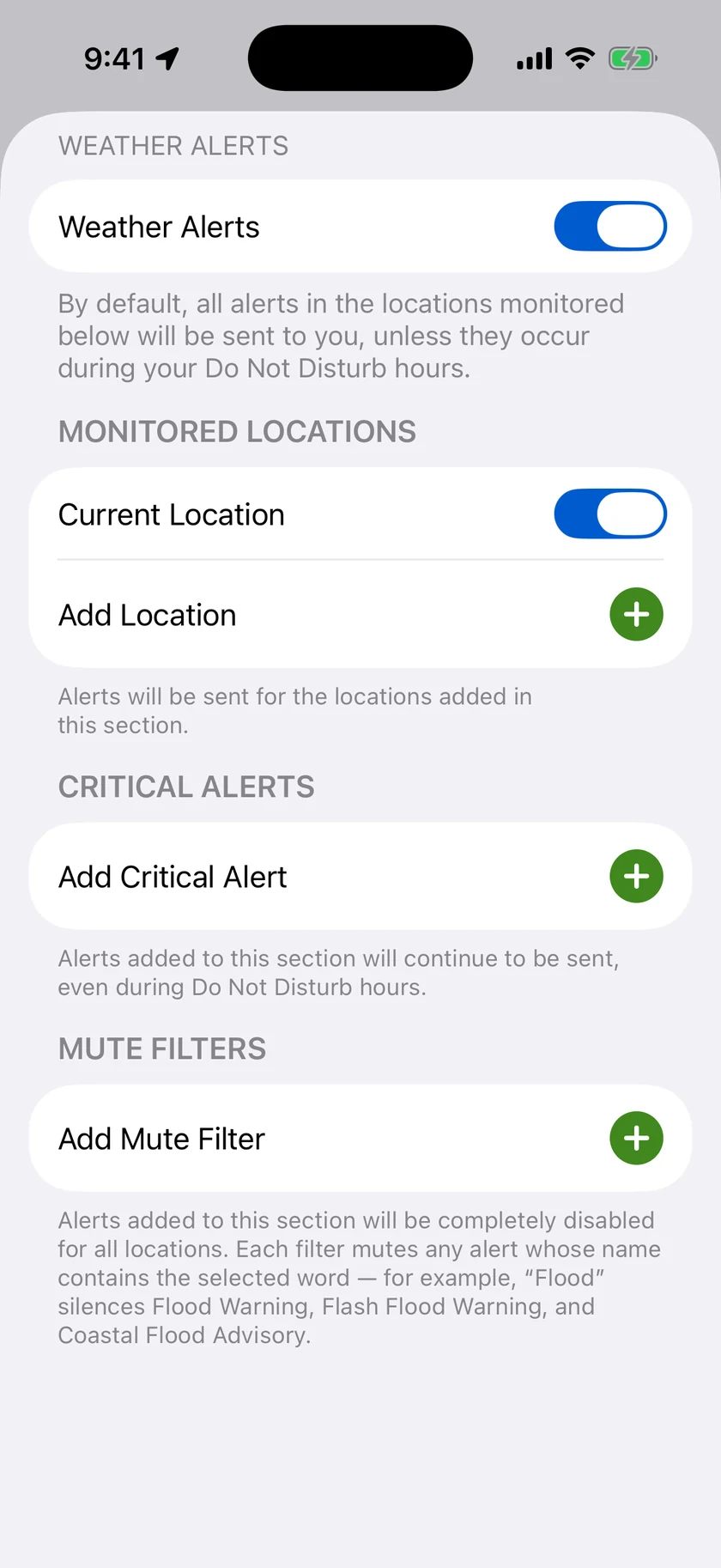
Monitored Locations
Choose which places Forecast Bar watches for severe weather:
- Current Location — a toggle, on by default, that follows you wherever you go.
- Add Location — add any of your saved locations to the monitored list. Remove one at any time from the same list.
You'll receive alerts for every monitored location, not just the one you're currently viewing.
Critical Alerts
Critical Alerts are delivered even while your iPhone is in Do Not Disturb or a Focus mode, and even when Forecast Bar's own quiet hours are active. You choose which of these six alert types should have that power (none are enabled by default):
- Flash Flood Warning
- Hurricane Warning
- Severe Thunderstorm Warning
- Tornado Warning
- Tropical Storm Warning
- Winter Storm Warning
Note: iOS shows its own permission prompt for Critical Alerts the first time you enable one — they use a special system entitlement that can play a sound even when your phone is silenced.
Note: Forecast Bar no longer carries Child Abduction (AMBER) or Blue Alerts. They are law-enforcement notices rather than weather, so they are dropped before they reach your device, and your phone delivers them itself through Apple's own government alert settings. Older versions of the app may still list Child Abduction here and in Mute Filters, where it now has no effect.
Mute Filters
If a category of alert isn't useful to you, mute it. A muted filter silences any alert whose title contains that word, across all of your monitored locations. The eight mutable categories:
- Air Quality
- Beach Hazard
- Flood
- Fog
- High Surf
- Marine
- Smog
- Wind
Nothing is muted by default.
A mute filter never silences a life-threatening warning. Because filters match on a word, muting Flood would otherwise take a Flash Flood Warning with it, and muting Wind would take an Extreme Wind Warning. These always come through whatever you have muted:
- Tornado Warning
- Flash Flood Warning and Flash Flood Emergency
- Extreme Wind Warning and Hurricane Force Wind Warning
- Hurricane Warning
- Tropical Storm Warning and Typhoon Warning
- Storm Surge Warning
- Tsunami Warning
- Any warning the National Weather Service marks a Particularly Dangerous Situation
Severe Storm Alerts
Everything above is about official warnings, which arrive once the National Weather Service has issued one. Severe Storm Alerts are the other half: Forecast Bar watches the individual storm cells near you and can tell you about one heading your way before any warning exists. The section sits under Settings → Notifications → Severe Storm Alerts.
These use NOAA/CIMSS ProbSevere guidance, and the app is explicit about what that means: they are guidance, not official National Weather Service warnings, and they do not replace them. Storm tracking covers the contiguous United States.
Storm Intercept
Storm Intercept follows a storm that is closing on you, on the Lock Screen and in the Dynamic Island: how likely it is to turn severe, how far away it is, and a countdown to arrival that keeps ticking between updates. If the storm is going to miss you, it says so and gets out of the way. It mirrors to the Apple Watch Smart Stack the same way precipitation tracking does.
You choose how readily it starts:
- Rarely — only for strong storms heading straight for you, within about 20 minutes.
- Normal — for likely-severe storms on track to reach you within about 30 minutes.
- Often — also for weaker storms, ones passing nearby, and ones up to an hour out.
Note: Storm Intercept's live tracking requires iOS 17.2 or later. On iOS 16.1 to 17.1 the setting is replaced by a line saying so, because the underlying Live Activity cannot be started remotely on those versions.
Storm rules
Below Storm Intercept sit the rules that decide when a storm is worth interrupting you for. Two ship ready-made — a severe storm rule and a large hail rule — and you can tap either to change its threshold, or how close a storm has to be projected to come. You can also build your own rule on severe probability or hail size.
Outlook Upgrades
NOAA publishes a severe outlook each day, often hours before any watch is issued. Outlook Upgrades tells you when the outlook where you are is raised. Severe storms and flash flooding are separate switches with their own levels, and tapping the notification opens the radar with that outlook drawn over the map.
Like the storm rules above, an outlook is guidance about how likely severe weather is, not a warning that it is happening. Both are delivered, and neither replaces the other.
Hurricane Cone Alerts
Requires Gold. The National Hurricane Center draws a forecast cone around every tropical storm and hurricane — the area the center of the storm is most likely to pass through. Hurricane Cone Alerts tell you when a cone first covers one of your locations.
Turn it on at Settings → Notifications → Severe Storm Alerts → Hurricane Cone Alerts. One switch sits under it:
- Strengthening updates also notifies you when a storm already covering you intensifies.
A cone is a forecast, not a warning. Official watches and warnings — Hurricane Warning, Storm Surge Warning, Tropical Storm Warning — still arrive as ordinary weather alerts, and Storm Surge and Extreme Wind Warnings can be sent as Critical Alerts that break through Do Not Disturb. The cone alert does not replace any of them.
When a storm's cone covers the location you're viewing, a card appears on the main screen with the storm's name and how far off it is.
Storms on the radar
Two overlays in the radar screen's layers sheet, under Tropical, both Gold:
| Overlay | What it draws |
|---|---|
| Active Storms | Each live storm's forecast cone, its past track, the forecast points along it, and the coastal watches and warnings in effect |
| Tropical Outlook | The National Hurricane Center's 7-day areas where a storm may still form, each with its odds |
Tap a storm for its winds, pressure, movement and forecast. Both overlays cover the Atlantic, East Pacific and Central Pacific basins, and both can be switched on before a storm forms — see Radar.
Where alerts appear in the app
Active alerts also show inside the app for the location you're viewing — as an inline alerts card on the main screen, or as a toolbar badge if you turn on Settings → Data & Layout → Alerts → Show Severe Alerts in Toolbar (off by default). Tap through for the full description and instructions; see Alerts & Notifications Overview for details.
