Forecast Bar can notify you about severe weather, incoming rain, daily forecasts, beautiful sunsets, celestial events, and thresholds you define yourself. This page covers what notifications need in order to work, where to configure them, and how to read active alerts inside the app.
What notifications require
Forecast Bar notifications are delivered by Forecast Bar's own weather service — a server that watches the weather for your locations and pushes alerts to your devices. Because of that, three things must be in place:
- A Silver or Gold subscription. Notifications run on Forecast Bar's servers, so they need an active subscription — the 7-day free trial that starts every new iPhone or iPad subscription counts. See Plans & Tiers for which alerts each tier includes.
- Sign in with Apple. Signing in creates the sync account the service delivers your alerts to (and syncs your settings across devices). If you haven't signed in yet, the Notifications screen shows a Sign In to Unlock prompt first. You can also sign in from Settings → About & More.
- iOS notification permission. The first time you turn on an alert type, Forecast Bar asks for the system notification permission. If you decline it, alerts can't appear — you can grant it later in the iOS Settings app under Forecast Bar.
Where the settings live
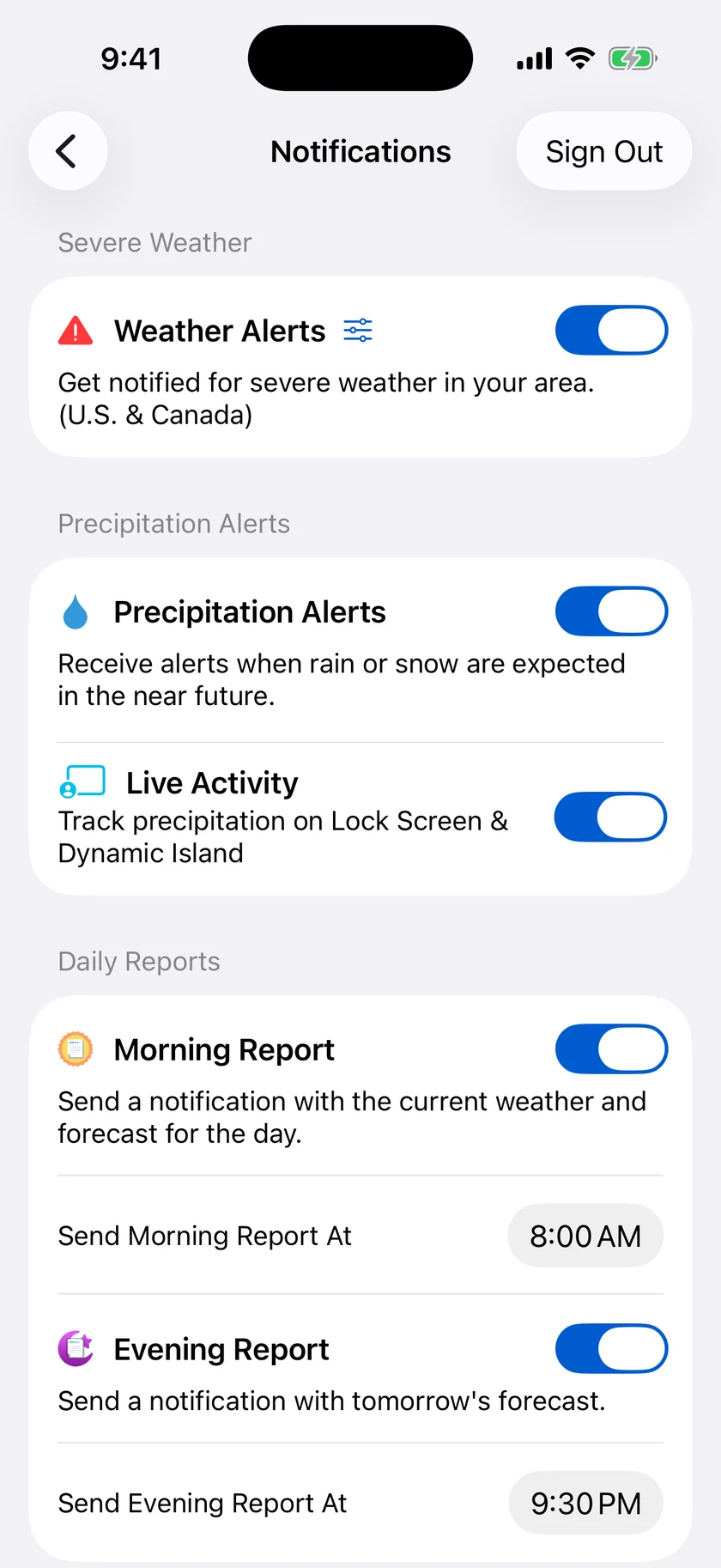
Go to Settings → Notifications. (If your subscription is below Silver, this row opens the subscription screen instead.) Once you're signed in, the screen lists every alert category:
| Section | What it does | Details |
|---|---|---|
| Severe Weather | Official severe weather alerts (U.S. & Canada) | Severe Weather Alerts |
| Precipitation Alerts | Rain and snow starting/stopping, plus the Live Activity | Rain & Snow Alerts |
| Daily Reports | Morning and evening forecast summaries | Morning & Evening Reports |
| Astronomy Alerts | Eclipses, supermoons, solstices, aurora | Astronomy & Celestial Alerts |
| Live Sunset Alerts | A rare heads-up when live satellite confirms a great sunset (US only) | Sunrise & Sunset Quality |
| Tide Alerts | King tides and big low tides (coastal locations only) | Custom & Threshold Alerts |
| Custom Notifications | Build your own threshold alerts | Custom & Threshold Alerts |
| Temperature Comparison | "Today will feel different" notifications | Custom & Threshold Alerts |
| Rainbow Alerts (Beta) | An experimental heads-up that a rainbow may be nearby | Below |
| Do Not Disturb | Quiet hours for all Forecast Bar notifications | Below |
A Sign Out button sits in the toolbar of this screen. Time pickers throughout snap to 15-minute steps.
Rainbow Alerts (Beta)
One switch, near the bottom of the Notifications screen: Experimental rainbow alerts with a direction to look. US only. The idea is that radar and satellite together can tell when the sun and a passing shower are lined up for a rainbow where you are, and the alert says which way to look.
It is an experiment, and it is labelled one. It can miss rainbows, and it can alert when there is nothing to see. It is opt-in, it covers the contiguous US only, it is on iPhone, iPad and Mac but not the watch or Apple TV, and it needs Gold (Pro on the Mac).
What turning it on does today. The rainbow service is still being built out on Forecast Bar's side, so switching this on enrolls you rather than starting a stream of alerts. If you turn it on and nothing arrives, nothing is wrong with your setup. We'd rather say that here than have you go hunting through your notification settings.
Do Not Disturb (quiet hours)
At the bottom of Settings → Notifications, turn on Do Not Disturb and set the From and To times to silence Forecast Bar notifications during those hours — overnight, for example. It's off by default.
Note: Severe weather types you've marked as Critical Alerts can still come through during quiet hours — see Severe Weather Alerts.
Viewing active alerts in the app
When a severe weather alert is active for the location you're viewing, it appears in one of two places:
- Alerts card — by default, an alerts section appears on the main screen below the forecast cards. Tap it to read the alert.
- Toolbar badge — turn on Settings → Data & Layout → Alerts → Show Severe Alerts in Toolbar to show a badge on the toolbar button instead of the inline card.
Tapping an alert opens its details: Issued, Expires, Counties affected, the full Description, and any official Instructions. When several alerts are active at once, use the previous/next arrows to page through them — a "1 of 3"-style counter shows where you are. An alert the office never gave an end time says Expires rather than Ends — that hour is when the bulletin needs reissuing, not when the weather stops. When an office reissues an advisory, you see only the current version, not every one still technically live.
Hiding alert types
New in 11.6. Some kinds of alert are never for you — every Beach Hazard statement when you live inland, say. You can hide a whole kind at once, straight from the card, and it works for everyone: no subscription or sign-in needed.
- iPhone & iPad — touch and hold the ✕ on an alert and choose Hide all … alerts.
- Mac — right-click the alert and choose Hide all … alerts.
- Apple TV — open the alert and choose Hide all … alerts on the row beneath Close.
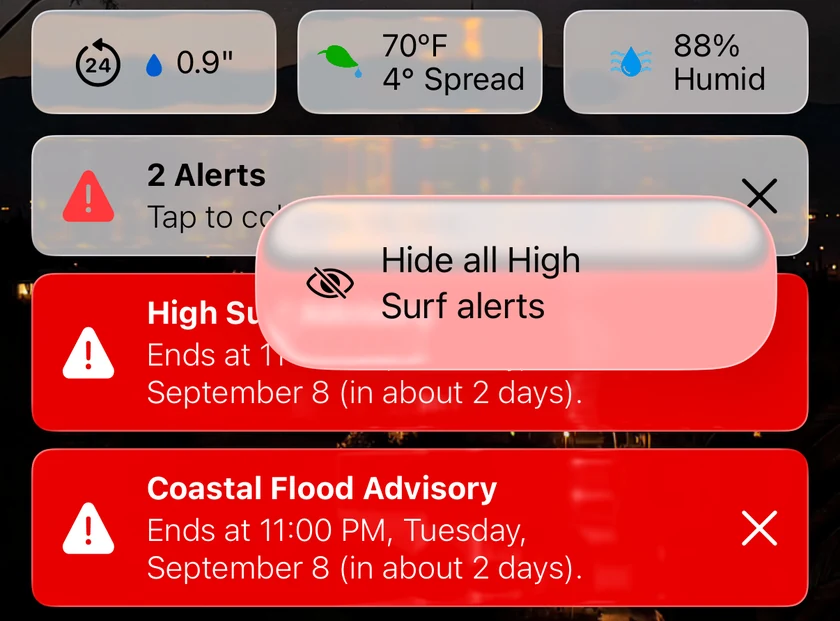
Dismiss the same kind of alert twice and the card offers Hide all on its own, with a Not now that stops it suggesting that kind again. If you also receive notifications for that kind of alert, the app asks whether to Hide in App Only or Hide & Stop Notifications; hiding in the app never changes your notification settings by itself.
Life-threatening warnings can't be hidden. A Tornado Warning, a Flash Flood Warning, a Hurricane Warning and the rest of the list that mute filters can't silence don't offer Hide all on their card, and no entry in your hidden list suppresses one — including an older entry you added before this rule existed. On Apple TV this starts with 11.7.
Hidden types never appear again on any of your locations. To bring one back, go to Settings → Forecasts → Hidden Alert Types (on Apple TV, Settings → Data & Layout → Hidden Alert Types), where every hidden type is listed with a Show button. The list reads "No alert types are hidden" until you hide one.
Note: Hidden Alert Types controls what the app shows. Notification filters are separate — see Mute Filters under Severe Weather.
Troubleshooting notifications
If alerts stop arriving, go to Settings → About & More → Notification Diagnostics → Test Notifications. It can run a full notification test, list any issues it finds with suggested fixes, send a test notification, refresh your push token, and copy a diagnostic report you can email to support. See Troubleshooting for common causes.
Notifications on the Mac
The Mac app has the same Notifications settings, with the same subscription and Sign in with Apple requirements (on the Mac, Gold is called Pro and Silver is called Plus). One difference: on the Mac you choose a single location for notifications — either Current Location or one of your saved locations — rather than a list of monitored locations.
