Signing in with Apple creates your Forecast Bar account. Once signed in, your saved locations and settings sync automatically across iPhone, iPad, Mac, Apple Watch, and Apple TV — set up your list once and it follows you everywhere.
Your appearance and layout travel with them. If you would rather one device kept a look of its own, turn off Sync Appearance Across Devices at the foot of Theme & Visual Style on that device — see Appearance & Themes. Its twin, Sync Layout Across Devices in Settings → Data & Layout → Sync (on Apple TV, Settings → Data & Layout), does the same for data points, layout and display options: turn it off and that device keeps its own picks while your other devices carry on sharing theirs. Both switches are on by default and only appear while you're signed in. Your forecast language, forecast source and locations keep syncing either way.
Your account does one more essential job: notifications require it. Forecast Bar's alerts are delivered from its servers, not generated on your device, so the server needs an account to send them to. If you want severe weather alerts, daily reports, or any other notification, sign in first. See How Notifications Work.
Note: Sign in with Apple shares nothing but an anonymous identifier — Forecast Bar doesn't ask for your name or email address.
Where to sign in
iPhone & iPad
Either path leads to the same sign-in:
- Settings → Notifications — if you're not signed in yet, a Sign In to Unlock screen appears before the notification settings.
- Settings → About & More → Account & Sync → Sign In with Apple.
The side menu also shows a "Sync across devices" reminder pill until you sign in or dismiss it.
Mac
Open Settings → Notifications — the same sign-in flow appears there when you're not signed in yet.
Apple Watch
In the watch app, tap the location-list button in the top-left corner. If you're not signed in, a sign-in sheet appears with a Sign in with Apple button. Sign in on your iPhone first so your locations and settings are already in the cloud, then sign in on the watch to pull them down.
Apple TV
Go to Settings → Account & Sync and choose Sign In to Sync. (The TV also offers sign-in during its first-launch welcome, where you can restore your saved locations with Restore My Settings.) Once signed in, the TV re-syncs your settings and locations every time you return to the app.
Sync Now and "last synced"
Sync happens automatically, but you can force it:
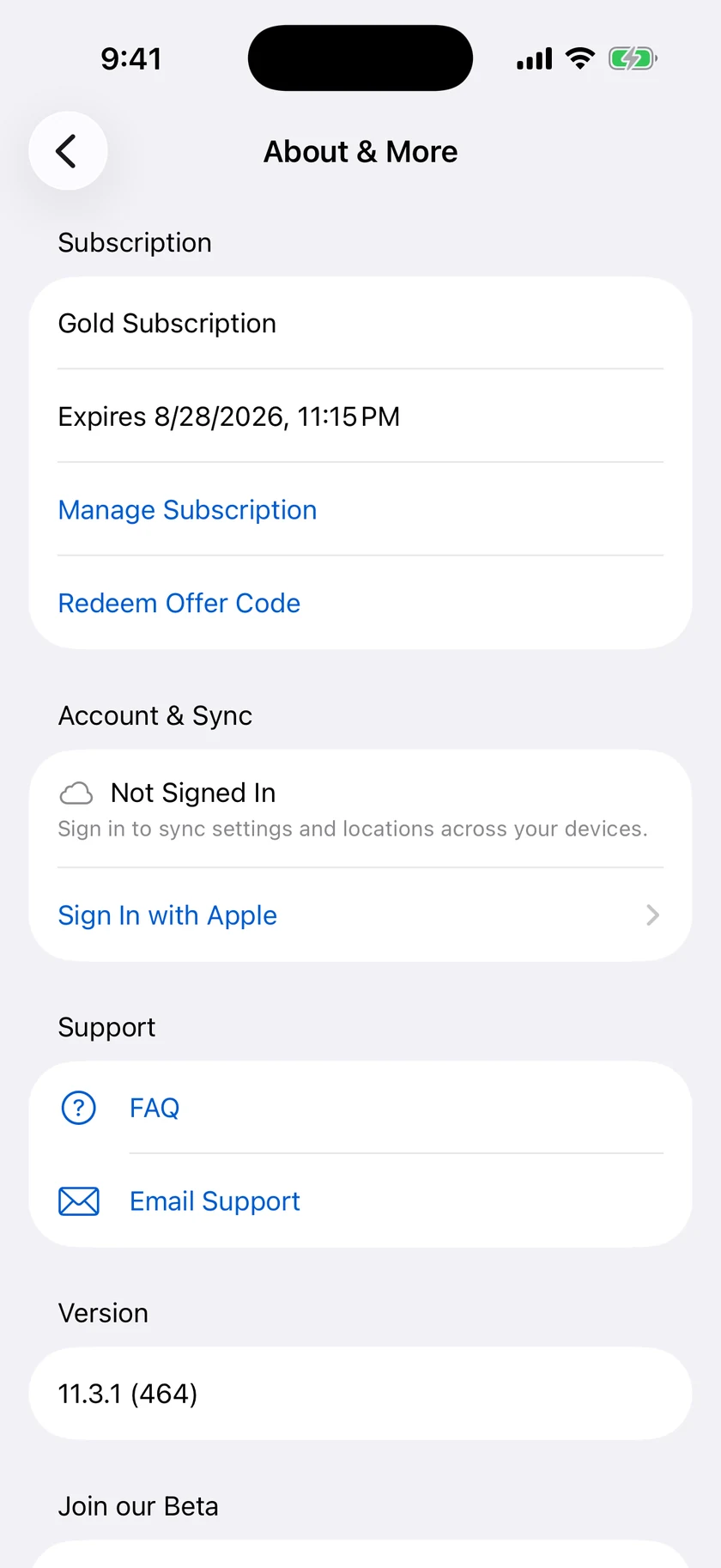
- iPhone & iPad — Settings → About & More → Account & Sync shows your signed-in status and how long ago the last sync ran, with a Sync Now button.
- Apple TV — Settings → Account & Sync has its own Sync Now button and shows "Last synced just now" when it finishes.
Syncing settings to your watch
The watch has a dedicated hand-off flow for pulling fresh settings from your phone:
- On your watch, scroll to the bottom of the Forecast Bar app and tap Sync Settings.
- On your iPhone, open Settings → Apple Watch — a Sync Now prompt appears; tap it while the watch's Sync Settings screen is open.
- The watch confirms, refreshes its weather, and reloads your complications.
You can also tap Sync Data on the watch's Sync Settings screen to request a sync directly.
Signing out
- iPhone & iPad — Settings → About & More → Account & Sync → Sign Out, or the Sign Out button at the top of Settings → Notifications.
- Mac — Settings → About & More → Sign Out, or the Sign Out button in the Notifications pane.
- Apple Watch — scroll to the bottom of the app and tap Sign Out.
- Apple TV — Settings → Account & Sync → Sign Out.
Signing out stops syncing on that device; your cloud data and other devices are unaffected.
Removing your cloud data
To delete the locations and settings stored in your Forecast Bar account, go to Settings → About & More → Legal → Remove Cloud Data (available on iPhone, iPad, and Mac). This permanently deletes your account's cloud data, so the app asks you to confirm before proceeding.
