By default Forecast Bar runs as a menu bar app. If you'd rather have a normal, always-resident window — with a Dock icon, ⌘-Tab switching, and no menu bar item — switch to Dock mode.
Switching modes
Go to Settings → General → App Mode and set Run Forecast Bar As to:
| Option | What you get |
|---|---|
| Menu Bar | Menu bar item + drop-down panel — the default |
| Dock | A standard app window + Dock icon |
You can also press ⌥⌘D at any time to toggle between the two modes.
The dock window
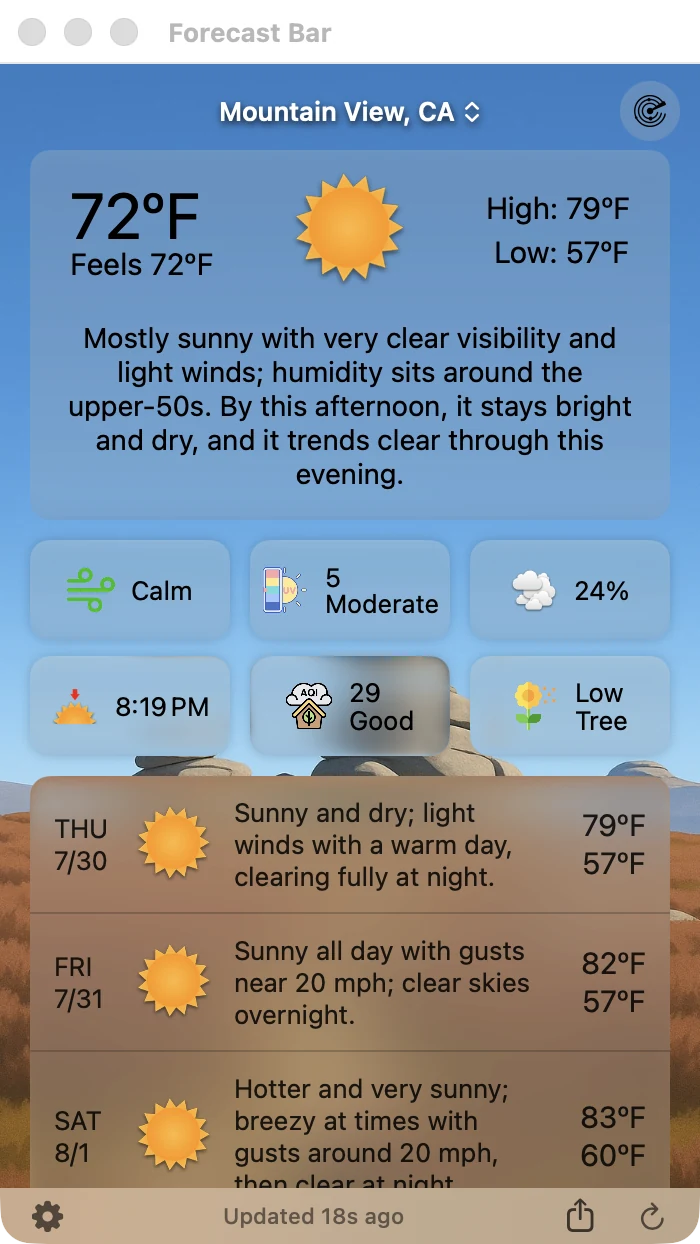
In Dock mode the weather panel becomes a standard macOS window titled Forecast Bar — closable, minimizable, and freely resizable, with the same content, toolbar, and footer as the menu bar panel. Forecast Bar remembers its size and position between launches.
Note: While Dock mode is on, the Menu Bar and Window Detach sections disappear from Settings — there's no menu bar item to configure.
The temperature badge
In Dock mode, the Forecast Bar icon in your Dock shows the current temperature as a badge (for example "72°"), updating with your normal refresh schedule — a glanceable readout even when the window is closed. The badge requires an active subscription, like the rest of the app's weather display.
Going back to the menu bar
Two ways to return to menu bar mode:
- Drag the window to the top of the screen — when its top edge gets close to the menu bar, Forecast Bar switches back to menu bar mode and docks the panel there.
- Press ⌥⌘D, or set Settings → General → App Mode back to Menu Bar.
