Not sure which plan you want? Start with Plans & Tiers.
Subscribe on iPhone & iPad
Open Settings → Subscription to bring up the subscription screen. (If you don't have a subscription yet, this screen also appears on its own in place of forecasts — on iPhone and iPad, every plan starts with a 7-day free trial for new subscribers.)
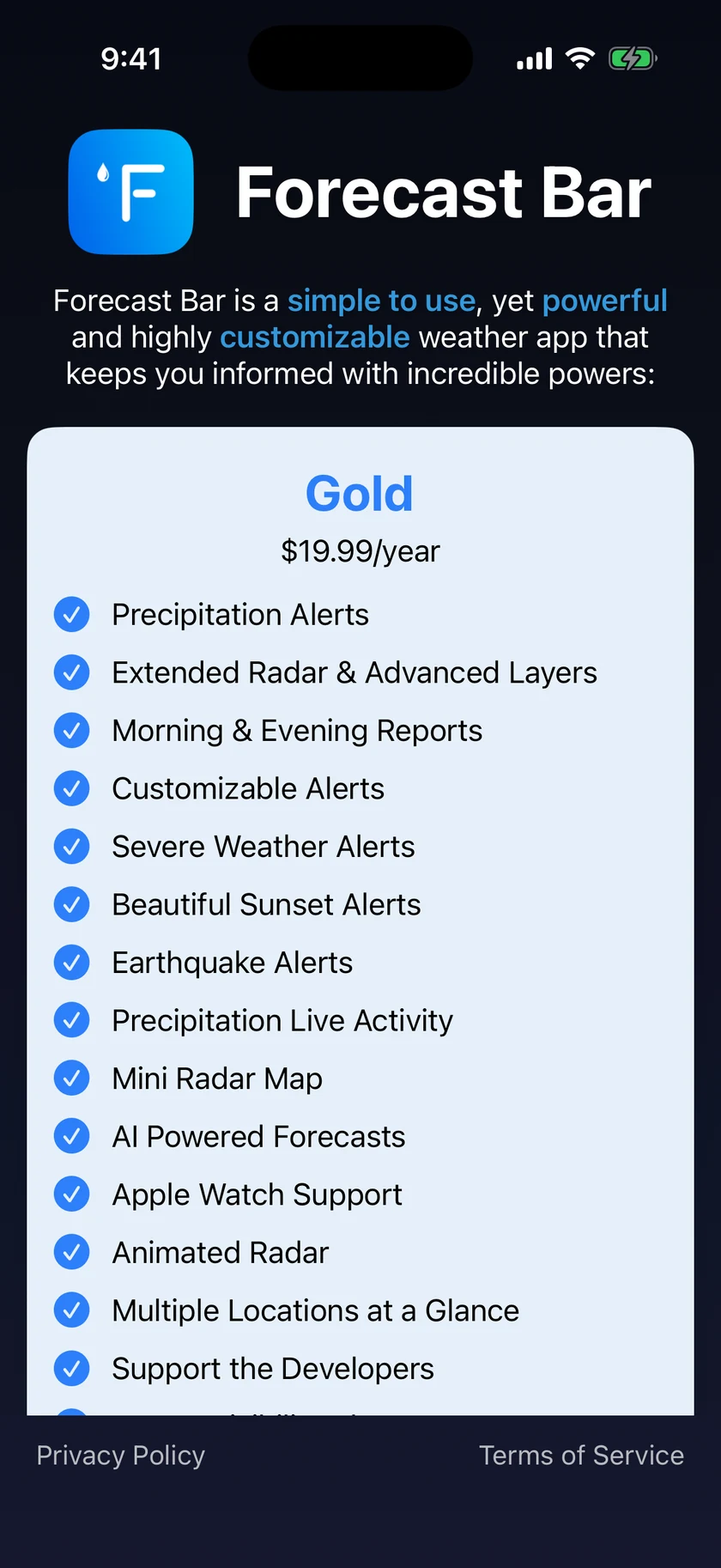
The screen shows a Gold card and a Silver card, each listing what that plan includes. From here you can:
- Tap Compare Plans on either card for a full side-by-side feature comparison.
- Turn on the Family Sharing option to choose the family version of a plan, which covers everyone in your Apple Family.
- Tap the plan's subscribe button — new subscribers get a free week before the annual price shown on the button begins. Apple handles the payment through your Apple Account.
Your subscription unlocks immediately after purchase, and it also unlocks the Apple TV app if you choose Gold.
Subscribe on Mac
The Mac plans are named Pro (same as Gold) and Plus (same as Silver), and are purchased separately from an iPhone/iPad subscription.
The subscription window opens when you:
- Click the Forecast Bar menu bar icon while you don't have a subscription, or
- Choose Settings → Subscription → Manage Subscription inside the app.
Pick Continue with Pro or Continue with Plus. If you're already on Plus, the Pro button reads Upgrade to Pro. Mac plans do not include a free trial — the term begins, and is charged, straight away.
Warning: If you subscribed to an older, pre-redesign Forecast Bar Mac plan, upgrading shows a confirmation first: your existing subscription keeps auto-renewing until you cancel it yourself in System Settings → Apple ID → Subscriptions, so you could briefly be billed for both. The dialog offers Cancel Old Subscription First, which takes you straight to your Apple subscriptions page. The app routes legacy subscribers through an upgrade path designed to avoid double-billing, but do cancel the old plan.
Subscribe on Apple TV
The entire TV app is part of Gold. If you're not subscribed, the TV app shows a subscribe screen with two choices:
- Subscribe to Gold right on the TV — the yearly price is shown on the button.
- Or subscribe on your iPhone or iPad; as long as the TV uses the same Apple Account, Gold carries over automatically.
The TV screen also has a Restore Purchases button, and shows the Terms of Service and Privacy Policy as QR codes you can scan with your phone (Apple TV can't open web pages).
Restore Purchases
If you've subscribed before but the app doesn't recognize it (new device, reinstall, signed out and back in), use Restore Purchases:
- iPhone & iPad: Settings → Subscription, then scroll down to Restore Purchases.
- Mac: open the subscription window (see above) and click Restore Purchases. The Mac app also runs an automatic one-time restore for legacy subscribers on first launch after updating.
- Apple TV: the subscribe screen has a Restore Purchases button.
Make sure you're signed in with the same Apple Account you originally purchased with — that's the most common reason a restore finds nothing.
Redeem an Offer Code
Have a promo/offer code?
- iPhone & iPad: Settings → Subscription → Redeem Offer Code.
- Mac: the Redeem Offer Code button appears in the subscription window on macOS 15 or later.
Manage or cancel your subscription
Subscriptions are billed and managed by Apple, not by Forecast Bar:
- iPhone & iPad: Settings → Subscription → Manage Subscription (shown once you're subscribed) jumps to your Apple subscription settings, where you can change plans or cancel.
- Mac: in the subscription window, the button for your current plan reads Manage Subscription and opens your Apple subscriptions page. You can also go to System Settings → Apple ID → Subscriptions.
- Apple TV: there's no manage button on the TV — manage the subscription in your Apple Account settings on any device.
Canceling stops auto-renewal; you keep your tier until the end of the period you already paid for.
If your subscription lapses
When a subscription expires:
- The app keeps your previous tier working for a 24-hour grace period, so a briefly failed renewal doesn't lock you out.
- Widgets and the Apple TV Top Shelf allow a shorter 3-hour grace period.
- After that, the app shows the subscription screen in place of weather until you resubscribe or restore.
Legacy Mac subscriptions
If you subscribed to the original Forecast Bar for Mac (the plans sold as 10-, 15-, 30-, or 60-minute update speeds), the current app honors those purchases automatically — including lifetime fast-update purchases. Notably:
- Your old plan maps to a current tier (fast 10/15-minute premium plans map to Pro; others to Plus).
- You keep the update speed you paid for, even where the current picker would normally require Pro — a legacy 10-minute subscriber keeps 10-minute updates.
If your old subscription isn't being recognized, click I had a previous Forecast Bar Mac subscription on the app's welcome screen. It opens a pre-filled support email that includes the diagnostic details we need to restore you quickly.
Setapp
Using Forecast Bar through Setapp? There's nothing to buy — everything (Pro level) is included with your Setapp membership, and the app never shows a subscription screen.
