Open Settings three ways: click the gear in the weather panel's footer, right-click the menu bar item and choose Settings..., or press ⌘, while a Forecast Bar window is open.
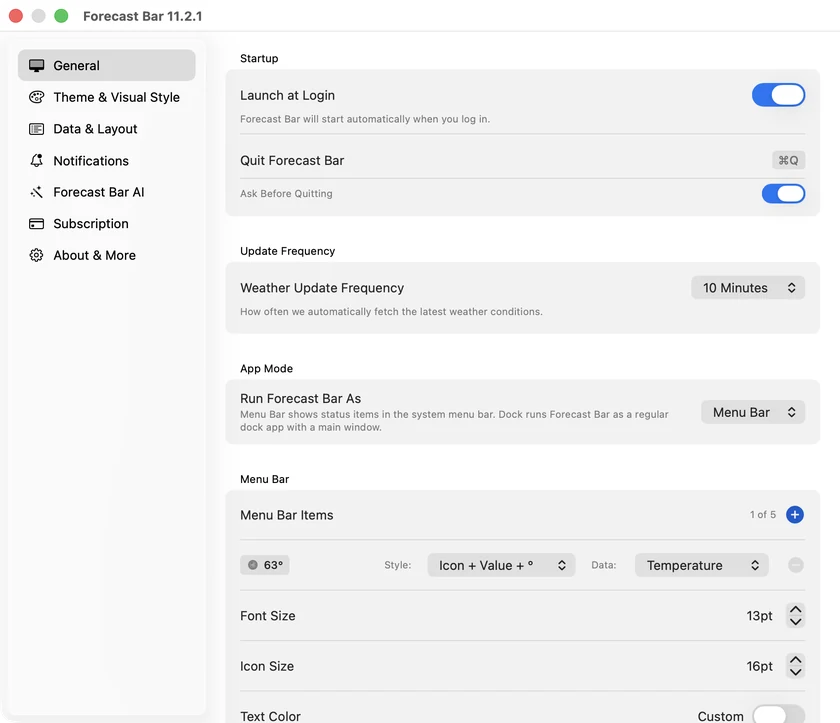
The sidebar has ten tabs: General, Theme & Visual Style, Data & Layout, Forecasts, Radar, Compare & Home, Notifications, Smart Weather Stories, Subscription, and About & More. (On Setapp, the Subscription tab doesn't appear.) Forecasts holds Hidden Alert Types — alert kinds you've hidden by right-clicking an alert card, each with a Show button; see Hiding alert types. Compare & Home holds the Compare Card, the compare button, weather change alerts and your Home location, as on iPhone — see Settings & Data Layout.
On the Mac, subscription tiers are named Pro (Gold on other platforms) and Plus (Silver) — see Plans & Subscriptions.
General
Startup
- Launch at Login — registers Forecast Bar to start automatically when you log in to your Mac. When on, the caption confirms: "Forecast Bar will start automatically when you log in."
- Quit Forecast Bar — a quit button, with ⌘Q shown alongside.
- Ask Before Quitting — on by default. Quitting shows a "Quit Forecast Bar?" confirmation with a "Don't Show Again" checkbox (which turns this setting off). Logging out, restarting, or shutting down your Mac never triggers the dialog.
Update Frequency
How often weather refreshes automatically:
| Frequency | Requires |
|---|---|
| 10 Minutes | Pro |
| 15 Minutes | Pro |
| 30 Minutes | Plus |
| 60 Minutes | Plus — the default |
| Manual | Plus |
Locked options show a small tier capsule; choosing one you're not subscribed for opens the upgrade window.
Note: If you bought a faster update frequency in a legacy (pre-subscription) version of Forecast Bar for Mac, you keep it — a legacy 10- or 15-minute purchase still unlocks those speeds even on a Plus plan.
Smart Updates
Directly under the frequency picker is a Smart Updates switch, marked with a small ✦. It is on by default, and while it is on the same ✦ appears beside the frequency picker itself.
Smart Updates changes when Forecast Bar goes looking for new weather, not how often the menu bar reading moves:
- It waits for the weather to actually be published. Instead of fetching on a fixed clock that drifts against the forecast service, it lines its requests up with the moment new data appears, so a fresh reading arrives soon after it exists rather than up to a full interval later.
- It works harder when the weather is changing. In unsettled conditions it rebuilds every cycle. In calm, settled weather it stretches the gap between fetches — never further than twice the frequency you chose.
- It stops while nobody is looking. Fetches pause when your displays are asleep or the Mac is locked. The moment the screen comes back, Forecast Bar catches up, so the menu bar is current within seconds of you looking at it.
Between fetches the menu bar keeps moving on its own, stepping through the fifteen-minute forecast so the reading stays in step with the time rather than freezing until the next request.
Turn it off and Forecast Bar goes back to fetching strictly on the interval set above. Nothing else changes, and your chosen frequency is honoured either way.
Mac only. Smart Updates is a menu bar feature and does not appear on iPhone, iPad, Apple Watch or Apple TV.
App Mode
Run Forecast Bar As — Menu Bar (default) or Dock. See Dock Mode.
Menu Bar
Display styles, item count, data points, sizes, and colors — covered in full in Menu Bar Display. Hidden while Dock mode is on.
Window Detach
Menu bar mode only:
- Drag-Down Gesture — what happens when you drag the panel off the menu bar: Floating Window (default), Switch to Dock Mode, or Disabled. See The Weather Panel.
- Reset Window Position — re-centers a detached window that's ended up off-screen (enabled only while detached).
Keyboard Shortcuts
The four recordable shortcuts and the full shortcut reference sheet — see Keyboard Shortcuts.
Theme & Visual Style
Appearance for the whole app:
- App Theme — Light / Dark / Auto.
- Glass Mode — a slider running from Glass (clear) through Misted, Frosted Glass, Iced and System (the traditional look, without glass effects). Glass, Frosted Glass and System are anchor points the slider settles onto when you release nearby. The Mac shows the slider inline in Settings, and the popover and menu bar update live as you drag, so there is no separate preview screen. See Appearance & Backgrounds.
- Backgrounds — Background Style (Animated Weather Scene, Transparent, Animated Gradients, Map, Solid, System, Image, Video) plus map style, gradient colors, and image options; also the Weather Animation Style and background scene choices. From 11.8, Use Regional Backgrounds is on by default and matches the scene to your forecast location's landscape (Coast, Woodlands, Uplands, Drylands or Open Country), even if you picked a scene before 11.8; picking a scene turns it off. See Regional backgrounds.
- City Packs — the same downloadable photo backgrounds of real cities as on iPhone, browsable from the background scene settings and included with Pro. They work the same way here, so the walkthrough in Appearance & Backgrounds applies. Two things differ on the Mac. The automatic-download switch reads Over unmetered connections only rather than naming Wi-Fi, because a Mac downloads over Ethernet perfectly happily; what it skips is Personal Hotspot and other metered links. And Request a City Pack works differently — see below. From 11.4 a pack you already have quietly re-downloads itself when we redraw its artwork, under the same unmetered rule; you no longer have to notice an Update available badge and tap it.
- Request a City Pack — from 11.4 this files a real request rather than opening an email, and you ask for it by picking from your own saved locations rather than typing a name. The location you're viewing is preselected when it's one of your saved ones, so the usual case is one click; otherwise pick any other city on your list. Picking rather than typing means the request carries that place's exact coordinates. Your requests then sit at the top of the pack store and show you where each one got to: Requested — we'll take a look, then In the queue to be created, then Being created now, then Ready with a click to download, and a notification when it lands. Ask for somewhere an existing pack already covers and you skip the queue entirely — the row says which pack covers you and offers it straight away. Right-click a request to Cancel Request while it's still open, or Remove from List once it has settled; a request you cancel can be made again later. Requesting needs Pro.
- Weather Icons — Color / Climacons / Anusha / Flat Color, for icons inside the app.
- Menu Bar Icons — the same four sets, chosen separately for the menu bar. See Menu Bar Display.
- Data Point Icons — colored icons or monochrome symbols.
- Fonts — app font and text size.
- Precipitation Colors — customize the light/dark precipitation chart colors, with a reset.
Data & Layout
What data appears and how it's laid out, organized in collapsible groups (click a group's header to expand it):
Forecast Source · Localization · Location List · Smart Data Points · Main Screen Data Points · Alerts · Sync · Precipitation Section · Daily Forecasts · Hourly Forecasts · Radar · Visualize Day
Highlights:
- Forecast Source — new in 11.6, Pro only: The Weather Company (default) or Apple Weather. Apple Weather covers 10 days instead of 15 and writes no daily text, so Forecast Bar composes it with AI Daily Forecasts; pollen, air quality, history and 15-minute precipitation keep coming from The Weather Company either way, and menu-bar quick updates between refreshes ride The Weather Company's observations in both modes. Compare Sources… opens the two forecasts side by side in their own window — every measurement charted with the disagreement shaded between the lines, a List / Graph switch, and the source switch right there. An optional agreement band on the hourly graph draws the second source over the first.
- Localization — Use Feels Like, Units (USA / UK / Metric), Wind Units (MPH, km/h, M/S, Knots), Wind Direction format, and two language menus. App Language (new in 11.8) sets the language of the app and menu bar: System Default, English, or one of twelve translations, taking effect without a relaunch. Forecast Language sets the language of forecast text and follows App Language unless you choose a different one.
- Smart Data Points — Sort Data Points by Relevance orders the data point grid by what matters right now.
- Location List — Default Location, list style (Standard / Compact), Show Local Time.
- Main Screen Data Points — show/hide the data point strip, its icons and labels, and pick and reorder which data points appear.
- Precipitation, Daily, and Hourly groups — show/hide each forecast section and tune its style, graphs, and data points, with live previews. Daily Forecasts also holds Show Overnight Lows (off to start with), which changes which night a day's low belongs to: off, it is the lowest reading from midnight to midnight, so by the evening it is this morning's low; on, each day takes the low of the night that follows it, the header reads Tonight: rather than Low:, and no night is counted on two rows. The setting reaches the widgets, the watch and Apple TV too. ⚠️ It is the one switch here that changes what a number means rather than whether it appears, so check it first if a daily low ever looks wrong for the date beside it.
- Sync — shown while signed in: Sync Layout Across Devices (on by default) lets this Mac keep its own data points, layout and display options when turned off, while forecast language, forecast source and locations keep syncing. See Sync Across Devices.
- Radar — the default radar layer (2 Hour Radar, 18 Hour Radar, Global Radar, or any specific layer such as Satellite, Temperature, Wind Speed, Aurora Forecast, and more), weather overlay, Next-Generation Radar, and a custom radar URL option.
- Visualize Day — whether a condition icon sits beside the temperature while the day plays. The playback itself is described in The Weather Panel.
Tip: On the Mac, showing or hiding a section (Precipitation, Daily, and so on) resizes the weather panel automatically to fit the new content — no manual adjustment needed.
Notifications
Severe weather, precipitation, daily reports (with the Pro-only Smart Weather Story switch — see Morning & Evening Reports), astronomy, tides, custom notifications, temperature comparisons, and Do Not Disturb hours — plus a Mac-only "Send notifications for" picker choosing which location alerts follow (your current location or a saved one). Notifications require a Plus subscription or higher. Full details in Alerts & Notifications.
If macOS notification permission is missing, the tab shows a shortcut straight to System Settings → Notifications → Forecast Bar.
Smart Weather Stories
Smart Weather Stories — AI-written summaries of your day's weather, with optional calendar integration, animation and model choices, and customizable writing styles. Requires Pro and an English forecast language. The Mac tab mirrors the iOS settings; see Smart Weather Stories for the full guide.
Subscription
Your current plan at a glance: Mac Subscription, an Expires row when the App Store reports an expiration date (a lifetime purchase reads Expires: Never), and a Manage Subscription button that opens the subscription window. The subscription window sizes itself to its content. A note under the card reminds you that iPhone, iPad, and Apple TV subscriptions are separate from the Mac subscription and won't show here — Mac plans are bought on their own, so a Gold plan on your iPhone doesn't appear on this tab. (This tab is absent on Setapp, where everything is already unlocked.)
About & More
- Support — User Guide (opens this guide in your browser), FAQ, Email Support, and Request a Feature, which opens a short form (type, summary, optional details and email) that goes straight to the Forecast Bar team.
- Quick Questions — appears beside Request a Feature only while a question is waiting for you. It's the occasional one-tap question subscribers are asked, gathered so you can answer in your own time; see Settings & Data Layout.
- Sign In With Apple — sign-out row when you're signed in (App Store builds).
- Version — the app version and build number.
- TestFlight — "Join Beta" link to the public beta (App Store builds).
- Debug Options — a collapsible set of troubleshooting tools (test notifications, reload widgets, reset tutorial, sync controls, and your notification/user/device IDs) — handy when working with support.
- Legal — data provider credits, Terms of Service, Privacy Policy, and Remove Cloud Data (with a confirmation — this permanently deletes your synced data).
