The Settings tab holds every option for Forecast Bar on Apple TV, organized into eleven tiles: Top Shelf, Units & Display, Appearance, Data & Layout, Daily Forecasts, Hourly Forecasts, Weather Change Alerts, Radar, Account & Sync, Subscription, and About & More.
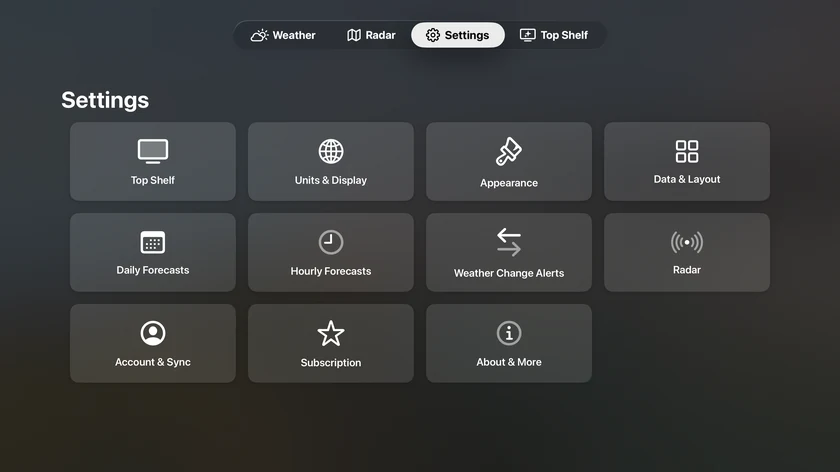
If you're signed in with Apple, most of these settings sync with your iPhone, iPad, and Mac — change them anywhere and the TV picks them up.
Top Shelf
Configures the weather strip on the Apple TV Home Screen. It has its own page: see Top Shelf Weather. (The same options are also available as the app's fourth tab.)
Units & Display
| Setting | Options |
|---|---|
| Units | Imperial (°F), Metric (°C), UK Hybrid |
| Wind Units | Miles per hour, Kilometers per hour, Meters per second, Knots |
| Wind Direction | Cardinal (NW), Degrees (315°), Both (NW 315°) |
| 24-Hour Clock | On / off |
| Show Feels Like as Primary | On / off — shows the apparent temperature, accounting for wind and humidity, as the main temperature |
| App Language | System Default, English, or one of twelve translations (new in 11.8) |
| Forecast Language | Same as App Language (default), or more than 70 languages, from Albanian to Vietnamese |
| Forecast Source | The Weather Company (default), Apple Weather |
Changing Units, Forecast Language or Forecast Source refreshes the weather immediately. Changing App Language updates the app and the Top Shelf right away, and keeps any forecast language you chose yourself.
Forecast Source is new in 11.6. Apple Weather covers 10 days instead of 15; pollen, air quality and 15-minute precipitation keep coming from The Weather Company, and the Top Shelf and your widgets on other devices continue to show The Weather Company. The choice syncs to your iPhone, iPad and Mac.
Appearance
Theme
A visual picker with live preview cards: Light, Dark, or Auto (the default — follows the time of day).
Background
| Choice | What it shows |
|---|---|
| Animated Weather | An animated scene matching the current conditions |
| Animated Gradients | Slowly shifting color gradients |
| Solid Color | A single flat color |
| Light / Dark | A plain background following the theme |
| Map | A map of the current location |
| Video Backgrounds | Video loops matching conditions |
Two follow-up options appear depending on your choice:
- Map Style (Background = Map): Standard, Satellite, Satellite Flyover, Hybrid, Hybrid Flyover.
- Animation Style (Background = Animated Weather): None, Realistic (default), Flat, Cartoon.
Background Scene
With Animated Weather selected, pick the artwork the animations play over: Open Country, Coast, Woodlands, Uplands, Drylands, Highlands, Ocean, Pasture, Stream, Vibes, Watercolor, or Gradients. Installed city packs aren't options here — they appear on their own for the city you're viewing.
Until you pick one, the scene follows the landscape around your forecast location (regional backgrounds, new in 11.8). Picking a scene here keeps it.
Get More Packs
When city packs are available, a Get More Packs row appears under Background Scene, showing how many packs you have installed (or Browse). The city packs screen offers:
- Use Nearby City Scenes — shows a downloaded city's scene while you're near it.
- Download Nearby Packs Automatically — over unmetered connections only.
- A grid of available packs with download progress; press and hold a pack to Delete it.
Want your city added? Email support@higherbarapps.com from your phone or computer.
Icon Set
Pick a weather icon style — Color, Climacons, Anusha, or Flat Color. Each option previews your current conditions.
Data & Layout
- Show Data Point Icons — show or hide the small icons on the main screen's data point tiles.
- Add or Remove Data Points — opens a selector where you choose and reorder the data points shown on the main screen.
- Precipitation → Default View — which precipitation card the Weather screen shows first: Minutely (default), 15 Minute, or Radar.
- Hidden Alert Types — every kind of alert you've hidden from an alert's detail screen (open an alert and choose Hide All), each with a Show button to bring it back. Hidden types never appear on this Apple TV. See Hiding alert types.
- Sync Layout Across Devices — on by default, shown while signed in. Turn it off and this Apple TV keeps its own main-screen data points and precipitation view while your other devices carry on sharing theirs; data points chosen on the TV then stick instead of reverting on the next settings sync.
Daily Forecasts
Style
The style choices are live previews: each card renders today's real forecast in that style, and selecting the card selects the style.
- Summary — a narrative row for each day.
- Compact — a dense row with up to four data points of your choice.
Today's Forecast
| Setting | Default | Notes |
|---|---|---|
| Show Today as Graph | Off | Renders today as an hourly graph |
| Condition Icons as Dots | Off | Only shown when Show Today as Graph is on |
| Show Graph Picker | On | Only shown when Show Today as Graph is on |
| Default to Precip Amount | Off | Only shown when the style is not Compact |
Compact Mode Data Points
In Compact style, choose what appears in each row: Data Point 1 through Data Point 4, plus a Show Data Point Icons toggle. Each slot can be None, Icon, Temperature Range, or any weather data point from your data point list — Sunrise, Sunset, Moonrise, Moonset, Temperature, Feels Like, Dew Point, Heat Index, Humidity, Pressure, UV Index, Visibility, Wind Chill, Wind Speed, Wind Gusts, Cloud Cover, Precip Chance, Accumulation, or Tides.
Hourly Forecasts
Style
Live-preview cards again, rendering today's real hourly forecast:
- Timeline — a vertical hour-by-hour timeline.
- Chart — an hourly chart of one data point.
Show Style Changer in Forecast additionally puts a style switcher right in the forecast view.
Timeline Options
Shown when the style is Timeline:
- Show Icons — condition icons on each hour.
- Show Temperature as Curve — staggers the timeline entries by temperature.
- Add or Remove Timeline Data Points — opens a selector to choose and reorder the data points on the hourly timeline.
Default Data Point in Chart
Shown when the style is Chart. Default Temperature; choose from Temperature, Feels Like, Cloud Cover, Dew Point, Humidity, Precip Chance, Accumulation, Pressure, UV Index, Visibility, Wind Speed, Wind Gusts, Heat Index, or Wind Chill.
Weather Change Alerts
On-screen notices when tomorrow (or today) will feel noticeably different.
| Setting | Default | Options |
|---|---|---|
| Compare with Tomorrow | On | Compares today's high and low against tomorrow's |
| Compare with Yesterday | On | Compares today against yesterday |
| Switch Time | Sunset | Sunset, Custom Time — when the app switches from yesterday-comparison to tomorrow-comparison |
| Auto-dismiss | 8 seconds | Never, 5, 8, 10, 15, or 30 seconds |
| Once Per Day | Off | Limits the alert to one appearance per day |
Radar
Default Layer
The layer the Radar tab opens with. Default 2 Hour Radar. All options: 2 Hour Radar, 18 Hour Radar, Global Radar, Satellite, Aurora Forecast, Precip Type, U.S. Satellite, Precipitation 24 Hour, Snow 24 Hour, Road Weather Index, Temperature, Feels Like, Dew Point, Temperature Change, Wind Speed, UltraViolet (UV), Radar (Europe), Radar (Australia), IR Satellite (Europe), and Visible Satellite (Europe). See Radar for what each layer shows.
Next-Generation Radar
On by default. As the setting itself explains: "Uses high-resolution, smoothly interpolated radar when available. It keeps an exact colored fallback ready, shows the latest frame first, and fills the loop in the background." Turn it off to use the classic radar rendering.
Custom Radar
Use Custom Radar (off by default) reveals a Custom Radar URL field for pointing the radar at your own tile source.
Account & Sync
- Signed out — "Bring your weather to this Apple TV" with a Sign In to Sync button (Sign in with Apple).
- Signed in — shows "Signed in with Apple"; your saved locations and settings sync automatically with your iPhone, iPad, and Mac. Sync Now forces an immediate sync (you'll see "Syncing…", then "Last synced just now."), and Sign Out disconnects the TV from your account.
Subscription
Shows your current tier with a star badge — either "Active on this Apple TV" or a note that the TV app requires Forecast Bar Gold — plus a summary of Gold benefits and a Restore Purchases button. See Plans & Subscriptions.
To manage or cancel the subscription: open Settings on the Apple TV and choose Users and Accounts → your account → Subscriptions, or manage it from your iPhone or iPad.
About & More
- App Info — version and build number.
- Beta — Join TestFlight Beta, shown as a QR code.
- User Guide — Open the User Guide, a QR code that opens this guide on your phone or computer.
- Data Sources — weather data provided by The Weather Company and Apple Weather.
- Legal — Terms of Service and Privacy Policy, each shown as a QR code.
Note: Apple TV has no web browser, so anything that would normally be a link is shown as a QR code on a white card. Point your iPhone camera at the screen and tap the banner that appears to open the page on your phone.
