Forecast Bar on Apple Watch is a full weather app on your wrist: current conditions under a sky that matches the weather, a Week Ahead list, a tile for every reading, precipitation for the next hour or the next 6 hours, Sun & Moon and Wind screens, interactive charts you scrub with the Digital Crown, severe weather alerts, and — for Gold subscribers — animated radar. It also powers a full set of watch face complications.
The watch app requires a Silver or Gold subscription — see Plans & Subscriptions. If the watch can't see your subscription yet, it shows a subscription screen instead of the forecast, with two ways forward:
- Open on Phone — prompts your iPhone to open Forecast Bar, which syncs your subscription over to the watch.
- Sign in with Apple — if you've already set up sync on your iPhone, signing in here pulls your subscription, locations, and settings straight to the watch.
Usually neither is needed: your subscription syncs across from your iPhone on its own, and the screen carries a line telling you where that sync stands. It also shows your current tier and expiration date at the bottom, which is handy when contacting support.
New in 11.7: the watch app was redesigned. The main screen has a sky, the days became a vertical list, the data points became tiles, there are new Sun & Moon, Wind and Next 6 Hours screens, and every section can now be hidden and reordered — from the watch or from a live preview on your iPhone. This page describes the redesigned app.
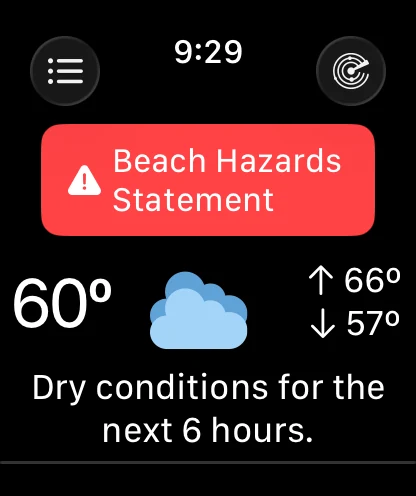
The main screen
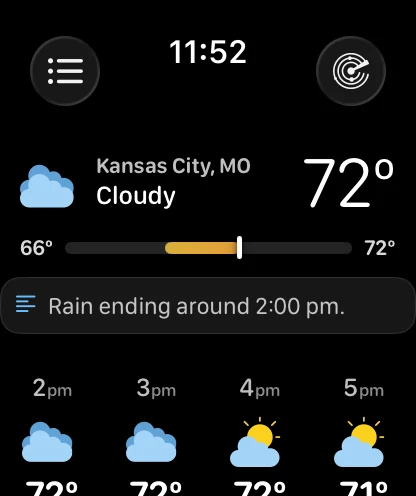
The main screen is a single scrolling view made of sections, and every one of them can be shown, hidden or moved — see Arranging the main screen. Out of the box the order is Current, Precipitation (only when there is precipitation to show), Custom Data Points (off by default), Hourly, Charts, Data Points, Week Ahead, Sun & Moon, and Wind (hidden by default).
If you were on an earlier version: Data Points used to sit at the bottom, below Week Ahead. It moved above Week Ahead in 11.7. If you had never reordered the sections yourself, your watch takes the new order the first time it runs the update; if you had, your own order is left exactly as you set it.
There are no divider lines between sections any more. Spacing and cards do the separating, and every card sits on black below the sky.
The sky
The top of the screen is a sky, and it is not a stock picture. It is drawn from the sun's real elevation for your location right now and from what the weather is actually doing, so it changes through the day and with the forecast:
- Colour follows the sun. Deep blue around midday, rose and amber as the sun drops, and a dark blue-black once it is properly down. It moves smoothly between those rather than jumping from one to the next.
- Stars come out at night, once the sun is well below the horizon and there is not too much cloud in the way.
- A sun or moon disc glows at roughly the position the real one is in.
- Cloud cover greys and flattens the whole thing, with soft haze that drifts. Storms darken it; fog lifts and flattens it.
The sky runs edge to edge — behind the clock and the toolbar buttons, not inside a box — and fades to black about a screen down, so everything below it is on a dark background.
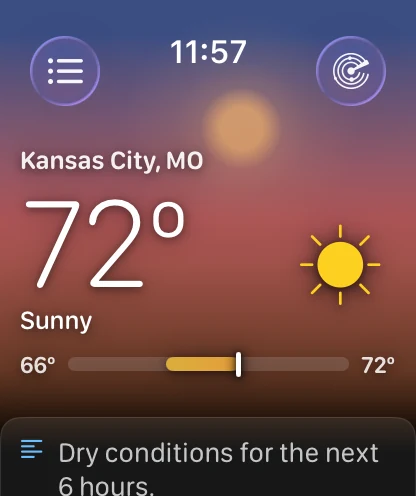
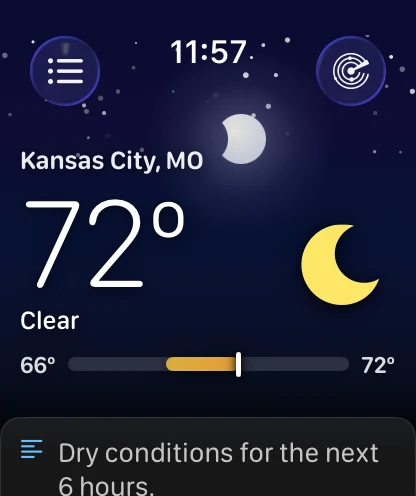
Note: the sky is colour, light and slow-moving haze. It does not draw falling rain or snow — those were tried and taken out, because at watch size a thin streak reads as a mark on the screen rather than weather. Rain and snow show in the colour, the condition icon and the Next 6 Hours card instead.
The sky holds still by itself when your watch is in Always On, in Low Power Mode, or when Reduce Motion is on. You can also stop it or remove it yourself — see Header style.
Current
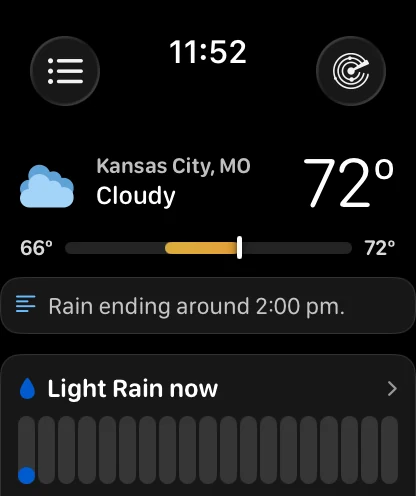
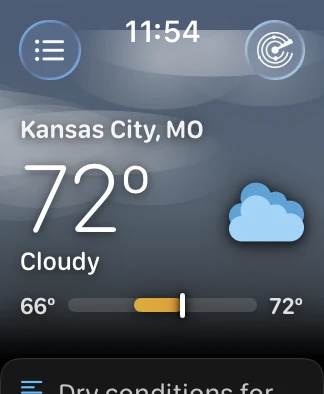
Under the sky: your location, the current temperature in large thin type, the condition in words, a smaller "Feels N°" line whenever the feels-like temperature differs, and the condition icon. Below them is a range bar running from today's low to today's high, with a marker showing where the current temperature sits between them. The low sits on the left with a ↓ and the high on the right with a ↑, which is the order every temperature bar in the app uses. A one-line summary of the conditions sits in a card beneath. Tap anywhere on this block to open the hour-by-hour detail screen at the current hour.
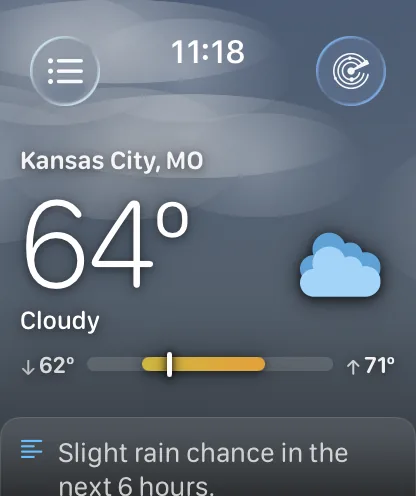
Today's low and high here, in the Week Ahead's Today row and on today's detail screen all come from one shared reading, and every bar on the main screen is scaled to the same week, so two places can no longer disagree about how warm today is.
Header style
The whole header has three settings, under Settings → Layout & Data Points → Header:
| Style | What you get |
|---|---|
| Sky | The default. The full sky, moving. |
| Still Sky | The same sky, drawn once and left alone. |
| Compact | No sky at all. A tighter current-conditions block on black, about half the height, so more of the next section fits on the first screen. |
Weather alerts
When a severe weather alert is active for your location, a card appears above the current conditions, tinted by the alert's severity and carrying its name and when it expires. Tap it to read the whole alert. Multiple alerts show a count — tap to see the list, then tap any alert for details. You can hide alerts on the watch entirely from your iPhone. See Severe Weather Alerts for how alerts work across the app.
Precipitation
This section appears only when there is precipitation to show. It is a card headed with what is happening in plain words — "Light Rain now", or when it will start or stop — over a row of capsules for the window ahead, coloured by precipitation type. Tap it to open the Next 6 Hours screen.
Custom Data Points
An optional row of three readings of your choosing, drawn as small ring gauges — off by default. The three slots default to Wind Speed, UV Index and Cloud Cover.
Hourly
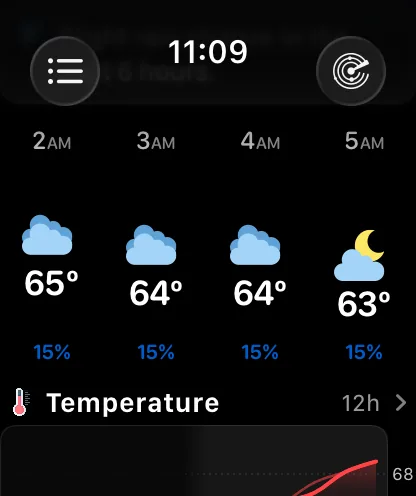
A strip of upcoming hours you can drag sideways. Each column shows the time, a condition icon, the temperature and a bottom line — by default the chance of precipitation as a small capsule coloured by type, or any other data point you pick. The first column is marked Now. Sunrise and sunset get their own columns in sun gold and sunset rose, lined up with the other hours rather than sitting slightly apart. Tap any hour to open its detail screen.
The strip shows 12 hours by default, and can be set to 24 or 48.
Note: the strip draws only the cells that are on screen, so a 24- or 48-hour setting opens as fast as a 12-hour one. If the main screen still feels slow on an older watch, the shorter strip is lighter work all the same.
Style. New in 11.7: Settings → Layout & Data Points → Hourly → Style draws the same hours three different ways.
| Style | What you get |
|---|---|
| Plain | The default. Aligned columns — time, icon, temperature, bottom line — all on the same rows. |
| Curve | The hour labels stay fixed along the top, and each hour's icon and temperature float up or down by how warm that hour is within the strip's own range. The warmest hour sits highest. It is the wrist version of the iPhone's Curve temperature style. |
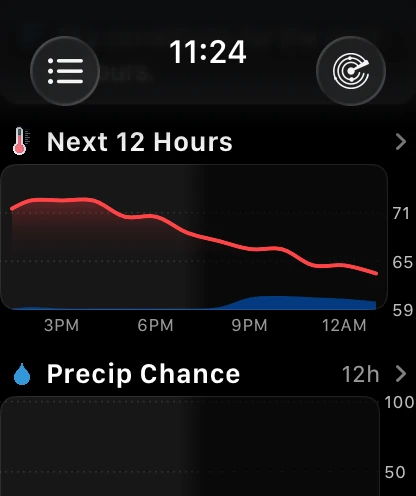
| Chart | The strip is replaced by a single card drawing those hours as one curve, with the chance of precipitation behind it. It always plots temperature — or feels-like, if that's what you use — and it is headed by the window it covers ("Next 12 Hours"), not by the reading. Tap it to open the full chart screen on that same curve. |
The setting syncs between your watch and your iPhone like every other layout setting, and it is in the Watch Layout studio too.
Tapping the Chart card opens the chart screen for that visit only: like a tile tap, it doesn't change the data point the Charts section remembers.
Note: a future day's detail screen carries its own hourly strip, and it honours Plain and Curve. Chart falls back to Plain there, because that screen already opens with a chart of the whole day.
Charts
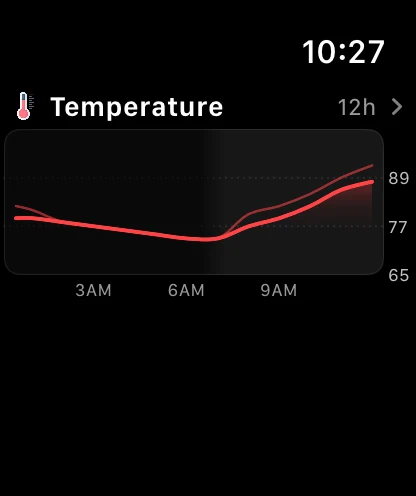
A compact chart of the next 12 hours, with the data point's name above it. It shows whichever data point you last chose for yourself on the full chart screen — Temperature until you pick something else. Opening a chart by tapping a data tile, or the Hourly section's chart, doesn't change it.
With the Hourly style set to Chart, the Hourly section is already a temperature chart, so this section avoids drawing the same curve a card later. If your chosen data point is Temperature or Feels Like, it shows Precip Chance instead when there is any chance of precipitation in the next 12 hours, and Wind Speed when there isn't. Any other data point you pick is shown as usual, and if the Hourly section is hidden this section goes back to your choice.
Tap it to open Charts.
Week Ahead
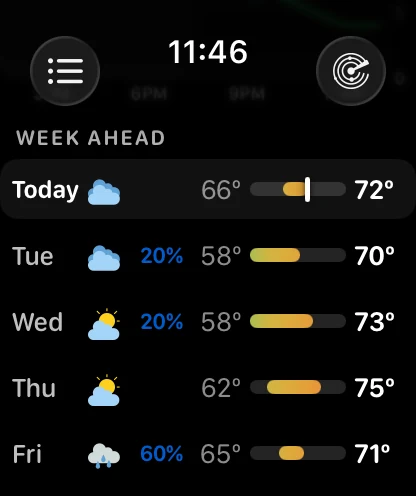
The days, as a vertical list rather than a sideways strip. Each row carries the day, its condition icon, the chance of precipitation when it is worth showing, the low, a temperature bar, and the high.
The bars are the point: they are all scaled to the same week, so a warm day's bar is visibly longer and further to the right than a cold one's, and a cold snap three days out is obvious without reading a number. Today's row carries a marker showing where the temperature is right now within its own range. Tap any row for that day's screen.
The list shows all the days the forecast carries by default, and can be set to 5. The precipitation column can be turned off.
Sun & Moon and Wind
Two optional card sections that open the screens below. Sun & Moon is shown by default and sits after Week Ahead; Wind is hidden by default. Both can be moved anywhere in the order.
Data Points
A grid of tiles, two to a row, replacing the old table of small numbers. Each tile carries a tinted icon, the reading, its unit, and a small drawing suited to that particular reading — a ring that fills for a percentage, a compass needle for wind direction, the standard bands for UV, a trend for pressure, a phase disc for the moon, or a plain word like "Sticky" for dew point.
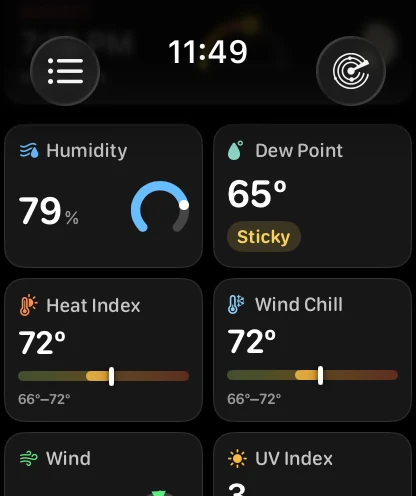
Tap a tile and its chart opens on that reading — without changing the data point the Charts section remembers. That now includes Heat Index and Wind Chill, which have charts of their own. Two groups go somewhere better than a chart: Wind, Wind Direction and Wind Gusts open the Wind screen, and Moon Phase opens Sun & Moon. Air Quality, Tides and Pollen have no screen of their own yet, so they sit there as readings and don't respond to a tap at all — no chart, and no pressed state either.
Seventeen readings are available and you choose which appear and in what order — see Choosing your tiles. Three of them depend on more than your settings: Air Quality, Tides and Pollen all need Gold, Tides also needs a location the tide data covers, and Pollen is a United States reading. When one of them can't be drawn it simply isn't in the grid.
Pollen
New in 11.7. The tile shows the level as a word — None, Low, Moderate, High or Very High — over a five-colour band with a marker showing where in the scale it falls, and underneath it the type actually driving the count: Tree, Grass, Weed or Mold.
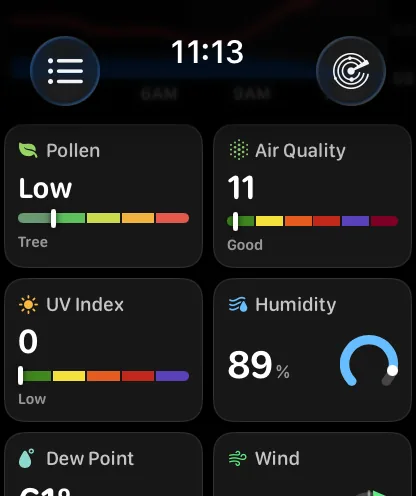
A few things worth knowing about it:
- It is United States only, from The Weather Company's reporting stations, and it needs Gold.
- The watch only asks the server for pollen when a Pollen tile is already on your grid, so the first forecast after you add the tile fetches again to get it. Give it a moment.
- The stations report on weekdays. When there is no reading — outside the US, at a weekend, or a location with no nearby station — the tile isn't drawn rather than showing a dash.
The Heat Index and Wind Chill tiles are read from the same current observation as the Feels Like tile, so the three agree: Heat Index shows the feels-like temperature when it is above the air temperature, Wind Chill shows it when it is below, and otherwise each shows the air temperature.
Tiles can also be set to Compact Rows instead of tiles, which fits more on screen.
Charts
Tap the Charts section on the main screen and the forecast opens up as a full-screen chart — the same curves, colors and shading as the charts in Forecast Bar on your iPhone, built for the wrist.
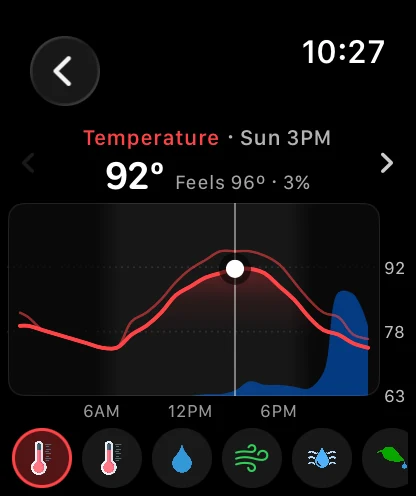
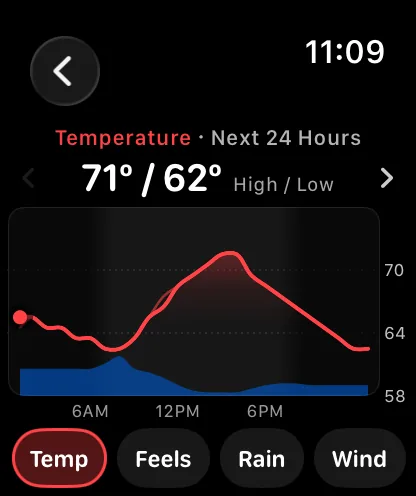
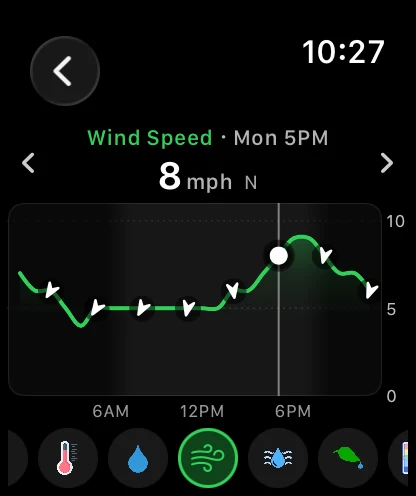
Turn the Digital Crown to move through the chart hour by hour. You feel a click at every hour, a white dot and rule mark where you are, and the readout above the chart follows along: the value, the day and hour, and a second line of context. Keep turning past the last hour and the chart rolls into the next day; turn back past the first hour to return. You can also drag a finger across the plot — the reading stays put when you lift, so your finger is never covering the number you wanted. Tap the readout to clear it and see the summary for the whole chart again, such as the high and low or the peak.
The first chart covers the next 24 hours from now. The arrows either side of the readout step a day at a time — Tomorrow, then each following day by name, for as far as the hourly forecast reaches (about a week).
The buttons along the bottom switch data point. Drag the row sideways to see them all. By default each one carries that reading's own icon; Settings → Layout & Data Points → Charts → Buttons can set them to Labels instead, which names them — Temp, Feels, Rain, Wind, Humid, Dew, Heat, Chill, UV, Cloud, Press, Vis.
| Data point | Drawn as | The second line shows |
|---|---|---|
| Temperature | Red curve, with Feels Like as a fainter line | Feels-like temperature and chance of precipitation |
| Feels Like | Red curve, with the actual temperature as a fainter line | Actual temperature and chance of precipitation |
| Precip Chance | Bars colored by precipitation type | Rain, snow or mix — or Dry |
| Wind Speed | Green curve with direction arrows, and gusts as a fainter line | Wind direction and gusts |
| Humidity | Blue curve | Dew point |
| Dew Point | Red curve | Humidity |
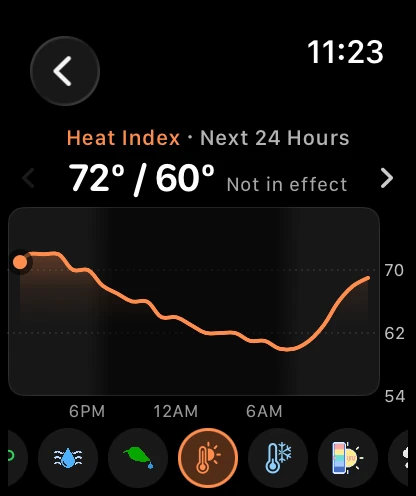
| Heat Index | Orange curve | The air temperature |
| Wind Chill | Light blue curve | The air temperature |
| UV Index | Bars in the standard UV colors — green, yellow, orange, red, violet | Low, Moderate, High, Very High or Extreme |
| Cloud Cover | Gray curve | — |
| Pressure | Orange curve | — |
| Visibility | Yellow curve | — |
Heat Index and Wind Chill are new in 11.7. Each follows the forecast hour by hour and starts from the current observation, the same reading as the tiles. Where neither applies — a mild day, when both simply equal the air temperature — the chart says Not in effect in place of High / Low, so a "wind chill" matching the temperature isn't a puzzle.
A few things to read off the plot itself:
- The blue band behind the Temperature and Feels Like curves is the chance of precipitation across the same hours, colored by type, so you can see a cooling trend and the rain that comes with it in one look.
- Darker stretches of the plot are night, fading in and out around sunset and sunrise.
- On the first chart, the dot at the left edge is right now.
- Values follow your units — temperature, wind speed, pressure and distance — and times follow your 12- or 24-hour setting.
Tip: The data point you pick with the buttons is the one the main screen's Charts section shows from then on, so set it to the one you check most. Arriving here by tapping a data tile opens that tile's reading for the visit only and leaves your choice alone.
Charts use the forecast the watch has already downloaded, so they open instantly and cost nothing extra in battery or data.
Hour and day detail screens
Tapping an hour or a day opens a dedicated detail screen, and you can swipe left or right to move to the next or previous hour or day without going back. When you're scrolled down, a round badge briefly flashes the new hour or day so you don't lose your place.
Both open under a sky tinted for that hour or that day's weather, drawn the same full-bleed way as the main screen's.
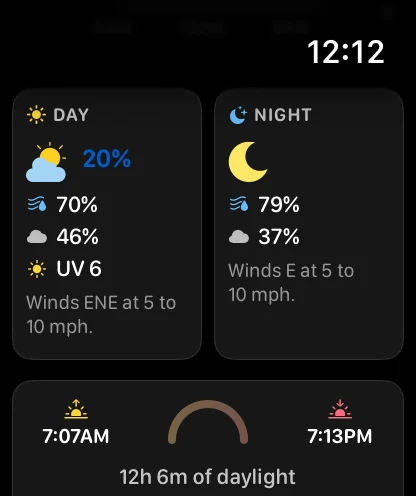
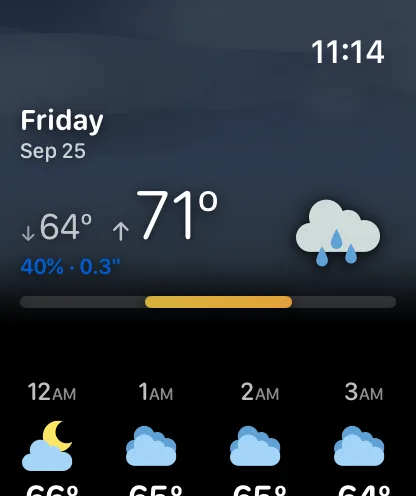
A day's screen carries, in order: the weekday and date, its low and high, the chance and expected amount of precipitation; that day's own hourly strip; the narrative forecast; a chart of that day; Day and Night summaries side by side — each with its own icon, chance of precipitation, humidity, cloud cover and wind phrase, with UV on the day side; and a sun row with sunrise, a small arc, sunset and the length of the day, followed by the moon phase.
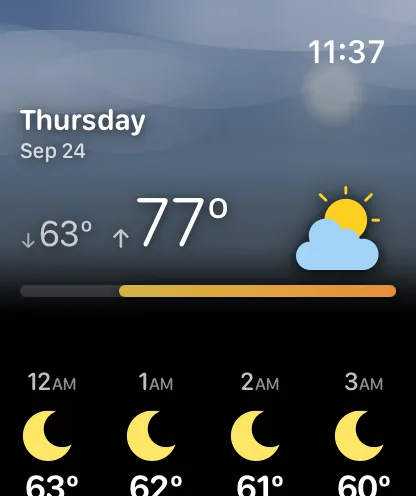
The low comes first in the heading, with the high beside it in larger type, matching the bar underneath and the range bar on the main screen. That bar is scaled to the same week the Week Ahead uses, so a day looks the same length in both places.
The hourly strip on a day's screen is new in 11.7 and covers just that date, in the location's own time zone, with that day's sunrise and sunset marked in it. There is no "Now" pill on a future day, and a day the hourly forecast doesn't reach has no strip at all. Today's screen doesn't repeat the main screen's strip.
The sun arc on a day's screen always draws its marker: parked at the start before sunrise, riding the arc through the day, and parked at the end after sunset. A future day draws the whole arc for that date's daylight. The moon is the same real-terminator disc used on the tile, the Sun & Moon screen and the sky, rather than a separate set of shapes.
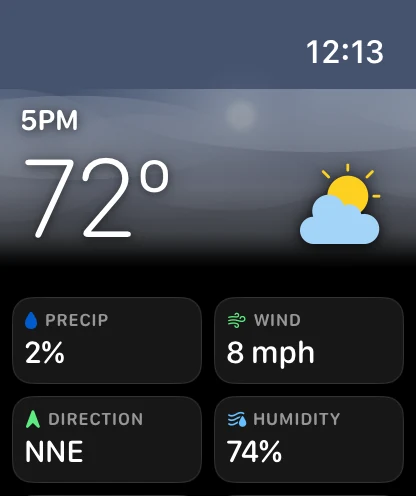
An hour's screen shows the hour, its icon and temperature under the sky, then that hour's readings as a grid of tiles. Sunrise and sunset hours get their own screen with the exact time and a large icon.
Note: sunrise and sunset on a day's screen are shown in that location's own time zone. A saved city several zones away reads correctly rather than being converted to your watch's clock.
Sun & Moon, Wind and Next 6 Hours
Three screens of their own, reached from their sections on the main screen, from the matching data tile, or from the precipitation card.
Sun & Moon
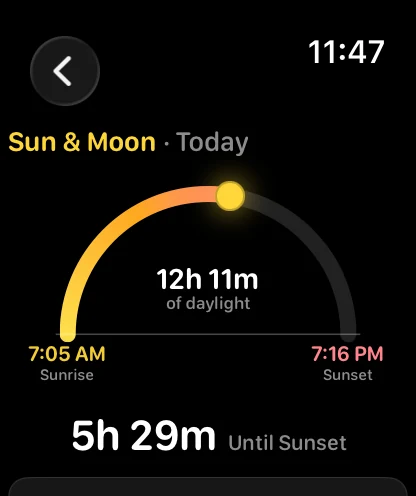
The day drawn as an arc from sunrise to sunset, with a glowing puck sitting where the sun actually is, the length of the day in the middle, and how long until the next sunrise or sunset below. Further down are first and last light — the twilight either side of the sun being up — and the moon's phase with its name.
Note: the watch's Sun & Moon screen does not score the sunset the way Sunrise & Sunset Quality does on iPhone. That score isn't part of what the watch downloads.
Wind
Rebuilt in 11.7 so the whole screen answers at once. A compass showing where the wind is coming from sits on the left, with its marker on the ring itself; beside it are the speed, a plain-language description, the direction, and Gusts when the gusts are actually stronger than the wind. Below that, a card headed Next 12 Hours carries a sparkline with its low on the left and its peak on the right — on a 46mm watch it is all there without scrolling.
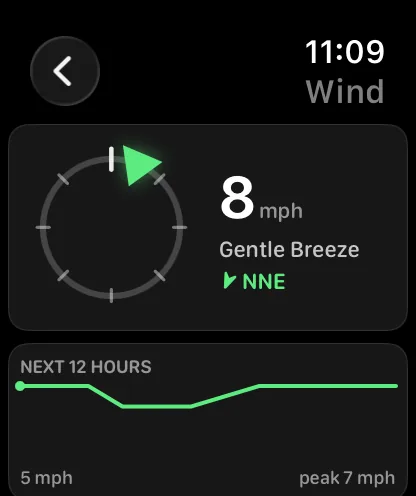
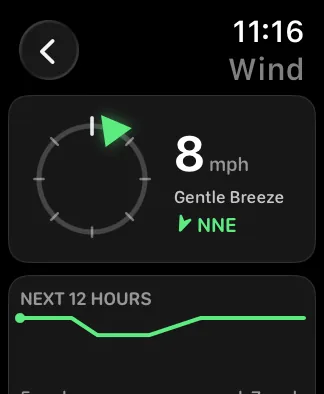
The direction follows the wind format you've chosen — cardinal, degrees or both. The description is the Beaufort scale in words: Calm, Light Breeze, Gentle Breeze, Moderate Breeze, Fresh Breeze, Strong Breeze, Near Gale, Gale, Strong Gale, Storm, Violent Storm and Hurricane Force. The barely-there end of the scale now reads Calm rather than "Light Air", which is a term of art and not an answer. The same words are used on the Wind card and the Wind tile, so all three agree.
Next 6 Hours
What the precipitation is doing, in plain words, over a row of capsules. Capsule height is intensity and capsule colour is type — rain, snow, sleet or a mix — matching the precipitation colours you've set. When nothing is coming, it says so rather than showing an empty chart.
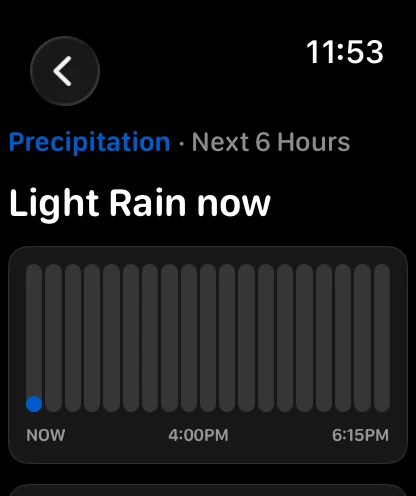
There are two windows, and 11.7 added the shorter one:
| Window | What it is | Where it comes from |
|---|---|---|
| Next Hour | Sixty one-minute steps | Apple Weather's minute-by-minute forecast, which the watch fetches itself |
| Next 6 Hours | Twenty-four quarter-hour steps | The same forecast the rest of the app uses |
The screen opens on whichever window you last picked with its 1 Hour / 6 Hours pills — Next Hour until you pick otherwise — and opens on the other one when your choice has nothing in it. Pressing a pill is the whole setting; there is no row for it anywhere. Under the minute-by-minute chart it carries an Apple Weather credit, which links to Apple's data-sources page.
Apple's hour is not always there. It needs coverage where you are and something actually falling, and it is fetched on the watch itself after the forecast arrives, so it can land a moment later than the rest of the screen. When it isn't available — outside coverage, or a dry hour — nothing about the screen changes from the six-hour view it has always shown. There is no separate subscription and nothing to turn on.
The toolbar
Two buttons live in the corners of the main screen:
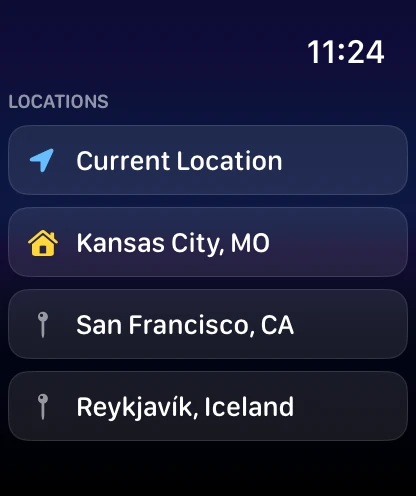
- Location list (top left) — a list button that opens your locations: Current Location first, then every location synced from your iPhone. The location your iPhone has set as Home is marked with a house; the other cities get a pin, and Current Location keeps its arrow even when you're at home. Tap one to switch the whole watch app to that location. If you haven't signed in yet, this button opens the Sign in with Apple sheet instead.
- Radar (top right) — opens Radar on the Watch, a Gold feature.
The location list opens straight away with the list the watch already has, and checks your synced list for changes in the background, updating in place. If that check fails, the list you had stays. Only a watch that has never had a list shows Loading your locations while it waits.
Refresh and Settings
At the bottom of the main screen is a compact row with two buttons:
- Refresh — clears the cached forecast and fetches fresh weather immediately. It reads "Refreshing" while it works, and the forecast stays on screen until the new one replaces it (see below).
- Settings — the watch's own settings screen. See Settings on the watch below.
Opening the app, and refreshing
The watch keeps the forecast on screen while it fetches a new one, as long as that forecast is under 10 minutes old:
- Opening the app — if the last forecast for where you are is under 10 minutes old, it appears at once and fresh weather replaces it a moment later. If it is older than that, you see the loading animation until fresh weather arrives, rather than a forecast that could be hours out of date.
- Refreshing — coming back to the app and pressing Refresh both fetch behind the forecast on screen under the same 10-minute rule.
- When the loader shows anyway — switching to a different city in the location list (or back to Current Location), changing units, or a location fix more than about 25 km (15 miles) from the forecast on screen. In each of those the forecast on screen is for the wrong place or in the wrong units, so it steps aside.
- If a refresh fails — the forecast stays on screen while it is under 10 minutes old. After that you get the error screen described in When the weather won't load.
If you're looking for Sign Out: it moved. It now sits in Settings → iPhone, beside the sync status line it undoes, rather than under the forecast.
If you're looking for Sync Settings: it's gone, and nothing replaced it. Settings travel between the watch and the iPhone on their own, in both directions, with nothing to open and nothing to press. The iPhone row at the bottom of the watch's Settings screen tells you where things stand.
Settings on the watch
Tap Settings at the bottom of the main screen and you get four groups, in this order:
- Watch App — Layout & Data Points: everything under Arranging the main screen.
- Complications — Trio, Smart Weather, Data Point Graph, 5 Day Forecast and Modular Custom, each with the same options the iPhone offers. See Complications.
- Units — temperature and wind units, shared with Forecast Bar on your iPhone.
- iPhone — the sync status line, and Sign Out when you're signed in.
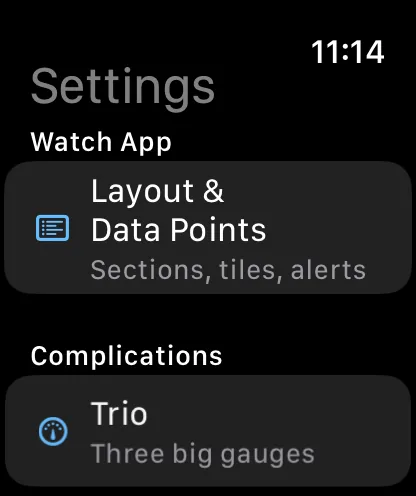
Changed in 11.7: Watch App used to come after Complications, and the screen used to end with a short how-to for adding a complication to a watch face. The how-to is gone; the steps are in Complications, which is where you'd go looking for them.
Every picker here is drawn as the thing it changes rather than described: gauges are rendered for real, and a full preview stays pinned above the picker and updates as you tap.
Arranging the main screen
Settings → Layout & Data Points on the watch — or Watch Layout on your iPhone — controls the whole main screen. The screen opens with a live preview of your own main screen at the top, scaled down: your order, your hidden sections, your header style, your weather. It is the real thing, not a drawing of one, so what you see is what the watch will show.
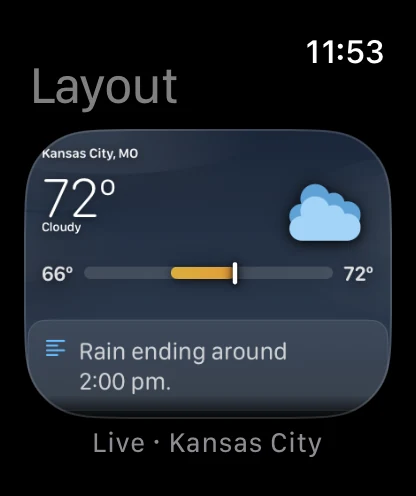
Start from a preset
Three presets set the whole arrangement in one tap:
| Preset | What it gives you |
|---|---|
| Glance | Now and next — a compact header, the hours and the week. |
| Balanced | The usual: the default arrangement. |
| Everything | Every section turned on. |
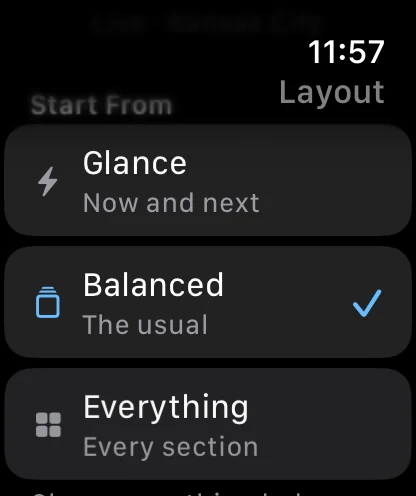
A preset isn't a mode you stay in. It just writes the settings, so as soon as you change anything afterwards the label reads Custom.
Show, hide and reorder
The Sections list holds every section. The eye on the left shows or hides it; the chevrons on the right move it up or down. At least one section always stays visible, so the last one's toggle is disabled.
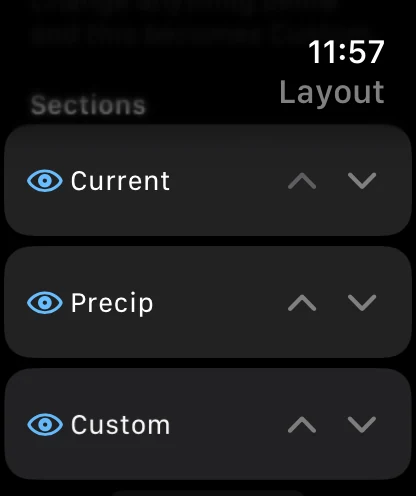
Hiding a section is remembered separately from the order, so a section you hide stays hidden even if a future version adds new sections to the list. Sections that are conditional — Precipitation, alerts — still only appear when there is something to show, even when they're switched on.
Per-section options
Below the list, each section that has choices carries them:
| Section | Options | Default |
|---|---|---|
| Header | Sky, Still Sky, Compact | Sky |
| Hourly | Style: Plain, Curve or Chart; 12, 24 or 48 hours; which data point shows under each hour | Plain; 12 hours; Precip Chance |
| Charts | Buttons: Icons or Labels | Icons |
| Week Ahead | 5 days or all days; precipitation column on or off | All days; column on |
| Data Points | Which tiles, in what order; Tiles or Compact Rows | The standard eleven; Tiles |
| Custom Data Points | On or off; the three readings | Off; Wind Speed, UV Index, Cloud Cover |
| Alerts | Hide severe weather alerts on the watch | Off (alerts shown) |
Choosing your tiles
Data Points → Tiles lists all seventeen readings a tile can show — Temperature, Feels Like, Heat Index, Wind Chill, Humidity, Dew Point, Precip Chance, Cloud Cover, Wind, Wind Direction, UV Index, Pressure, Visibility, Moon Phase, Air Quality (Gold), Tides (Gold) and Pollen (Gold). Tick the ones you want and use the chevrons to order them.
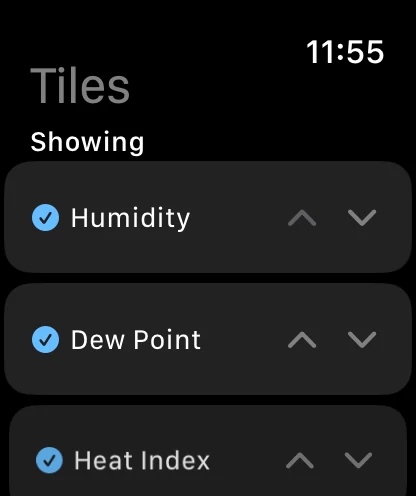
The three Gold readings drop out of the grid rather than showing a blank when they can't be drawn: Tides also needs a location the tide data covers, and Pollen is a United States reading that isn't always reported.
Watch Layout on your iPhone
Open Settings → Watch → Watch App → Customize on your iPhone and you get Watch Layout — the same settings as the watch, with a much bigger preview.
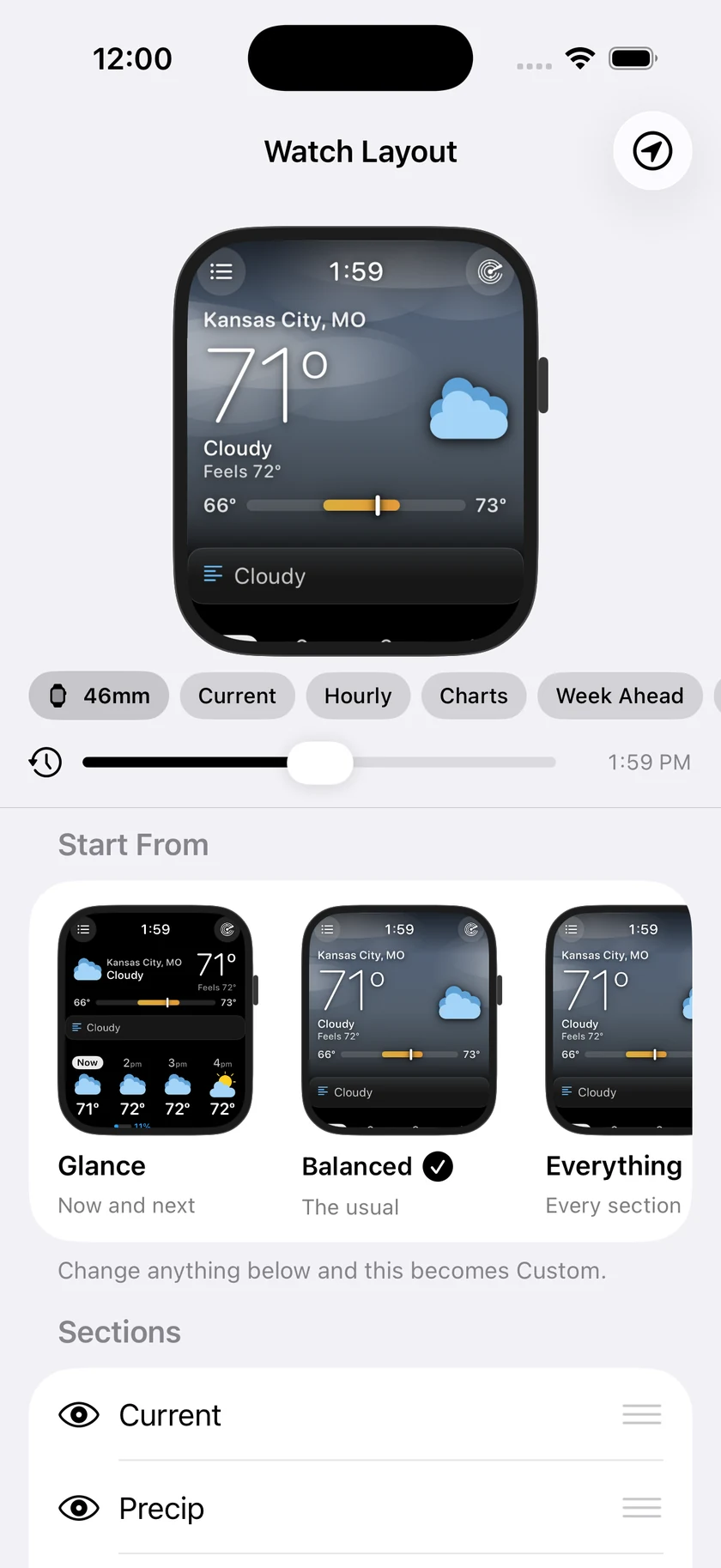
The watch pinned at the top is running the real watch main screen with your own weather in it, so every change you make below is immediately visible. Under it:
- A size chip switches the preview between 46mm and 40mm, so you can check the small screen.
- Section chips jump the preview to a section.
- A timeline runs midnight to midnight in five-minute steps, with a Now button to snap back. Drag it and the day runs forward: the sky moves from dawn through blue to gold to stars, the sunrise and sunset cells slide along the hourly strip, the sun travels its arc, and the temperature follows the hourly forecast.
- A data source menu chooses between My Weather — your current location's forecast — and Sample Day, a fixed day with morning fog, an afternoon storm and a clear night, so you can scrub through every state the screen can be in.
- Start From cards preview each preset using your own weather before you commit to one.
- One list both reorders and shows or hides sections, with the per-section options below it — including the Hourly → Style and Charts → Buttons rows, so the hourly strip and the chart buttons can be set from the phone as well as the watch.
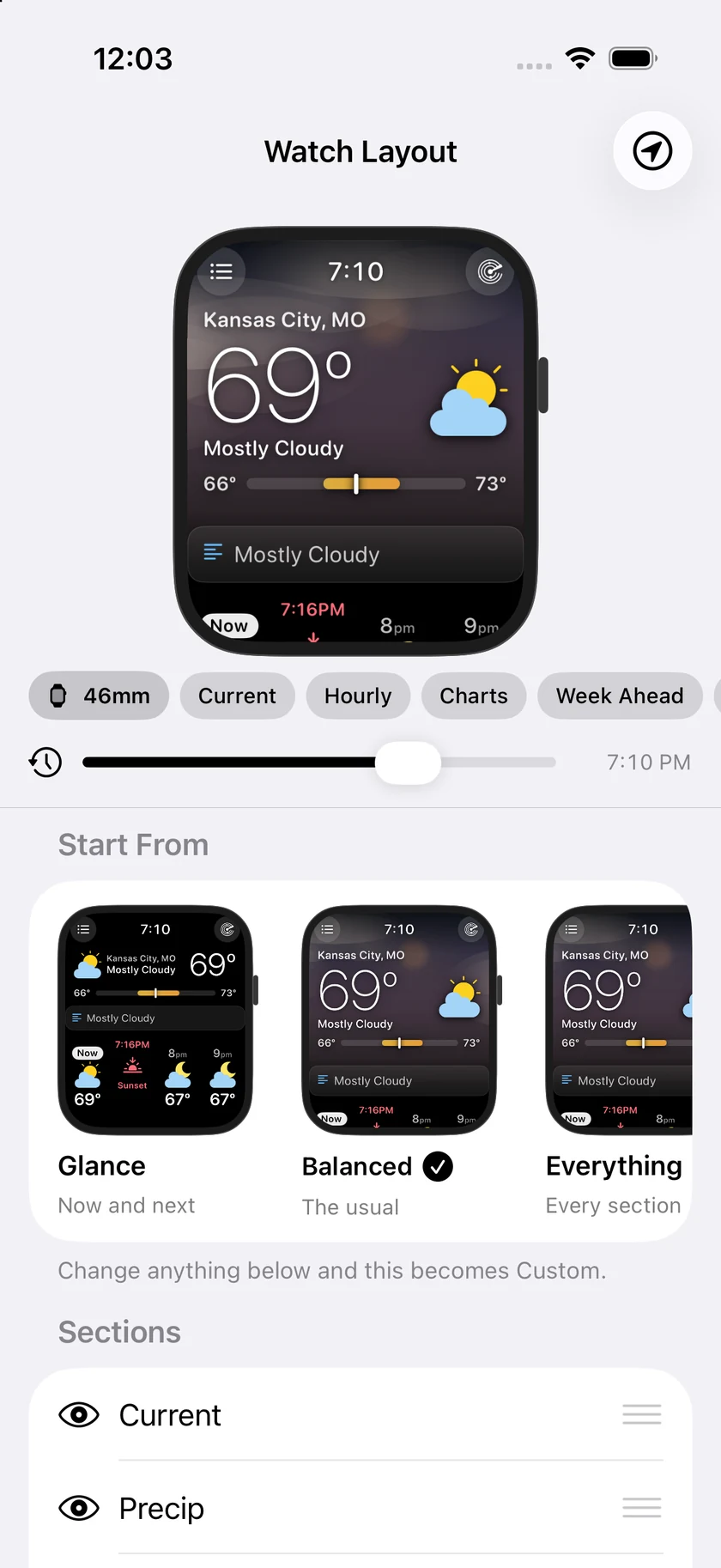
Settings travel between the two devices on their own, in both directions — there is nothing to press on either one. If they're out of range, the change is waiting the next time they connect.
Note: if one of your devices is still on a version of Forecast Bar older than 11.7, it doesn't know about the Sun & Moon and Wind sections and will drop them from the order it sends. The newer device puts them back after Week Ahead, which can lose a custom position for those two. Anything you've hidden stays hidden. Updating both devices settles it.
After an update, add your complications back once
If your complications vanished from your watch faces after an update, the watch app shows an Add your complications back card on the main screen with the steps, and a Done button to dismiss it. Your iPhone shows a matching one-line banner. This is a one-time step and nothing was lost — the full explanation is under Complications.
When the weather won't load
If a fetch fails and there is no forecast under 10 minutes old to keep on screen, the watch shows a short error screen — a warning triangle, a heading such as Failed to get weather data, and a Try Again button that starts the fetch over.
When the cause is one of the outside weather providers rather than your watch, that screen carries two extra things. The message underneath the heading is the explanation our servers sent, naming what is actually misbehaving, and a Service Status link appears directly above Try Again. Tapping it opens forecastbar.com/status in the watch's built-in web viewer, where every part of the service and each outside provider is listed with its current state.
During one of these episodes Try Again usually fails again, because nothing on your watch is wrong. The status page is the faster answer. See Weather won't load right now for what to expect while it clears.
Signing in with Apple
Signing in connects the watch to the locations and settings you've synced from your iPhone. Set up sync first in Forecast Bar → Settings → Sync & Alerts on your iPhone (see iPhone Settings), then sign in with Apple on the watch — from the subscription screen or the location-list button. Once signed in, your saved locations appear in the watch's location list and your subscription carries over.
On smaller watches
Everything on this page is designed for a 40mm screen as well as a 46mm one — nothing is truncated and nothing is shrunk to the point of being unreadable.
If the moving sky feels like hard work on an older watch, Settings → Layout & Data Points → Header has Still Sky and Compact, and the Hourly strip's 12-hour setting is lighter than 24 or 48.
